Google First-Party Mode: Step-by-Step Setup Guide + Expert Tips

The conversation around Google First-Party Mode has been picking up steam, and there are good reasons for it. At first glance, it might look like a slightly tweaked version of server-side tracking. However, if you research it, you’ll notice it has its own set of features and advantages that could change how you manage your data collection.
In this guide, we’ll explain the essentials of Google First-Party Mode and show why it has become a hot topic among digital marketers and developers alike. Whether you want to learn about its benefits and potential pitfalls or whether it’s truly the right fit for your business, let’s get you up to speed.
Understanding Google First Party Mode
Imagine requesting Google scripts, such as gtm.js or gtag.js, from your tagging server instead of sending requests directly to Google’s servers, which can ensure data is handled within a first-party context. Sounds intriguing? That’s what Google First Party Mode can offer you.
Even Google is advocating for this shift, reinforcing the importance of first-party data control within its server-side Google Tag Manager interface. This push aligns with the growing industry focus on privacy-first marketing and long-term data durability.
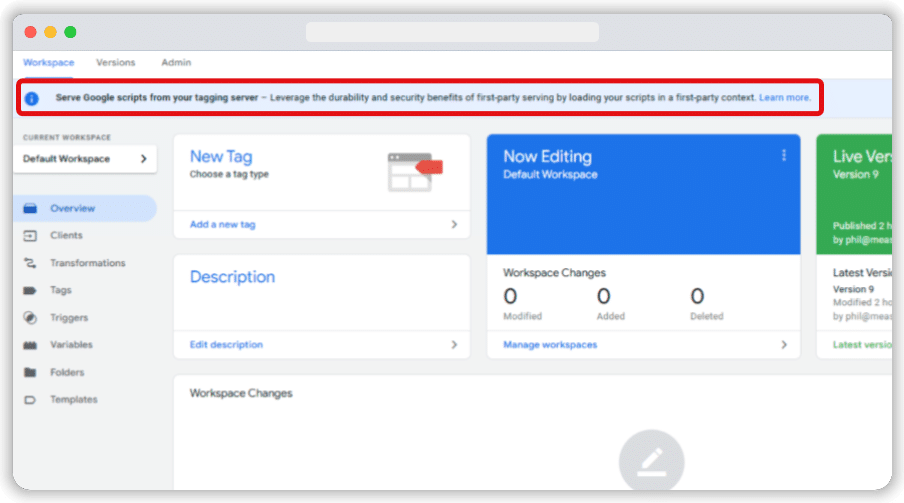
What exactly is Google’s first-party mode?
First-Party Mode is a feature that lets you deploy tags using your domain and infrastructure rather than depending on Google’s domains (such as https://www.googletagmanager.com/). In other words, you’re rerouting measurement requests through your own servers, like your web server, CDN, or load balancer.
It enables webmasters to fully benefit from Google’s tracking services through their infrastructure. Google’s first-party mode is a significant step towards greater privacy and data control since data exchanges happen behind your domain.
Comparing subdomain server-side setup with first-party mode (FPM) reveals how each approach handles data differently and why first-party mode can grant you tighter privacy and control.
How does the first-party mode work?
In First-Party Mode, the tag-loading process begins with a request to a designated path on your own domain (e.g., yourwebsite.com/metrics), not Google’s servers. This approach makes it appear to browsers and users that your site hosts all tracking scripts. Behind the scenes, your infrastructure (typically a CDN or load balancer) handles these requests.
Specifically, you’ll set up your CDN or load balancer to internally route requests from a reserved subfolder (e.g., yourdomain.com/metrics) directly to a Google-provided endpoint (e.g., G-XXXXXX.fps.goog). This configuration means the browser requests the script from a path you control, such as: yourdomain.com/metrics/gtag/js?id=G-XXXXXX. Your infrastructure (CDN or load balancer) then forwards this request to Google’s servers, which deliver the Google scripts.
When a page view, button click, or other event triggers the Google tag, your site intercepts the measurement call again before forwarding it to Google Analytics or Google Ads.
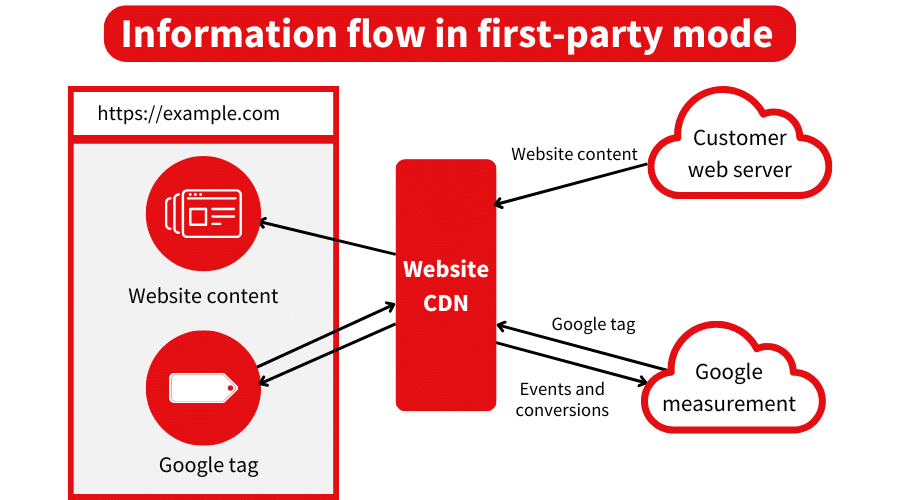
Here’s an example of a GA4 event data flow in First-Party Mode:
- A visitor interacts with your site (e.g., adds an item to the cart).
- The browser fetches Google tags from your reserved path, e.g., yourdomain.com/metrics/gtag/js?id=G-XXXXXX.
- Your infrastructure (CDN/load balancer) forwards this request internally to Google’s servers.
- Google’s servers return the JavaScript file back through your infrastructure to the browser.
- When an event occurs, the tag sends the event payload to yourdomain.com/metrics/g/collect.
- Your infrastructure can modify data (such as removing sensitive headers like Client-IP) before forwarding it to Google Analytics or Ads.
- By interjecting your infrastructure between the user and Google, you’re effectively controlling every data exchange point. This extra “middle step” gives you more oversight of how data is captured, anonymised, or filtered before it reaches Google.
How does subdomain server-side setup work?
Unlike First-Party Mode, which uses a subfolder path on your domain (e.g., yourwebsite.com/metrics), Subdomain server-side tracking handles requests using a custom subdomain. Instead of routing requests to a subfolder, you need to configure a custom domain like gtm.yourdomain.com.
Here’s how it works:
- You create a CNAME record that points your custom subdomain (e.g., load.gtm.yourdomain.com) to Google’s servers (e.g., G-XXXXXX.fps.goog).
- When a visitor lands on your site, the browser fetches Google tags from the custom subdomain (gtm.yourdomain.com) instead of Google’s domains (like googletagmanager.com).
- The custom subdomain acts as an intermediary, forwarding requests to Google’s servers and returning the necessary scripts or data to the browser.
- When an event occurs (e.g., page view or button click), the event payload is sent to the custom subdomain (e.g., gtm.yourdomain.com/collect) before being forwarded to Google Analytics or Ads.
First party or Subdomain Server-Side Tracking: what’s right for your web analytics
First-Party Mode is not exactly a revolutionary concept in data collection. If you already have server-side tracking configured with a custom domain in Server GTM, you’re benefiting from a similar approach to routing and data handling. However, there are still meaningful differences between these methods. Below, we’ll compare the two side by side to see which best aligns with your project or compliance requirements.
| Criteria | First party server-side tracking | Subdomain server-side tracking |
|---|---|---|
| Reduction of Ad Blocker Impact | Potential to reduce blockage, though not foolproof; ad blockers may still detect certain URLs or query parameters. | Typically more robust, as requests are relayed through your server; ad blockers have fewer obvious cues to filter out. |
| Domain Differences | Everything must reside on the same website's domain (e.g., yourwebsite.com/metrics). FPM does not support subdomains. | You can typically use subdomains (e.g., data.yourwebsite.com) for measurement requests, giving you more flexibility in routing. |
| CDNs vs. Data Pipelines | Primarily leverages your CDN (or load balancer) to forward data requests with limited processing before reaching Google. | Focuses on an entire data pipeline, collecting and refining information on your server before distributing it to platforms like Google Analytics. |
| Control Over Data | It allows you to mask or strip some sensitive info but with fewer conditional rules. | It offers higher customization and conditional data handling and can be configured to meet strict privacy mandates. |
| Scaling | Ideal for Google services like Google Analytics 4 or Google Ads only; limited flexibility for multiple marketing platforms. | Highly flexible; can integrate seamlessly with various ad platforms (Meta, TikTok, Snapchat, etc.). |
| Price | It is often more affordable if you don’t set it up using Cloudflare; it retains a mostly web-based GTM flow. | It can require paid hosting services but may be cost-effective at lower request volumes; third-party hosting options (e.g., Stape) can reduce expenses. |
| Implementation Complexity | Setup can be more straightforward if you’re comfortable with DNS configurations and proxies. | More advanced initial setup but generally offers more refined control and expandability once in place. |
Before following this first-party mode setup guide, you’ll need to confirm that your website is already configured with the following:
- A Google Tag or Google Tag Manager container
- An existing content delivery network (CDN) or load balancer can redirect requests to external endpoints.
Google’s official documentation covers thorough instructions for setting it up using Cloudflare, Google Cloud, and other popular CDNs. Here, we’ll break down the setup process, using Cloudflare as our primary example.
Note: If you aren’t comfortable with DNS settings, SSL certificates, and load-balancing configurations, you should collaborate with a developer or Google tag management agency.
Step 1: Decide on your tag-serving path
You must choose a dedicated path on your domain to serve Google Tags as the first step of enabling Google’s first-party mode. For instance, you could use /metrics, /analytics, or any other route that indicates its purpose. Keep a few points in mind:
- The path you pick shouldn’t clash with existing pages or site functionality.
- Avoid using the root path (/) or something excessively long & keep it under 100 characters.
Here’s what we are going to use for this demonstration:
- Our domain: privacy4marketers.com
- Google tag ID: GTM-P4ZVM4SV
- Tag serving path: /analytics
Note: Once configured, all requests to this specific path will be rerouted through your CDN or load balancer. So, choose wisely to avoid unintentionally disrupting other site content.
Step 2: Route your traffic
First-Party Mode requires you to create a new subdomain, define an Origin Rule (or similar mechanism) to forward incoming requests, and possibly configure additional policies such as geolocation or header transformations.
The examples below illustrate how to accomplish this on Cloudflare, which typically requires a paid plan for custom routing rules. If you don’t want to manually add rules and workers, explore Google’s automated Cloudflare setup instead.
Note: Automated setup with Cloudflare is in closed beta. To express your interest, fill out this Google form.
2.1: Create a CNAME entry
Choose a short identifier for the subdomain, e.g., fps. This name isn’t exposed publicly; it’s for your infrastructure’s internal routing only.
- To access DNS settings, Navigate to your Cloudflare DNS dashboard (or the equivalent in another CDN’s control panel).
- Add a new DNS record of:
- Type: CNAME.
- Name: fps (or whichever label you selected).
- Target: Something like GTM-XXXXXX.fps.goog (replace XXXXXX with your actual Tag ID).
- Save changes: Confirm the new CNAME record has been added without error.
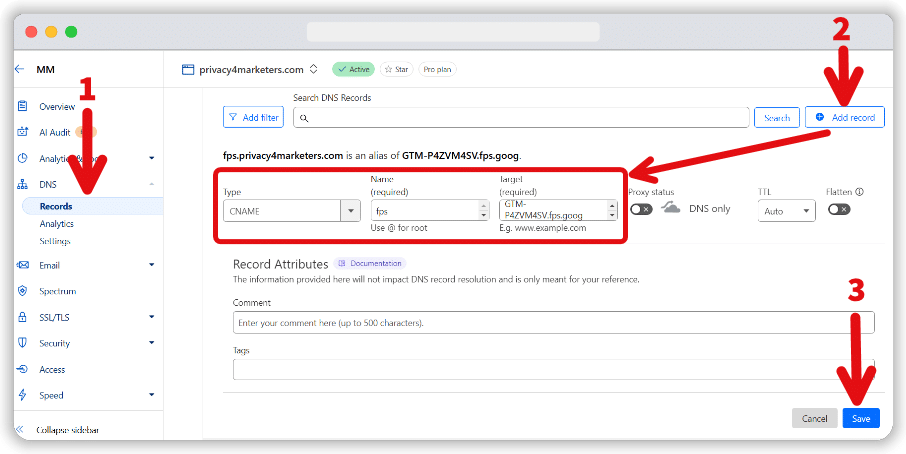
Note: This CNAME won’t be referenced directly by Google Tags. Instead, it acts as an internal reference point for your CDN or load balancer.
2.2: Create an Origin Rule
Next, you’ll set up an Origin Rule to correctly route any request to your chosen path (/analytics, /metrics, etc.) to Google’s servers. In Cloudflare, this typically involves:
- Open Origin Rules: Locate the Rules section in your Cloudflare dashboard and select Origin Rules.
- Create a new rule: Give it a descriptive name (e.g., Route Measurement) to identify the purpose.
- Define match conditions: Set a custom filter expression to check whether the host matches your domain (e.g., yourdomain.com) and whether the requested path begins with your chosen route (e.g., /analytics). In our case, Expression Preview showed this “(http.host eq “privacy4marketers.com” and starts_with(http.request.uri.path, “/analytics”))”; you’ll see a similar for your setup.
- Rewrite host header: Point it to the fps.goog domain corresponding to your Tag ID (e.g., GTM-XXXXXX.fps.goog).
- Override DNS record: Enter the subdomain you used for the CNAME (e.g., fps.yourdomain.com).
- Save and prioritise: Ensure this new rule has the right priority so it runs after any broader or wildcard rules.
- Test your setup: Try visiting yourdomain.com/analytics/healthy in your browser. If everything is correct, you’ll typically see a simple “ok” message.
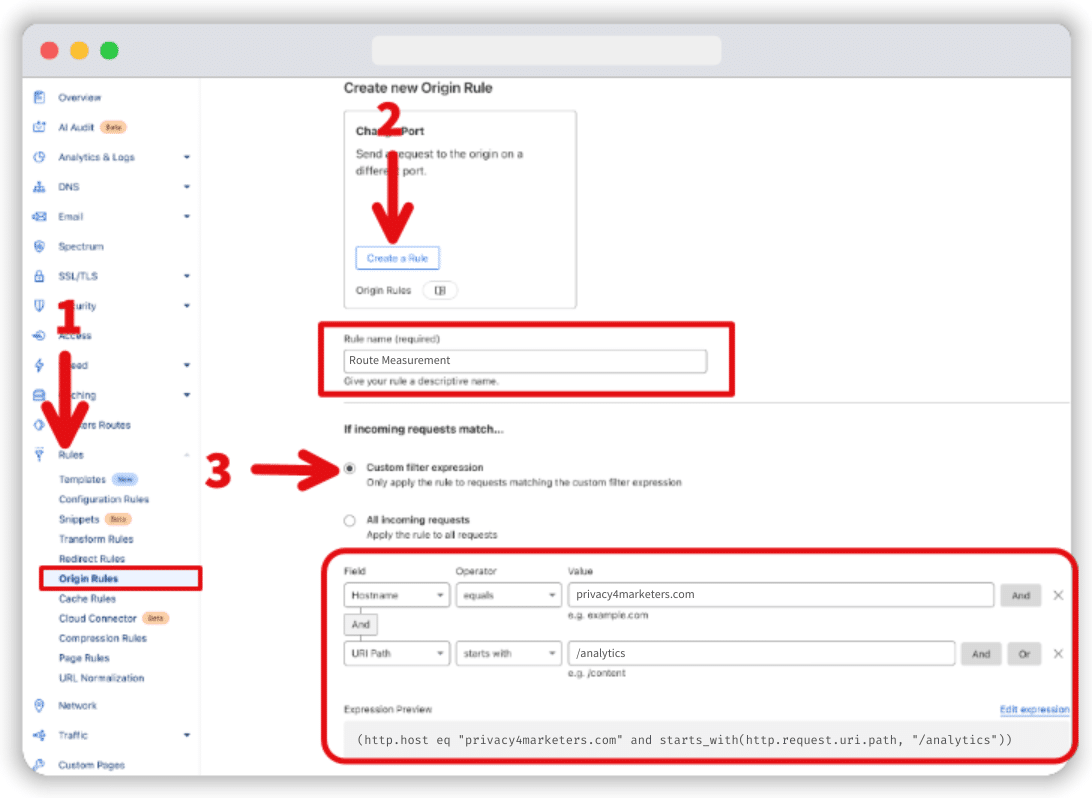
Once this Origin Rule is active, your CDN or load balancer can seamlessly forward relevant requests to Google’s endpoint while still appearing to be served from your domain.
2.3: Include geolocation information
You need to include geolocation information in your requests by modifying request headers in your Cloudflare settings. Follow these steps to configure it correctly:
- Navigate to the Rules tab in your Cloudflare dashboard and open Transform Rules.
- Create a Modify Request Header rule and name it appropriately (e.g., “Geolocation information”).
- Ensure that the rule applies to All incoming requests.
- Modify the following configurations in the Request Header:
- Operator: Choose Set dynamic.
- Header Name: Set it as X-CfIpCountryRegion.
- Value: Assign ip.src.subdivision_1_iso_code.
- Save and deploy your new Transform Rule.
- Allow the rule to propagate for a few minutes. Then, verify its functionality by navigating to https://yourdomain.com/analytics/?validate_geo=healthy. If everything is set up correctly, the page should display an “ok” message.
Note: (Optional) First-party mode works without visitor IPs. You can remove all visitor IP headers using Cloudflare’s Remove Visitor IP Headers Managed Transforms for added privacy.
Step 3: Update your Google tag scripts
The Google Tag is fetched from the googletagmanager.com domain in a standard configuration. However, once you’ve set up First-Party Mode, you’ll need to modify the script references on your site so they point to the new path (e.g., yourdomain.com/analytics) instead of a Google-owned URL. This ensures the tag is delivered from your own domain rather than directly from Google.
We replaced our Tag Manager snippet from the top of the section with the following:
<!-- Google Tag Manager -->
<script>(function(w,d,s,l,i){w[l]=w[l]||[];w[l].push({'gtm.start':
new Date().getTime(),event:'gtm.js'});var f=d.getElementsByTagName(s)[0],
j=d.createElement(s),dl=l!='dataLayer'?'&l='+l:'';j.async=true;j.src=
'/analytics/?id='+i+dl;f.parentNode.insertBefore(j,f);
})(window,document,'script','dataLayer','');</script>
<!-- End Google Tag Manager -->
Step 4: Test the setup
Now that your tag-serving path is defined and your scripts have been updated, it’s time to verify everything works. You can use Google Tag Assistant, Tag Manager Preview Mode, or your browser’s developer tools to ensure requests are routed to your custom path instead of googletagmanager.com.
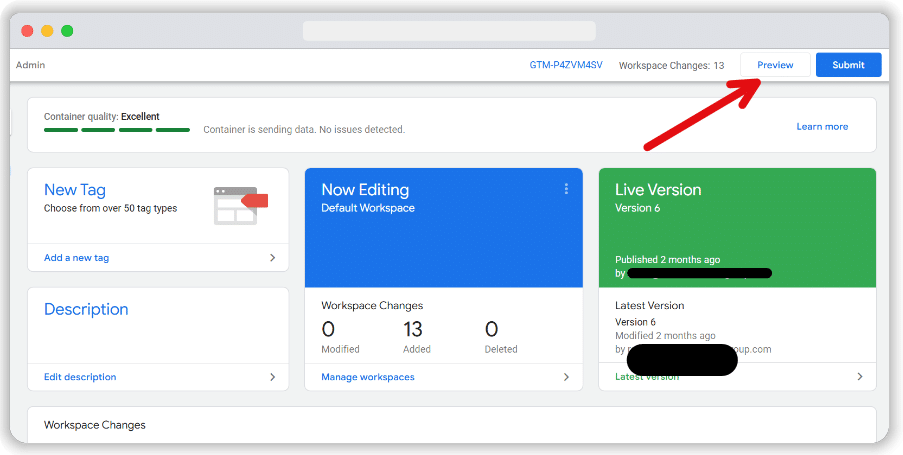
- Open Preview Mode (or Tag Assistant) and navigate through your site.
- Check the network requests or preview console for signs that data is collected through https://yourdomain.com/analytics (or whichever path you chose while setting up).
- Confirm there are no direct calls to googletagmanager.com.
If you see events and pageviews flowing under your domain path, congratulations—you’ve successfully activated First-Party Mode! Test user interactions (like clicking, form submissions, or other triggers) to confirm that data is being recorded properly throughout your site.
Benefits of Google first party mode (FPM)
Using Google First Party Mode offers many benefits, especially for data security and privacy. It helps you manage your data collection better, boosting user trust and ensuring you follow the new data privacy rules.
Bypass Ad blockers
By removing direct calls to googletagmanager.com, First-Party Mode can bypass some ad blockers that rely on domain-based filters. However, blocklists are constantly evolving.
If your new request paths or query parameters still hint at data tracking, such as including /gtm.js or specific IDs, they may eventually be flagged. Unless you fully mask or rename these assets, you risk being blocked in future updates to ad-blocking lists.
Because First-Party Mode treats tracking requests as same-origin, Apple’s WebKit engine (which powers Safari and many iOS browsers) is less likely to cap or purge cookies at shorter intervals.
These requests look like routine site traffic rather than third-party calls, giving your cookies a longer lifespan on Apple devices. However, the data still reaches Google’s servers via your domain, so the benefits aren’t the same as a full server-side implementation.
Strengthening content security policy
Another perk of hosting tags under your domain is the option to tighten your Content Security Policy (CSP). By rerouting traffic away from googletagmanager.com, you can remove external scripts from your CSP allowlist. But remember, the script is still being loaded via your domain instead of Google’s. Thus, while it may reduce direct cross-site scripting concerns, it doesn’t fundamentally eliminate any risk of loading untrusted code.
Conclusion
Google First Party Mode helps keep user privacy safe. It also improves the accuracy of data and the effectiveness of tracking. When businesses use first-party data in their marketing, they can improve their strategies. It’s important to understand Google First Party Mode and how to use it, especially as data privacy rules change. This method helps you follow the rules and also builds trust with users.
Frequently Asked Questions
First-party cookies are set by the website you browse to remember logins, preferences, or cart items. Third-party cookies come from external domains (like ads) to monitor your activity across websites for targeted advertising. Modern browsers like Chrome and Safari block most third-party cookies by default, while first-party cookies remain widely functional.
What is the difference between first-party and same-origin tag management?
There is effectively no difference. Both terms describe situations where analytics requests are sent to the same domain the user is visiting. For example, visiting https://www.yourdomain.com and sending analytics data to https://www.yourdomain.com/metrics/ illustrates both first-party and same-origin tag management.
What is a Load Balancer?
A load balancer distributes your website’s traffic across multiple servers to keep it performing well and to prevent any single server from overloading.
What is a CDN (Content Delivery Network)?
A Content Delivery Network(CDN) is a group of geographically distributed servers that deliver website content faster by serving files from locations closer to users.
What does it mean by CNAME (Canonical Name)?
A CNAME record redirects one domain or subdomain to another, for example, rerouting requests from fps.yourdomain.com to an external service like Google.
What is First-Party Infrastructure?
It’s the technology and systems (like your servers or CDN) that an organisation fully owns or controls. Data passes through this infrastructure in First-Party Mode before reaching external platforms like Google’s server.
What is an Origin Rule?
An Origin Rule guides how incoming traffic is routed—like telling your CDN or load balancer to forward analytics requests to a specific server.
What are Requests?
Requests are actions where a browser asks a server for resources (like web pages or images) or sends data (e.g., form submissions). For example, clicking a link on your site triggers a request to load a new page from the server your website is hosted. At the same time, an installed Google tag sends requests to register a page_view event on Google’s analytics servers.
What is Routing?
Routing is the process of directing data or requests from your domain to an external service. In First-Party Mode, routing ensures requests appear to come from your own site rather than a third-party domain.