Developing Apps/Templates for GTM: Quick Start

GTM templates can provide many useful functionalities. But what exactly is a GTM template? More importantly, you’ll want to know how to use GTM templates to further your goals. Let’s look at both areas in detail.
This is a webinar write-up of Marcus Brandstaetter’s talk at GTM4ward V2. Find his slides here and a YouTube recording of her session below:
What is a GTM template/app?
A GTM template is a reusable code block that can be used to track scripts that can be integrated with pages. Templates can be used for content solutions, ads, and many other useful purposes. Once generated, the code block can be reused by others without additional coding requirements.
The benefits of using GTM templates are wide ranging including:
- Flexibility – They provide full control using GTM’s API (we’ll talk more about this later).
- Reusability – They can be deployed across sites.
- Transparency – Template settings are not hidden in the code.
- Security – Templates run within an encapsulated environment.
- Extend and share – Code can be shared easily via the template library.
Luckily, you get started with GTM templates easily. Basic JavaScript knowledge (unless you are dealing with a complex template) and a GitHub account are all you need to get started.
Initializing a new template
When creating a new template, you have two options. You can ‘Fork’ tags – this involves adding a tag from the gallery and editing it to make it your own. The second option is to start from scratch.
Let’s look at both options.
If you wish to use someone else’s template, you can simply search the gallery for the template you need.
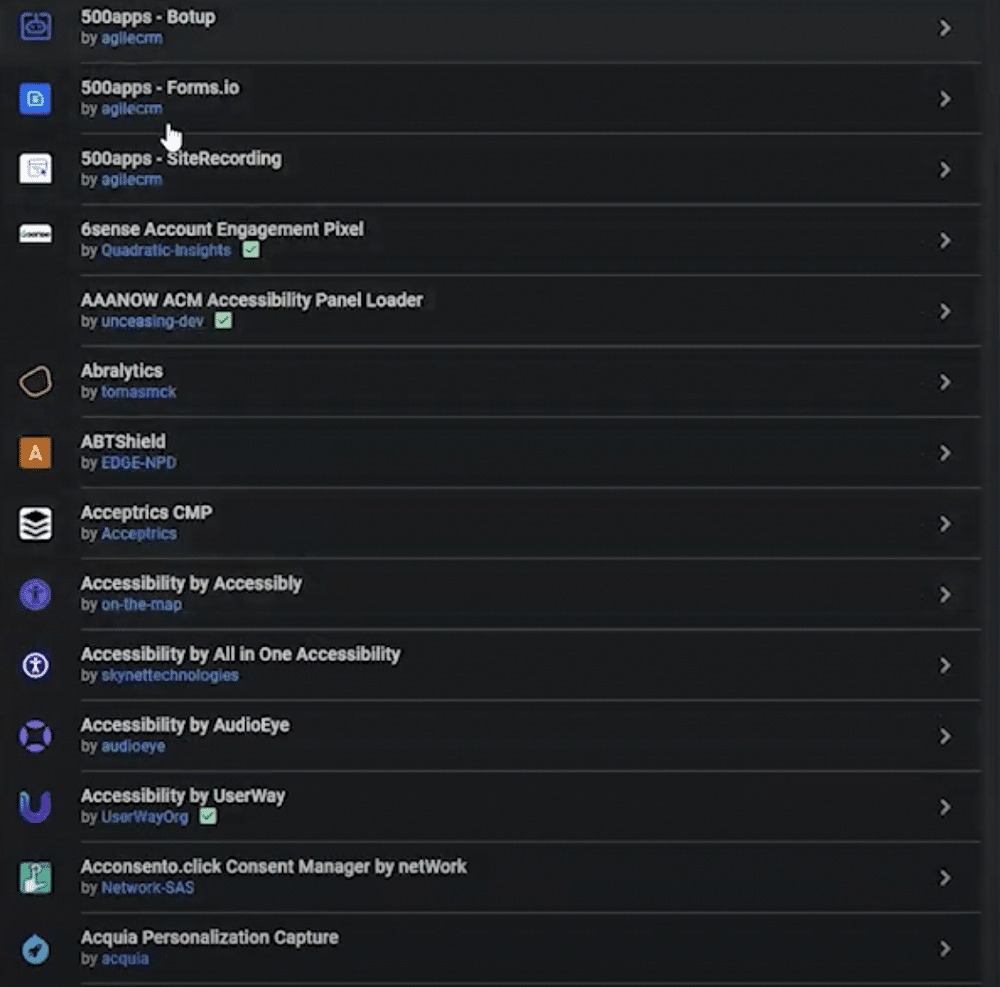
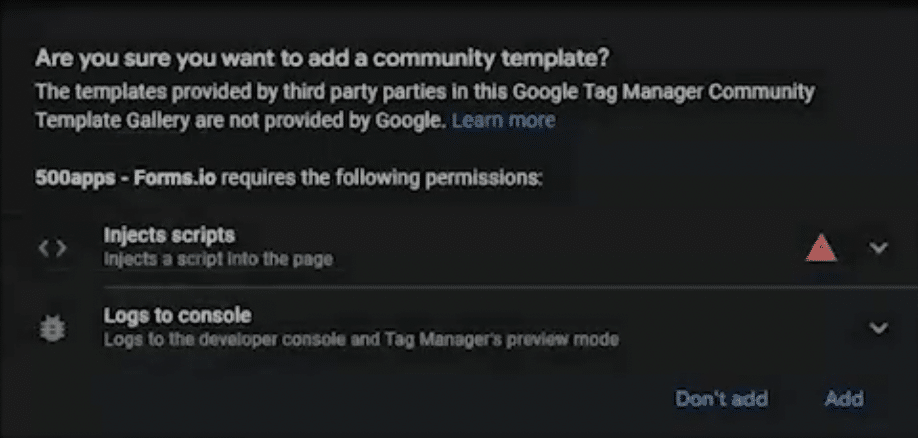
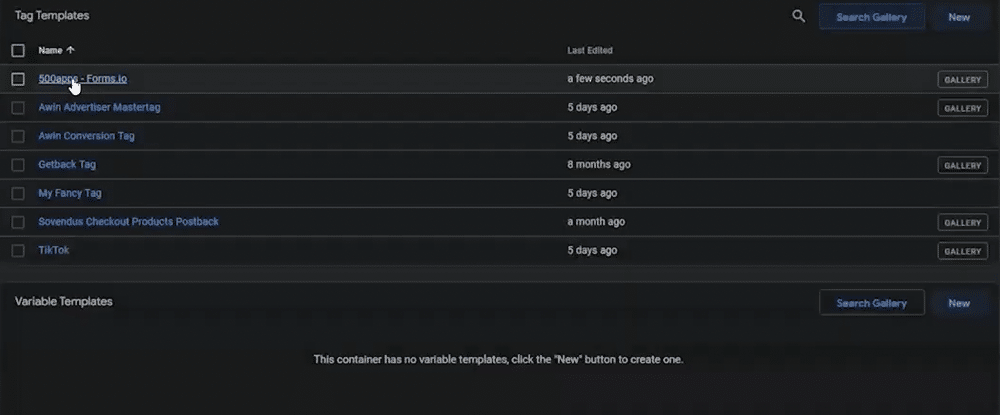
The template will then appear within the ‘Tag Templates’ section of your GTM account. From here, you can add edits and make the template your own. You may also wish to carry out tag diagnostics.
Creating a template from scratch
To create a tag from scratch, simply choose ‘New’ from the Tag Templates page in GTM.
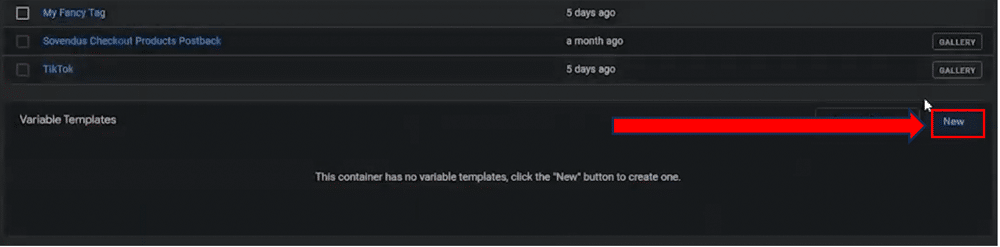
From here, you can populate the template with the necessary fields, code, and other areas of your choosing.
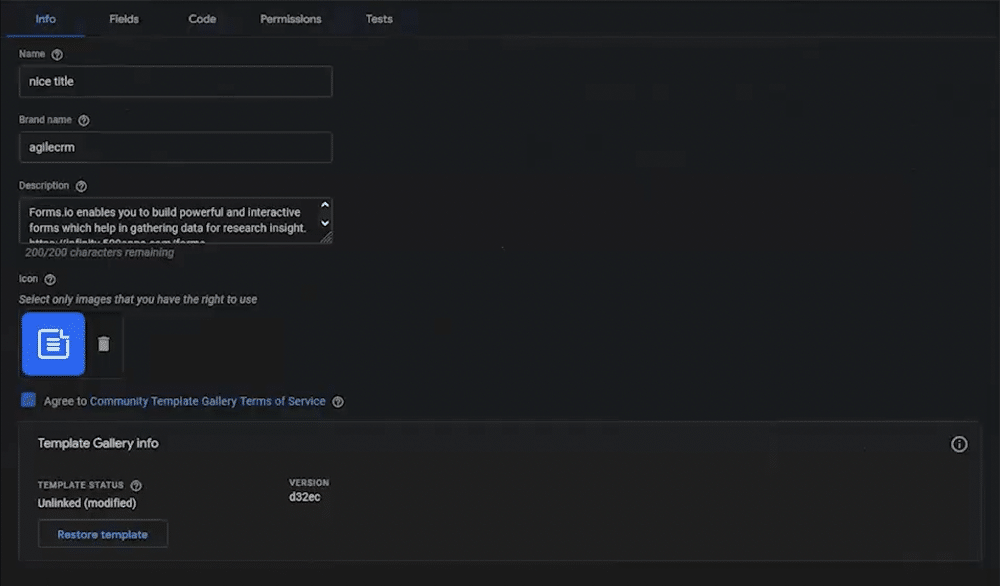
APIs, permissions, and inputs
The code within your templates is a subset of JavaScript. This means that not all JavaScript features are available. Instead, you have APIs that allow you to interact with the page and add functionality.
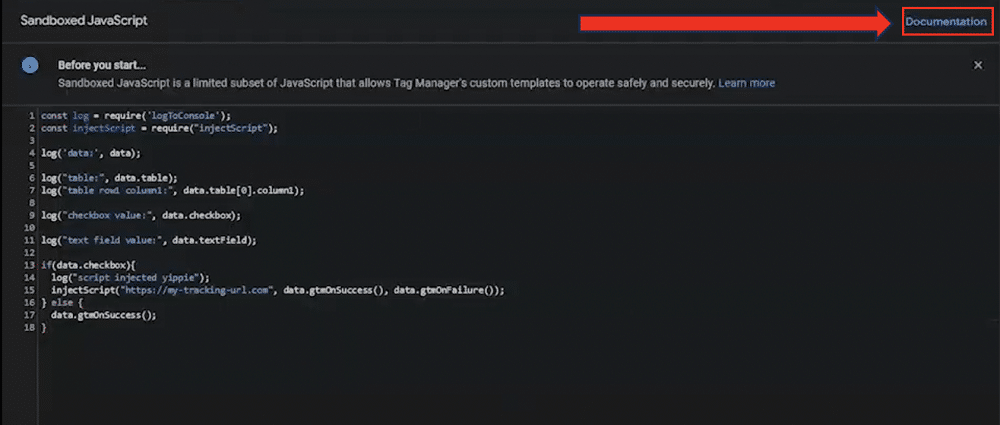
To better understand this form of JavaScript, you can view the documentation by clicking the link from the code section of a template.
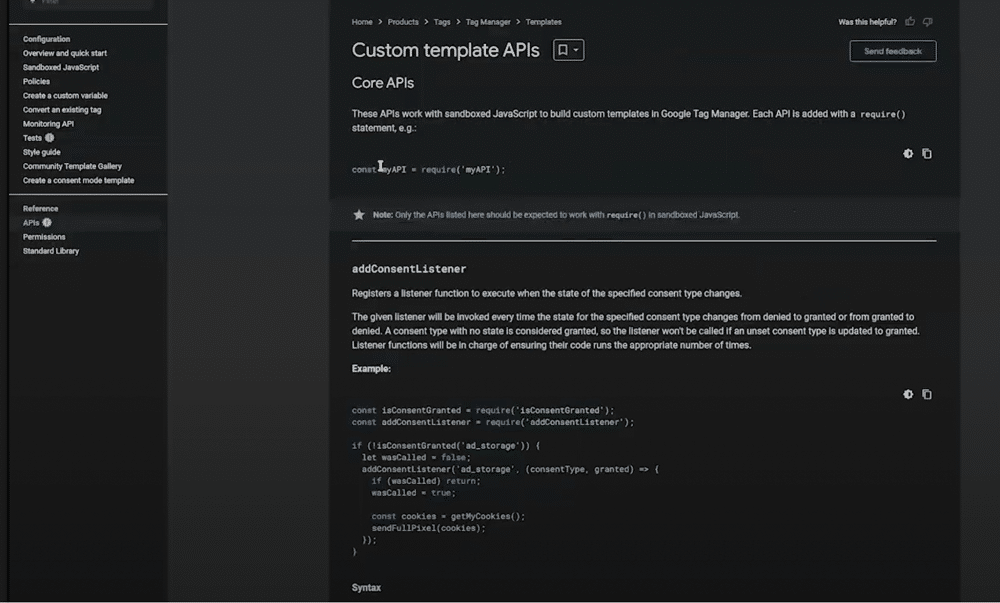
The documentation provides handy information on APIs, Permissions, and the Standard Library. It’s well worth understanding the API features list before creating your templates.
Alongside the API, it’s also useful for understanding permissions. For example, in this test tag (shown below), we have imported injectScript and LogToConsole. Because of this, both permissions have automatically been detected.
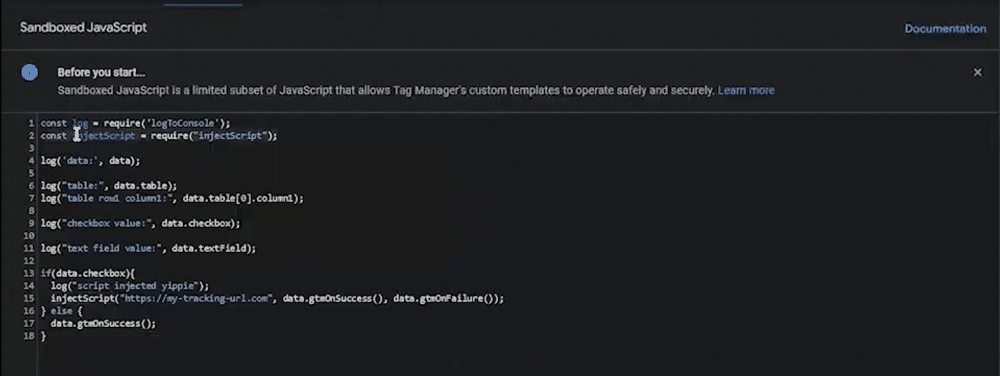
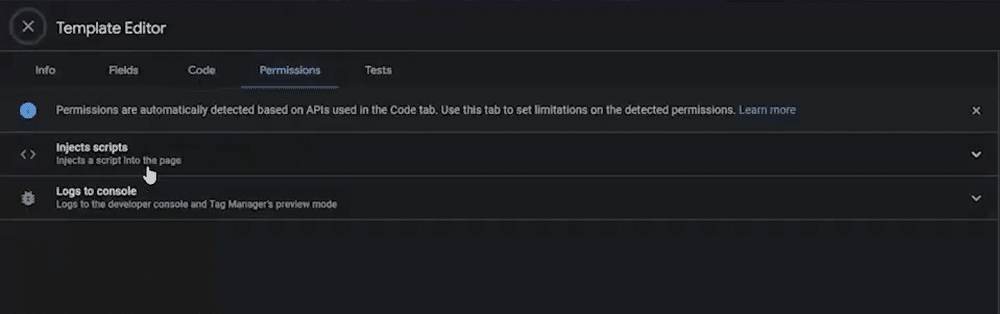
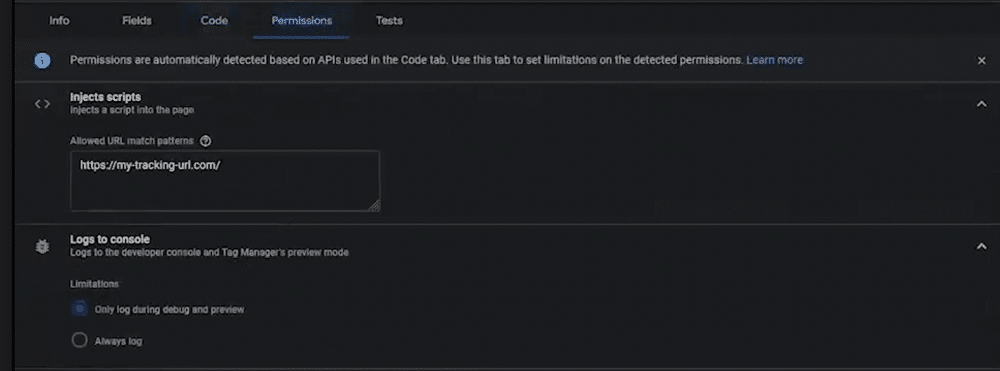
These permissions can be further configured. For instance, with ‘injects scripts’, we can list the scripts that are allowed to be executed. With ‘Logs to console’, we can choose to ‘always log’ or ‘only log during debug and preview’.
Lastly, we have the user input field. This allows users to create custom code blocks and parse static or dynamic data.
These can be set up by heading to the ‘Fields’ section.

From here, users can configure inputs however they’d like. They can add text fields, validation rules, value hints, tables, and other useful inputs.
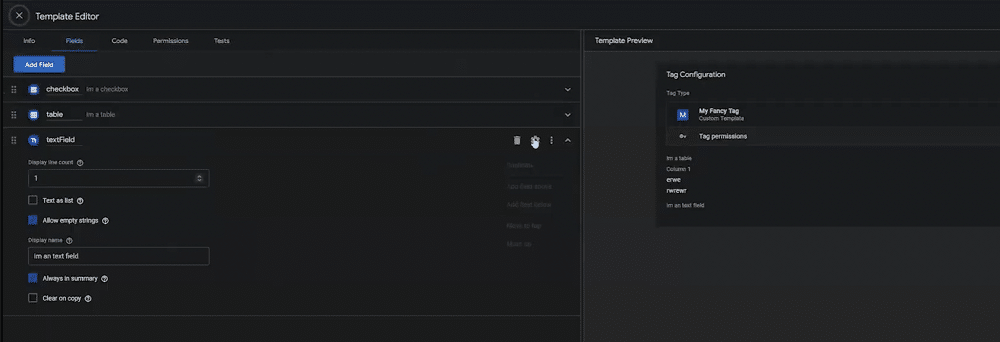
Let’s add a table to our template. We’ll create a table with simple values (shown in the screenshot below).
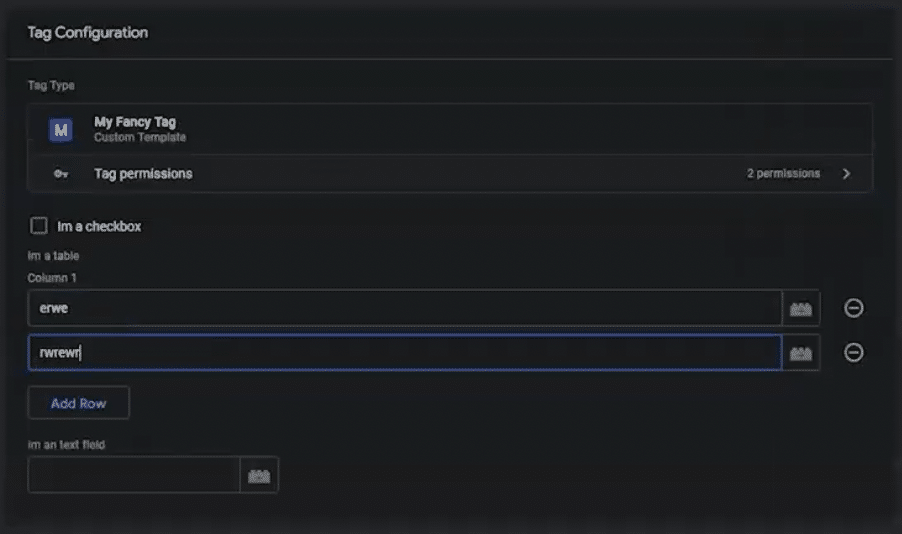
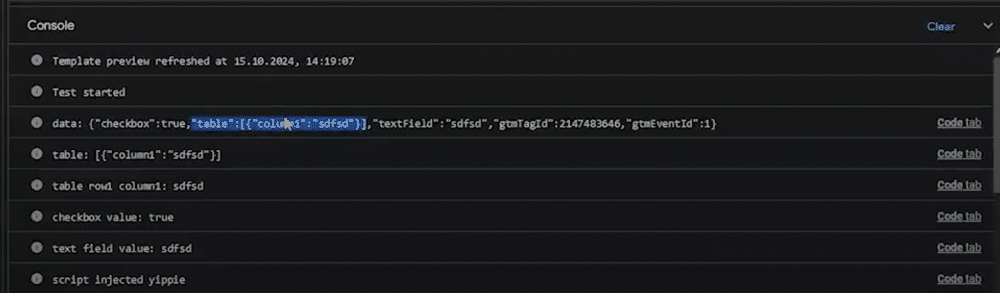
Because of the ‘logs to console’ command, information about this input now appears in the console. We can see that a table containing checkboxes, columns, and text fields has been added successfully.
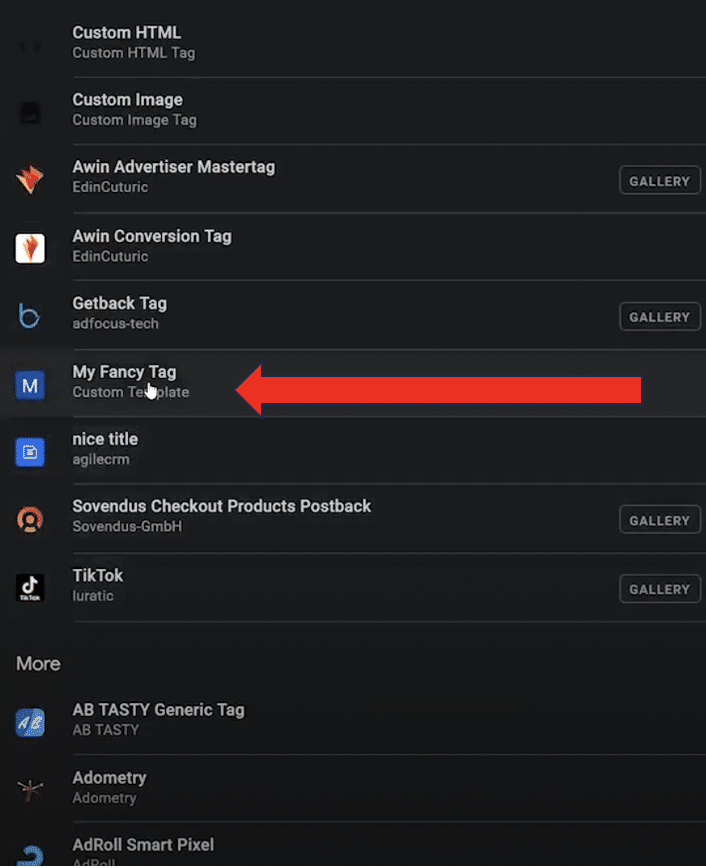
Once a tag is created, it can be easily used within your GTM account. You simply should create a new tag and select your template from the list.
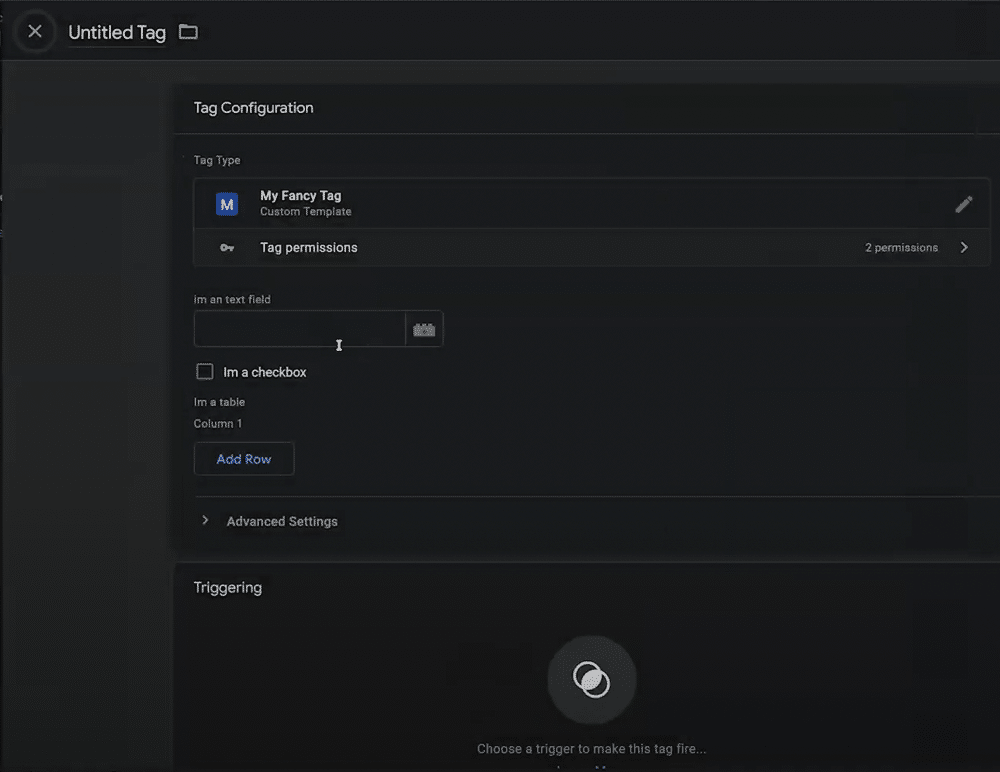
You can then set up your new tag with a name and triggers. After that, you’re ready to go.
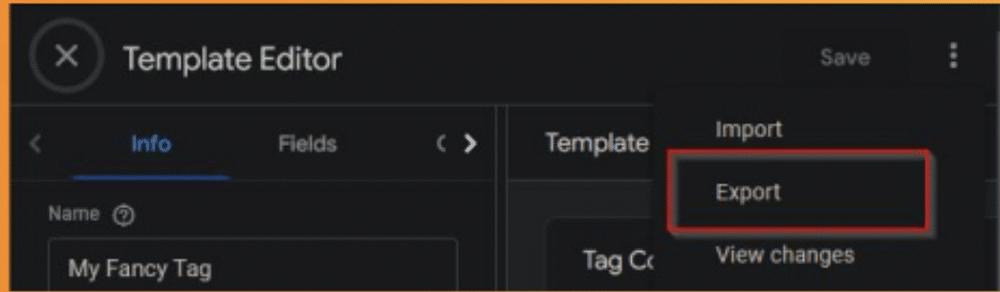
If you’d like to share your tag in the template store, choose ‘Export’ from the template editor.
You’ll need an empty GitHub repository to store your export. Within this, you’ll need to input two elements: a ‘metadata.yaml’ file and your template, The template must be renamed to ‘template.tpl’ or your export will not work.
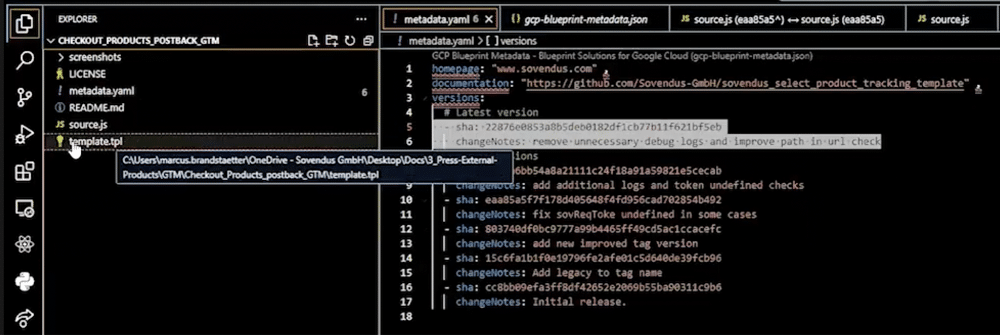
Once these steps are complete, you can publish your tag to the template store.
Tag examples
Now, let’s explore some tag examples that can be created when initiating a template.
To join the Awin affiliate network, users must deploy a master tag script. This is a straightforward tag that parses an affiliate ID to the Awin server. JavaScript containing ID from the server is then injected onto a webpage, enabling Awin to track transactions in real-time.

This tag is an extremely effective approach, loading an external script that works platform independently. Scripts can be pasted on any page, regardless of framework or tag management solution.
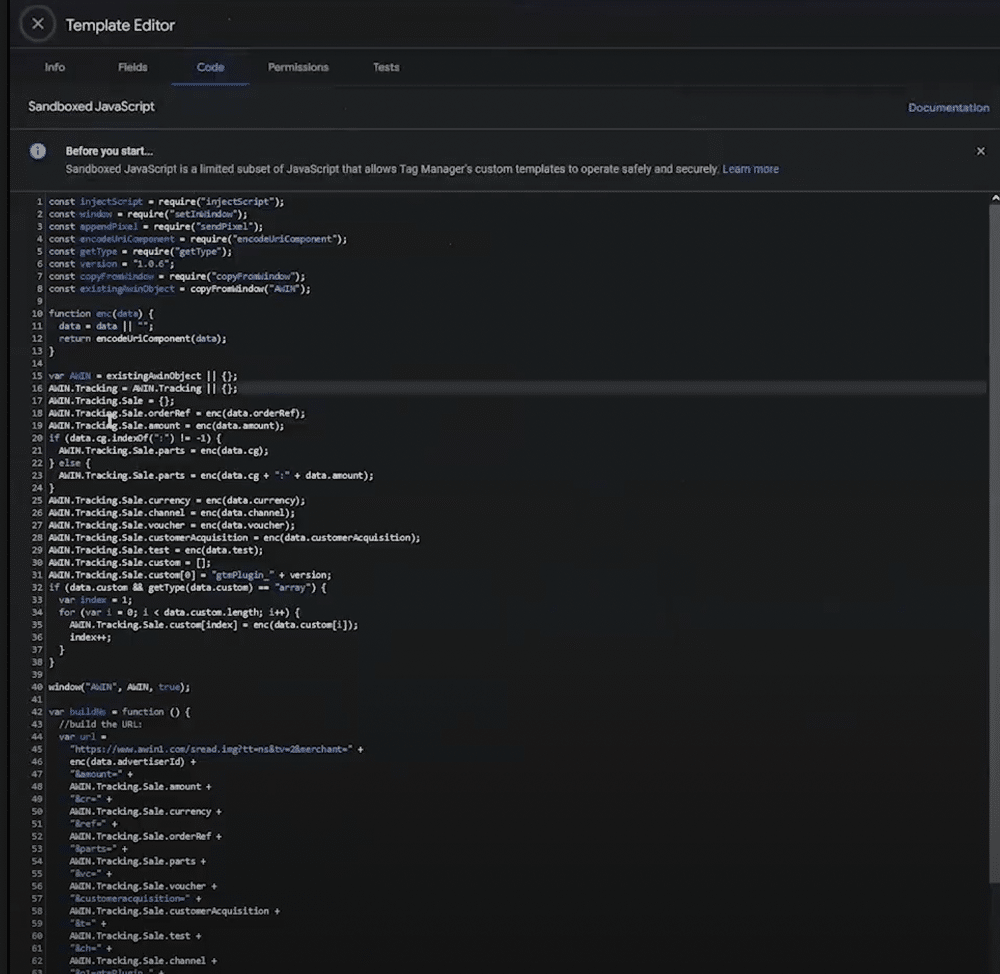
Another example of an Awin advertising tag is the ‘Awin Conversion Tag’. This is placed on the confirmation page after a customer places an order.
In this example, we set a couple of objects containing order information from Awin.Tracking.Sale. Order data is then added before assigning the Awin.Tracking.Sale variable to Window.Awin. Lastly, the tracking pixel is executed as a fallback solution.
Sovendus tag
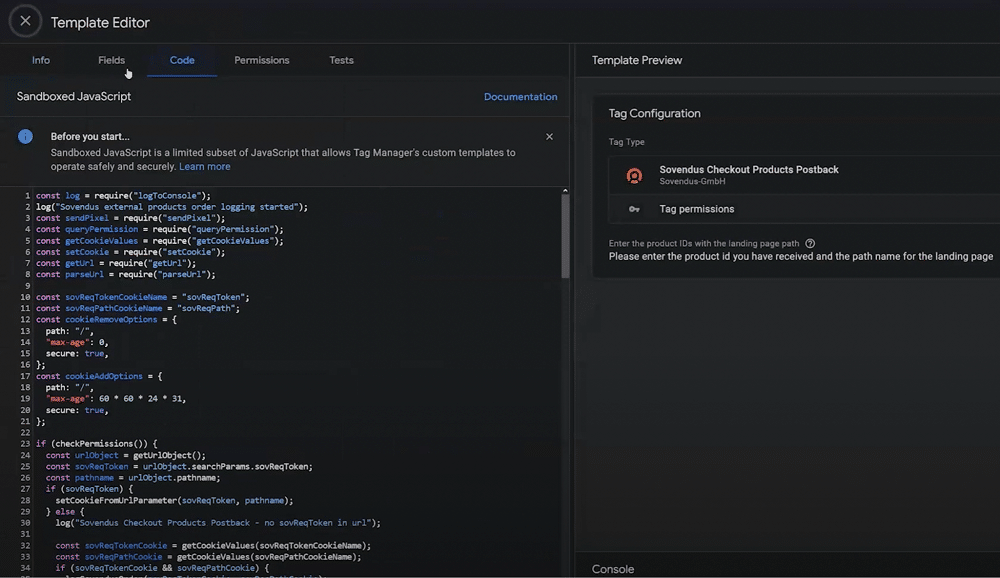
Sovendus is a marketing network. The company enables businesses to share links to their products at the checkout pages of other network members. This tag allows users to register when a conversion can be attributed to Sovendus.
This tag grabs a key from the URL parameter. This is then stored within a cookie (unless a cookie is already stored, in which case a tracking pixel is executed). The tag is fired on both the landing page and the order success page, sending a successful conversion call to the API.
Start developing your templates!
Hopefully, you now understand the many benefits of GTM templates. What’s more, you should have an idea of how you can build your templates within GTM. So, why not start experimenting and see what you can come up with?
About Marcus Brandstaetter
Marcus Brandstaetter is a developer at Sovendus, specialising in plugins for GTM, Shopify, Magento, React, and Flutter. He maintains the integration tester plugin, supports partners, and manages the Developer Hub platform and documentation. In his free time, Marcus works on an open-source AI trading bot and builds apps and websites.