Consent Mode Best Practices: GTM Study of 1,000 Websites

MeasureMinds recently conducted a study of the top 1,000 tech spending websites. Our goal was to understand the approach of high spenders to consent and tag management. Here, we’ll explore our findings and provide some tips to help you avoid common Consent Mode mistakes.
Here’s a video where we covered all the learning from our study on the top 1000 UK websites:
Our hypothesis: bigger = better
The premise is that bigger, more established sites will have a better idea of how to manage GTM. This is due to several facts:
- Typically, these sites work with agencies and analysts who provide expert help.
- They’ll have higher tech and media spend, resulting in a better GTM container quality.
- They’re often more invested in digital platforms and don’t have offline stores.
- They may work within a more advanced industry (eg, the affiliate sector).
The research process
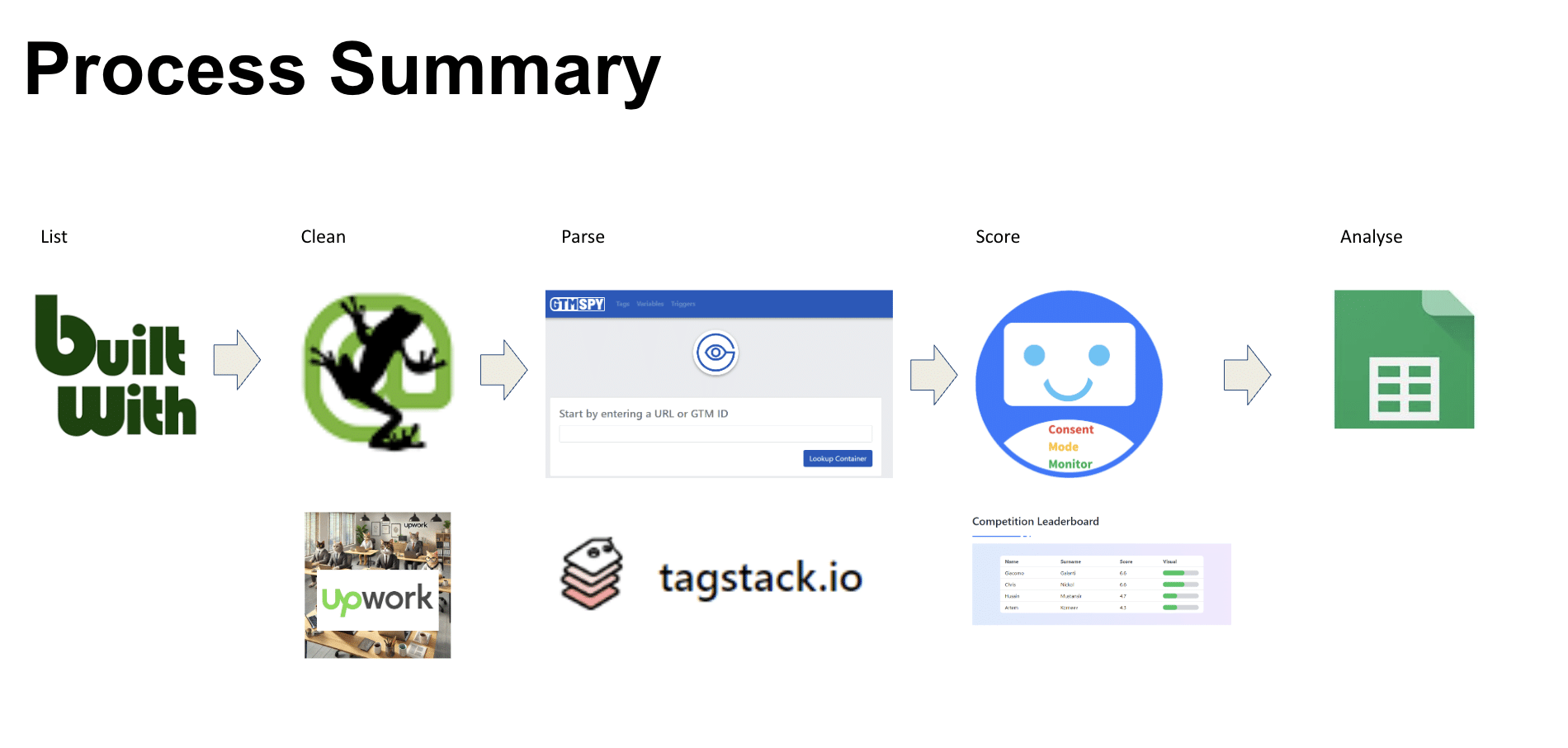
1. Compiling a list of sites
The first stage was to create a list of sites for analysis. MeasureMinds is based in the UK, so we began by looking at British companies (the plan is to repeat this process internationally).
BuiltWith has a useful report covering tech spend in the UK. It provides an average tech spend score for each business, based on the number of paid solutions they use.
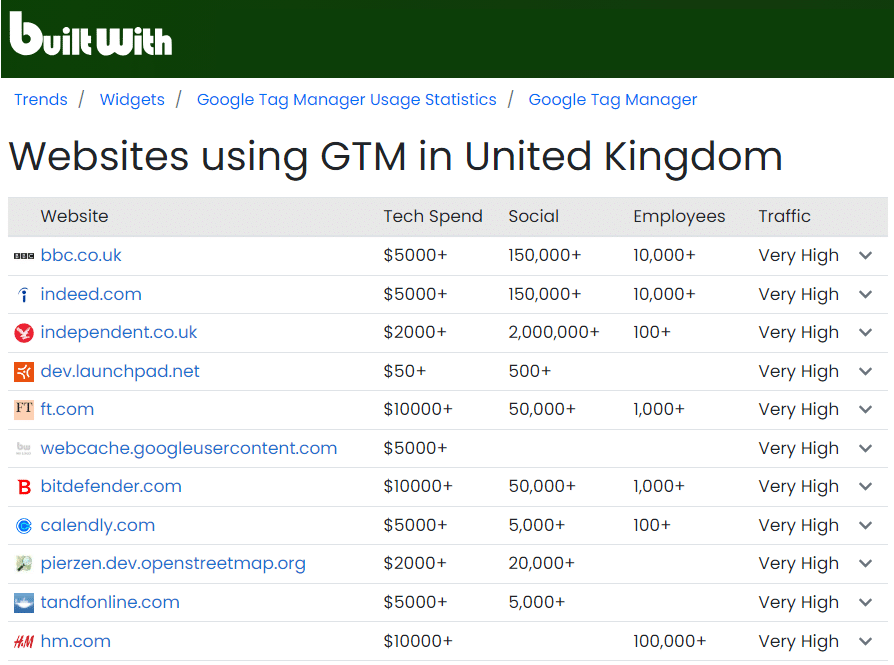
MeasureMinds used the average tech spend across the verticals of different sites (publishing, ecommerce, etc) as a guide. We then applied the following filters to narrow down the list:
- Sites must be based in the UK.
- Sites must have an active GTM account.
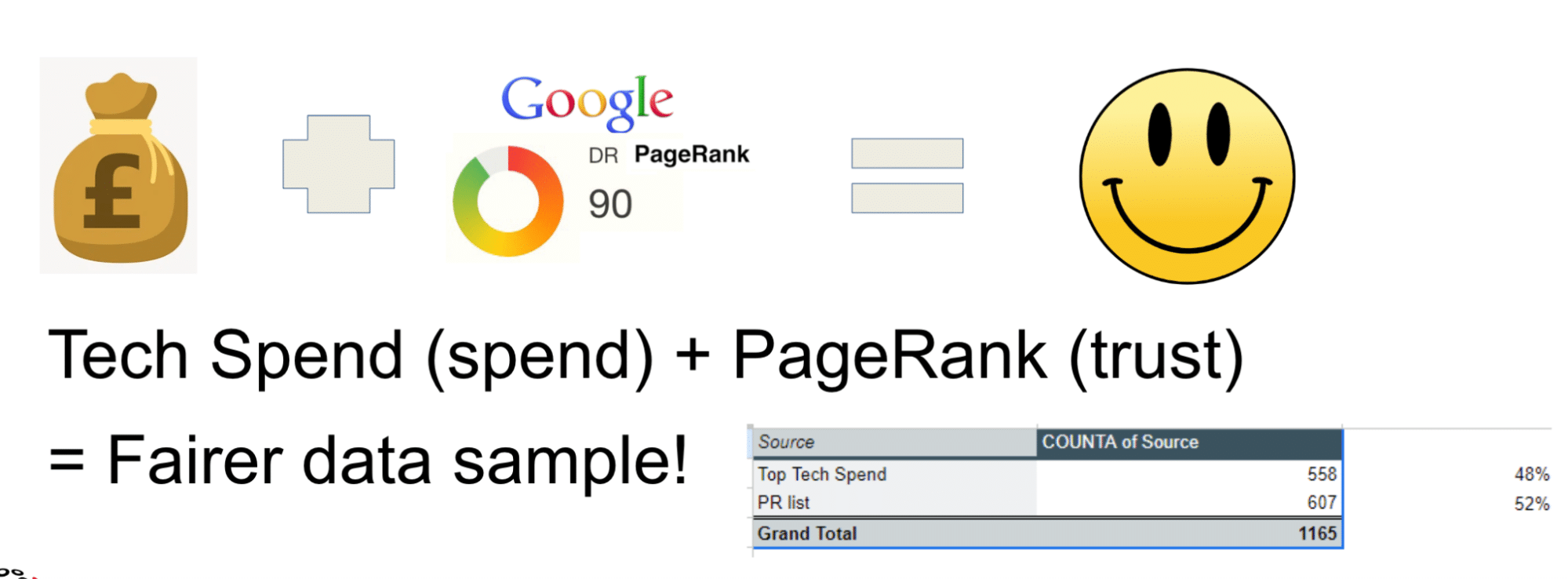
Once these filters were applied, sites were sorted in order of tech spend. We also supplemented this listing by including sites that listed highly based on their page rank.
The goal was to gain more a accurate data selection, taking a combination of spending and popularity. Some sites receive large amounts of traffic but have a low tech spend due to their business model (eg, free publishing sites). These websites needed to be accounted for in our listing.
2. Cleaning the list using Screaming Frog
Screaming Frog is a website crawler that analyses websites and spots SEO issues. In this case, we used the tool to scrape and crawl the homepages of each site on the list.
We used a pattern match to pull up GTM account IDs: [“‘](GTM-.*?)[“‘]. This process might sound simple, but it was tricky in practice. We ran into the following challenges:
- Some sites didn’t have GTM IDs exposed in the header. Some used a plugin such as GTM4drupal, which adds the ID via a third-party bundled file, meaning it wouldn’t be caught via an initial pattern match.
- Some sites provided false positives, as no GTM noscript was present. Some sites also removed GTM but neglected to remove the noscript.
- Some sites incorrectly moved the GTM code inside the cookie banner. GTM needs to run outside of the consent banner to implement Consent Mode.
We needed to parse the homepage to get the default consent.
Luckily, Screaming Frog rolled out the ability to parse JavaScript, meaning we could use the JS rendered mode within the tool. As you can see in the screenshot below, we ran a JavaScript function to identify the GTM injected file name.

This is a more accurate way of detecting the valid GTM account ID. However, it’s still not quite accurate enough. That’s because lots of sites deploy bot detection, meaning tools like Screaming Frog get blocked.
To avoid this issue, we attempted several fixes, including
- Changing the UserAgent from ScreamingFrog to Chrome.
- Using IP proxies.
- Setting cookies as a positive opt-in for all CMPs.
- Various methods for bypassing TLS version and CloudFlare.
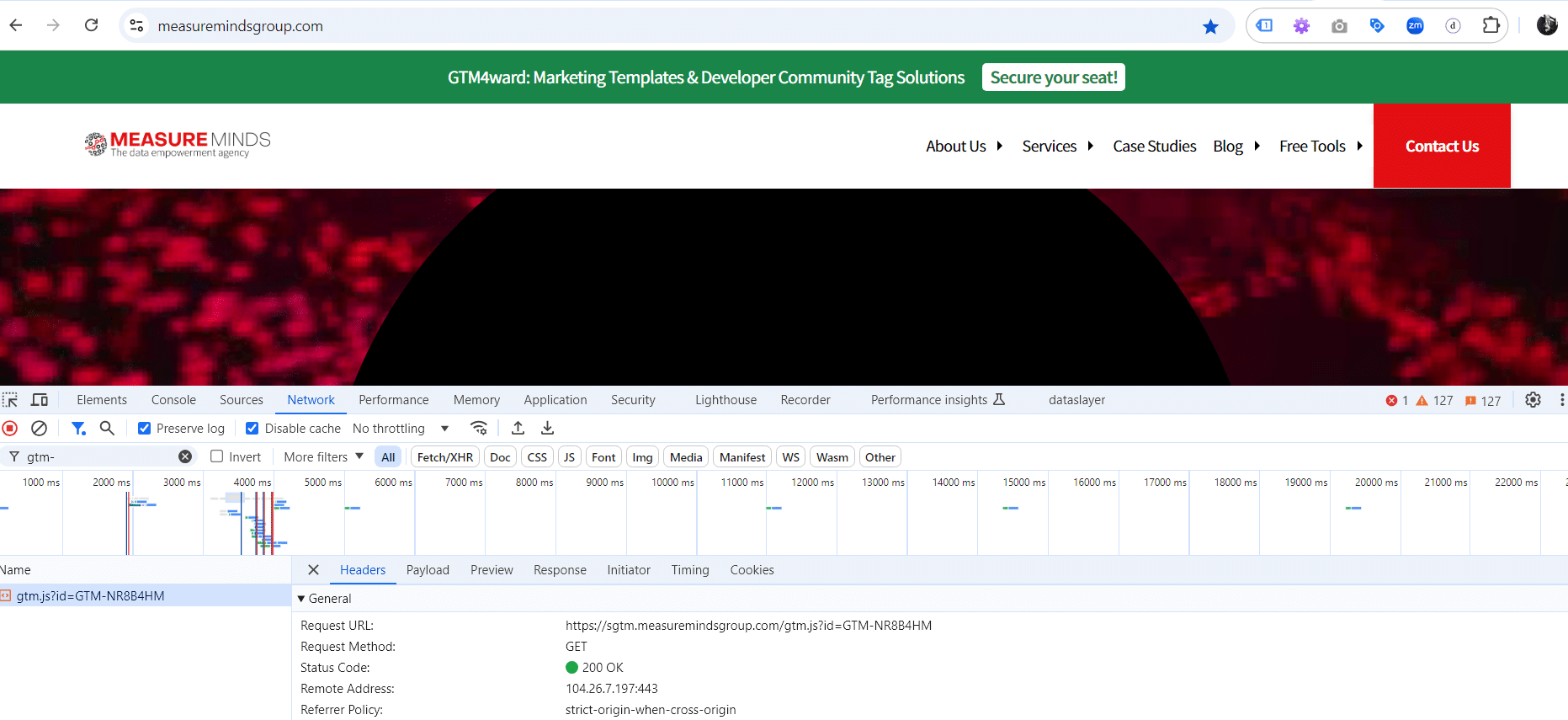
Unfortunately, none of these methods worked. Eventually, we decided to go back to basics. We used UpWork to deploy a team of humans to visit the sites manually and grab the GTM account ID.
3. Narrowing the list from 1300 >> 1165
We now had a comprehensive list of sites, but some had matching IDs, which needed to be deduplicated. Some sites also used the same container across multiple brands. These were removed for simplicity.
4. Container Clusters
We could now begin grouping sites based on the number of tags in their containers. Containers were categorised as ‘Big’, ‘Medium’, ‘Small’, and ‘Dead’.
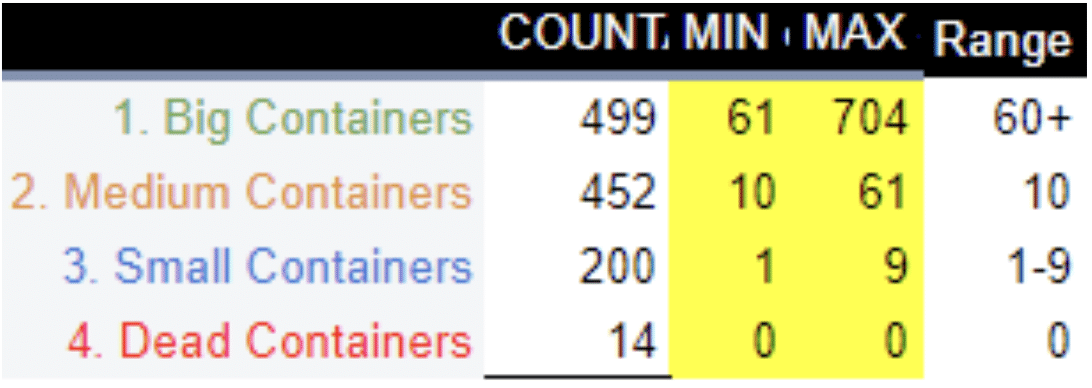
Using this list, we could parse the GTM account using GTM SPY. As GTM Spy is an older tool, it struggled to parse sites that use GA4 and often missed certain tags. As a solution, we deployed Tagstack to deal with larger sites.
Finally, we checked Consent Mode using our Consent Mode Monitor tool to gain a score.
Our findings
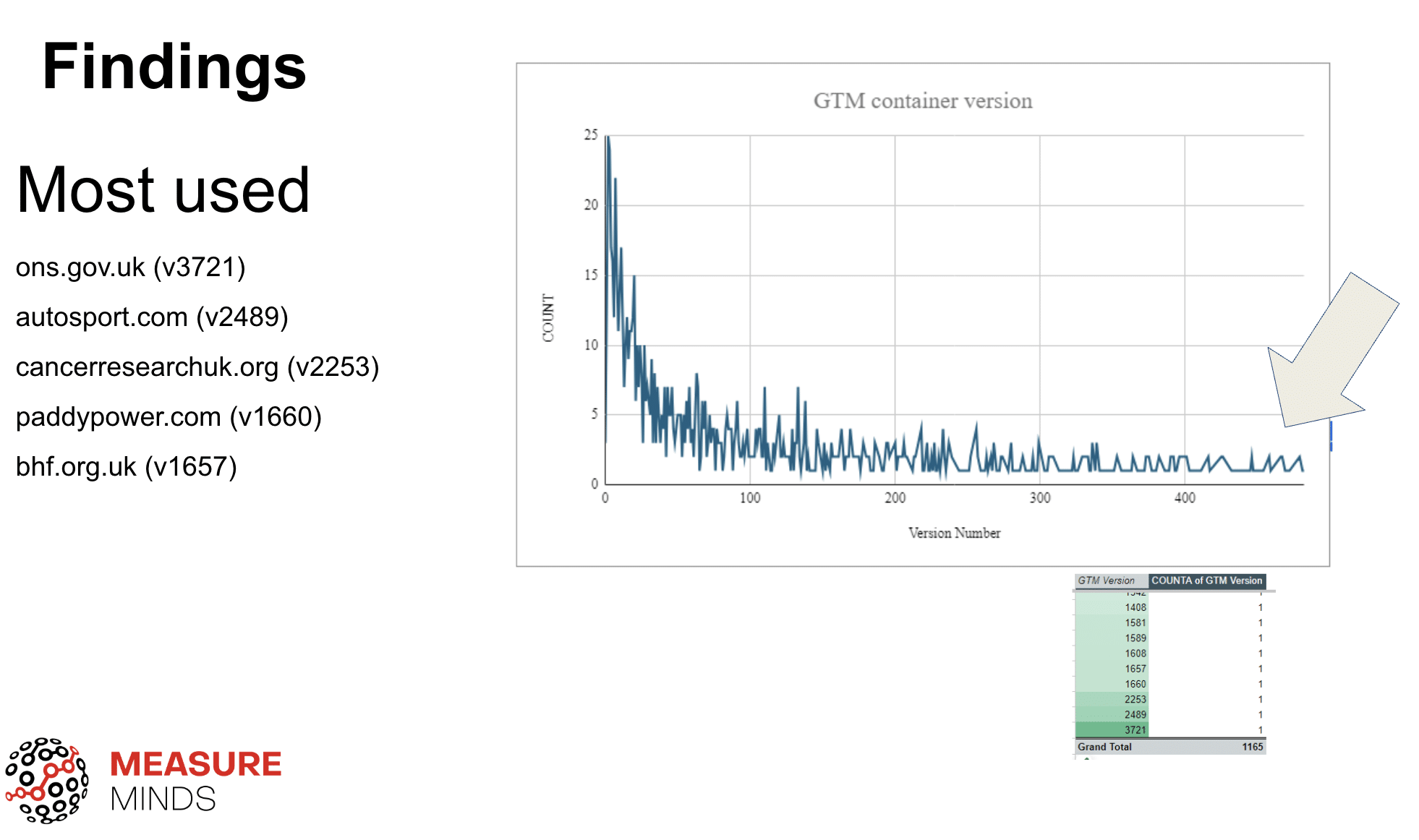
The chart below shows the GTM number associated with different containers. GTM containers start at version one and progress each time you publish a change or create a new version. As you can see from the image below, some sites had a staggeringly high version number.
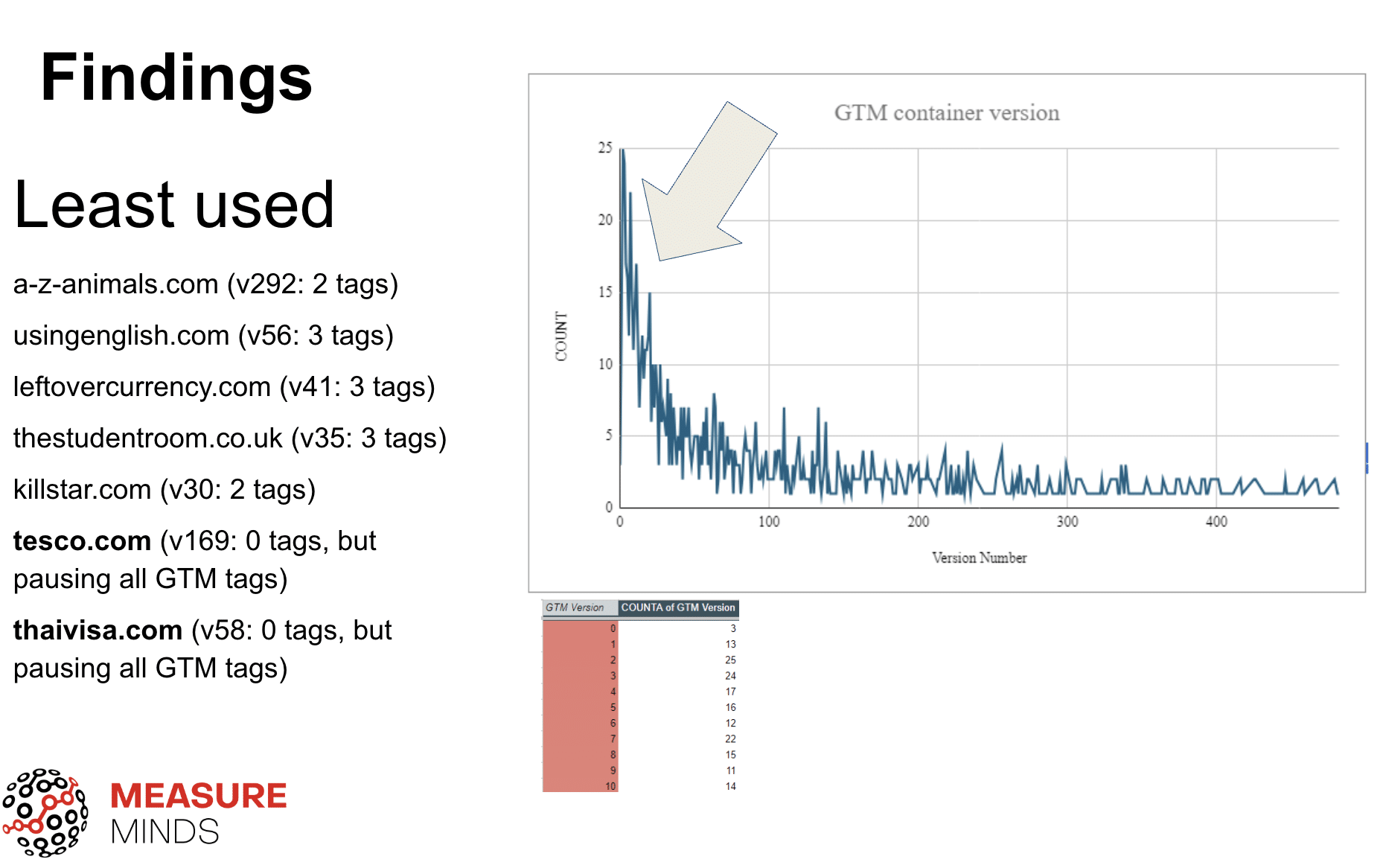
Some sites within the top 1,000, however, produced less impressive results. Below you can see a list of sites deploying an extremely low number of tags. A-Z Animals, for example, used only 2 tags, despite being at version 292. This is likely because
- They are making a large volume of changes within a single tag (bad practice), or
- They aren’t using GTM properly.
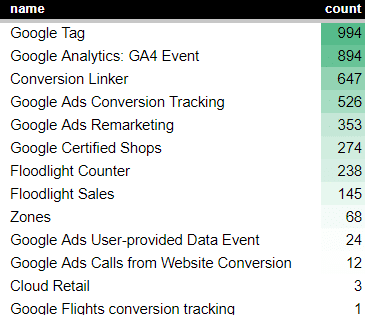
The list of the most popular native tags can be found below. Unsurprisingly, the most popular tag used was the Google Tag.
Some surprising findings were
- The conversion linker tag is used significantly less than the Google Tag – You’d expect to see this tag on most sites, given that it will work more accurately on Safari.
- The Google Ads Conversion Tracking tag is used less than the GA4 Tag – Google Ads conversions are often used as a fallback to GA4 conversions.
Now, let’s look at the list of popular non-Google tags (seen below). This list is based on the blacklisting ID. Every tag added to GTM has a two-to three-digit code; the blacklisting ID uses this code to stop tags from running. We looked for the instances of this ID to identify that native tags were active.
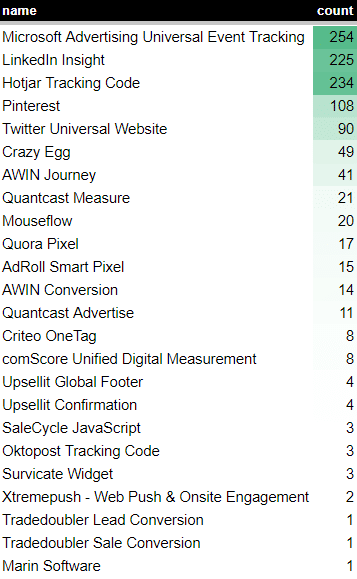
You might notice that the Facebook tag is not included in the above list. This is because the tag is not native – There’s no way we can pull out the Facebook tag ID in the standardised crawl. We may do another parse in future to pick up common JavaScript files.
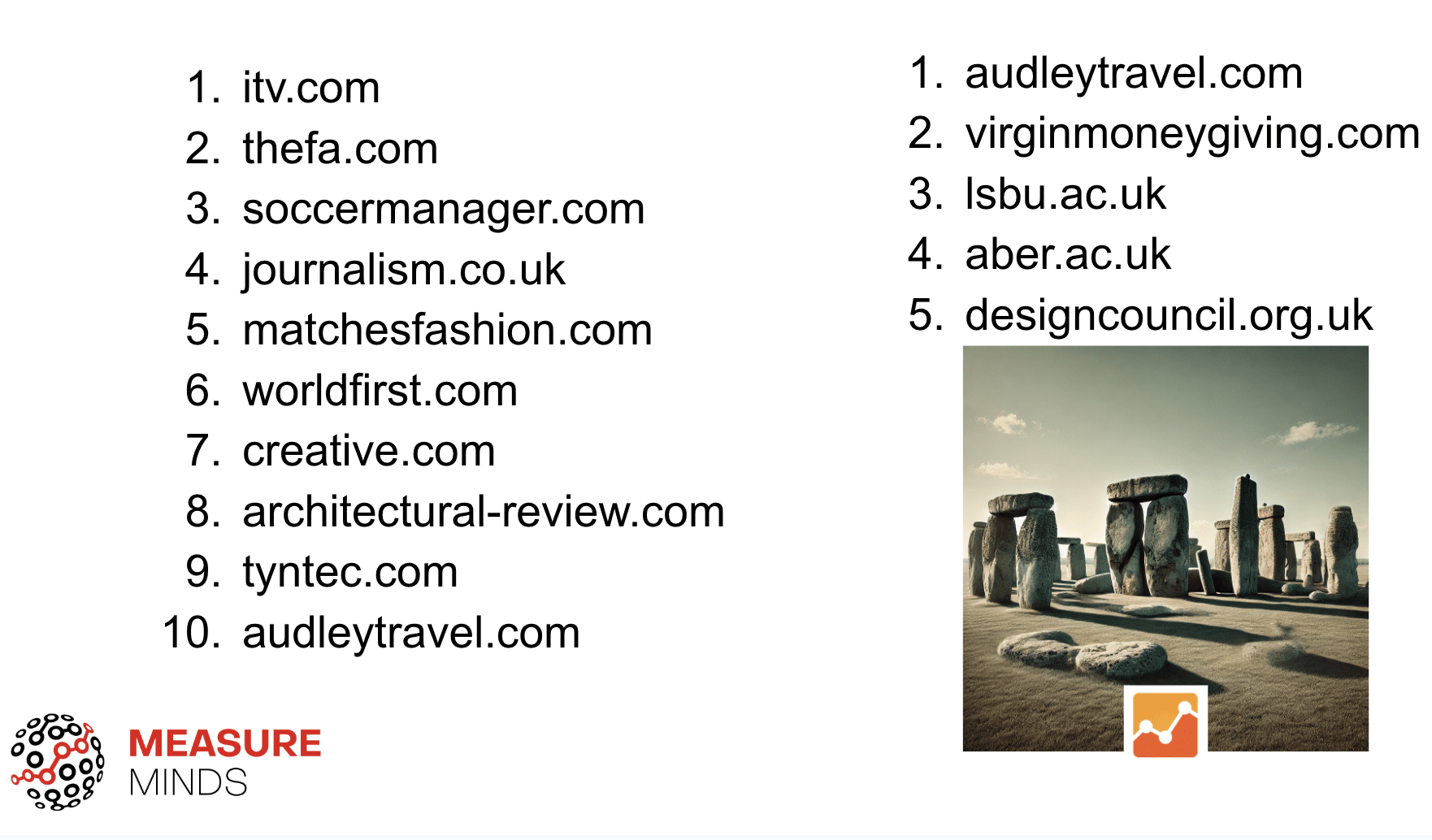
Some sites are still using outdated versions of GA…
Interestingly, one native tag detected was the Google Analytics 3 tag. GA3 was discontinued in July 2024, so there’s no reason for these sites to use the tag.
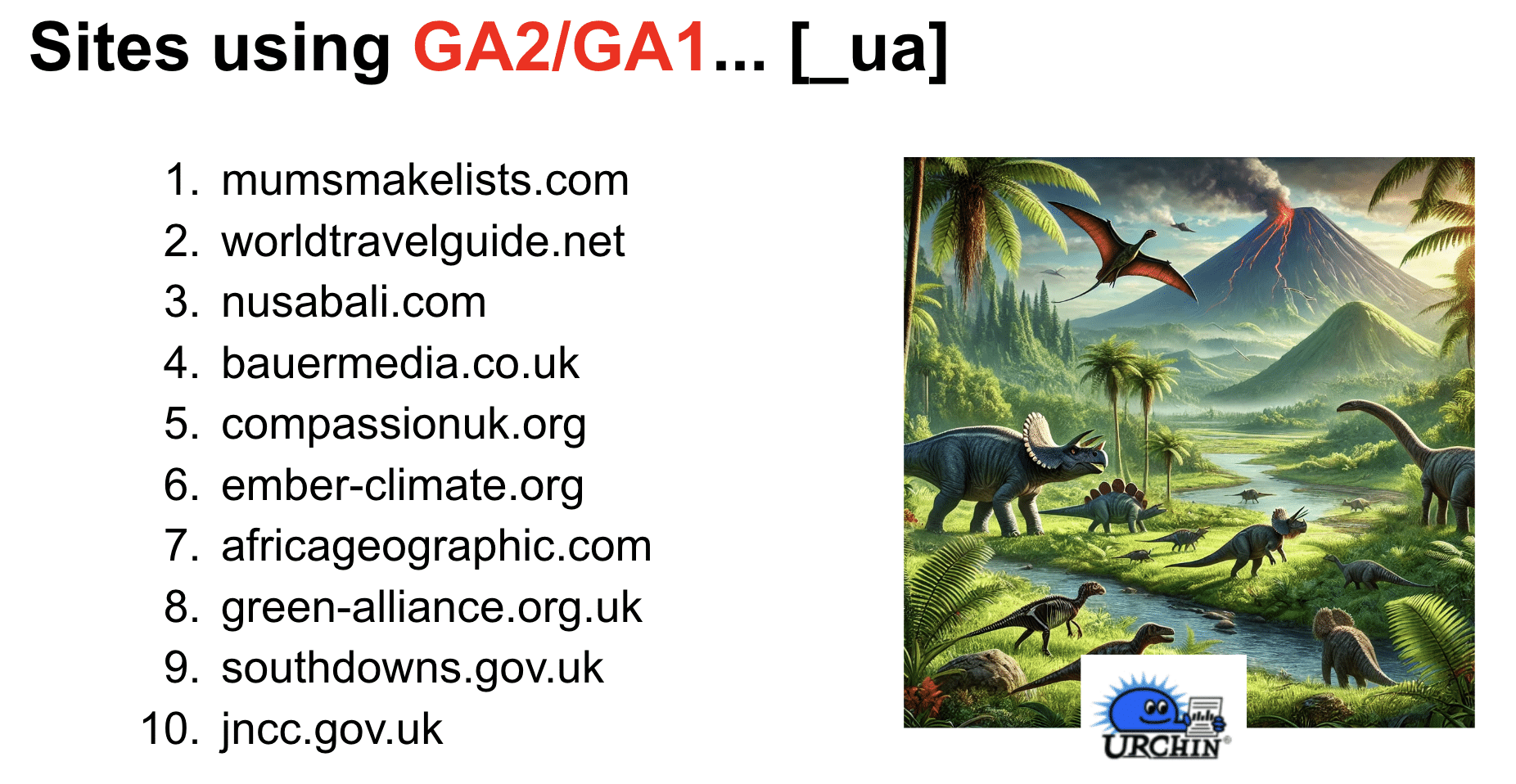
Even more shocking, some sites are still using urchin.js (GA1/GA2). Once again, this serves no purpose. These sites should clean up their GTM accounts and remove dead tags.
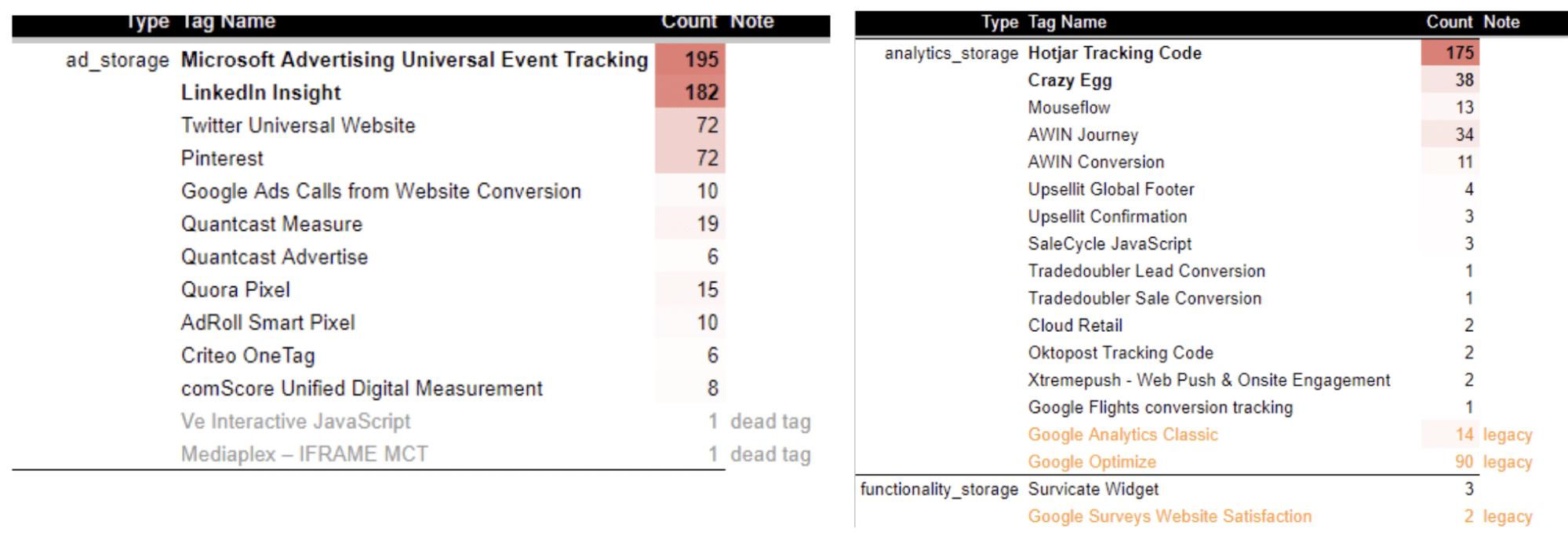
Some dead native tags still exist within GTM. As you can see from the below, several of the sites on our list still deploy these tags. For example, as many as 90 sites still use the Google Optimize tag despite it no longer being active.
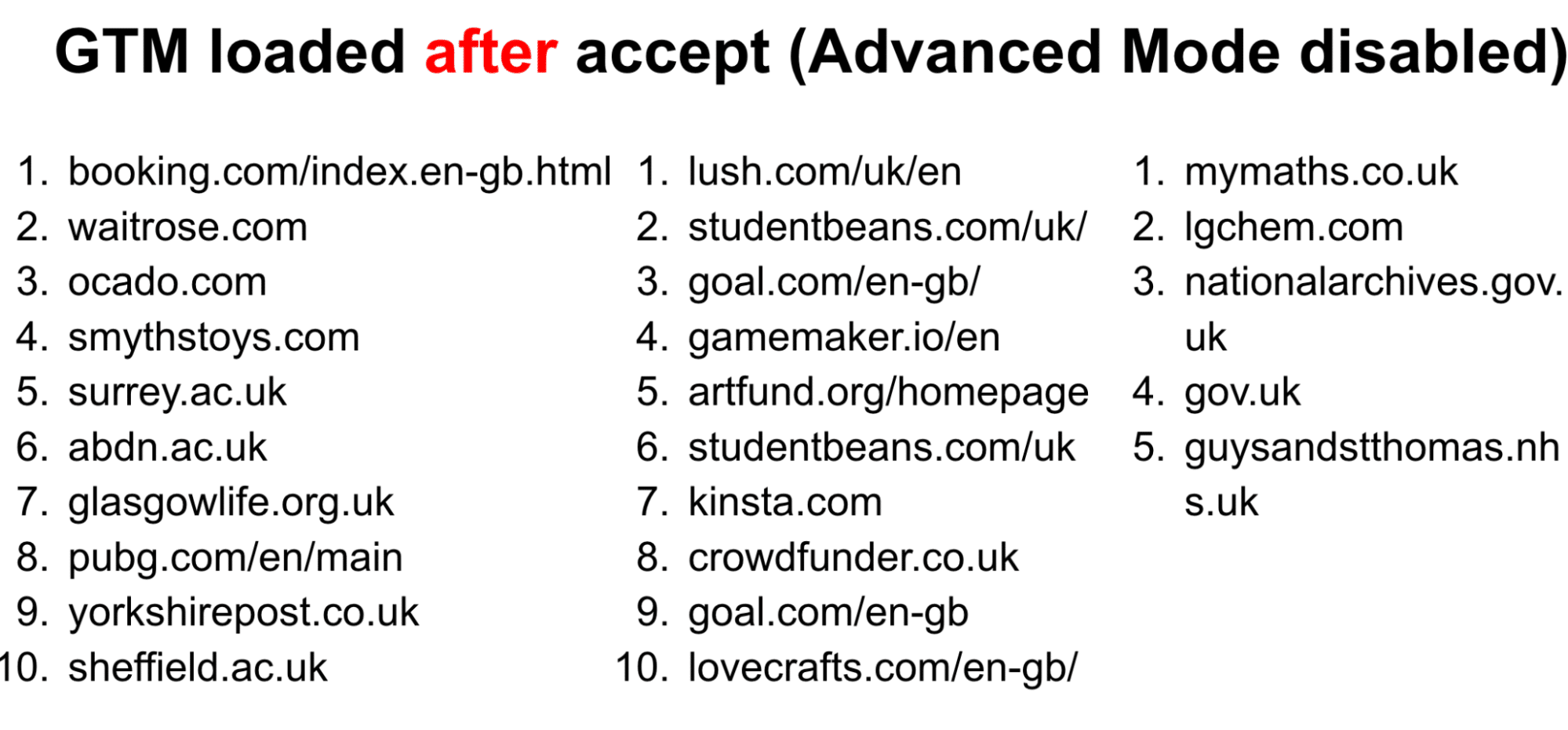
Below is a list of sites that load GTM behind the cookie banner. In effect, these sites have turned on advanced mode (most likely by accident), meaning that GTM is only deployed after a user accepts cookies.
Instead, these sites should load GTM outside of the cookie banner and set the Google tags in basic mode by attaching the relevant categories. This approach allows you to move to advanced mode more easily in certain regions.
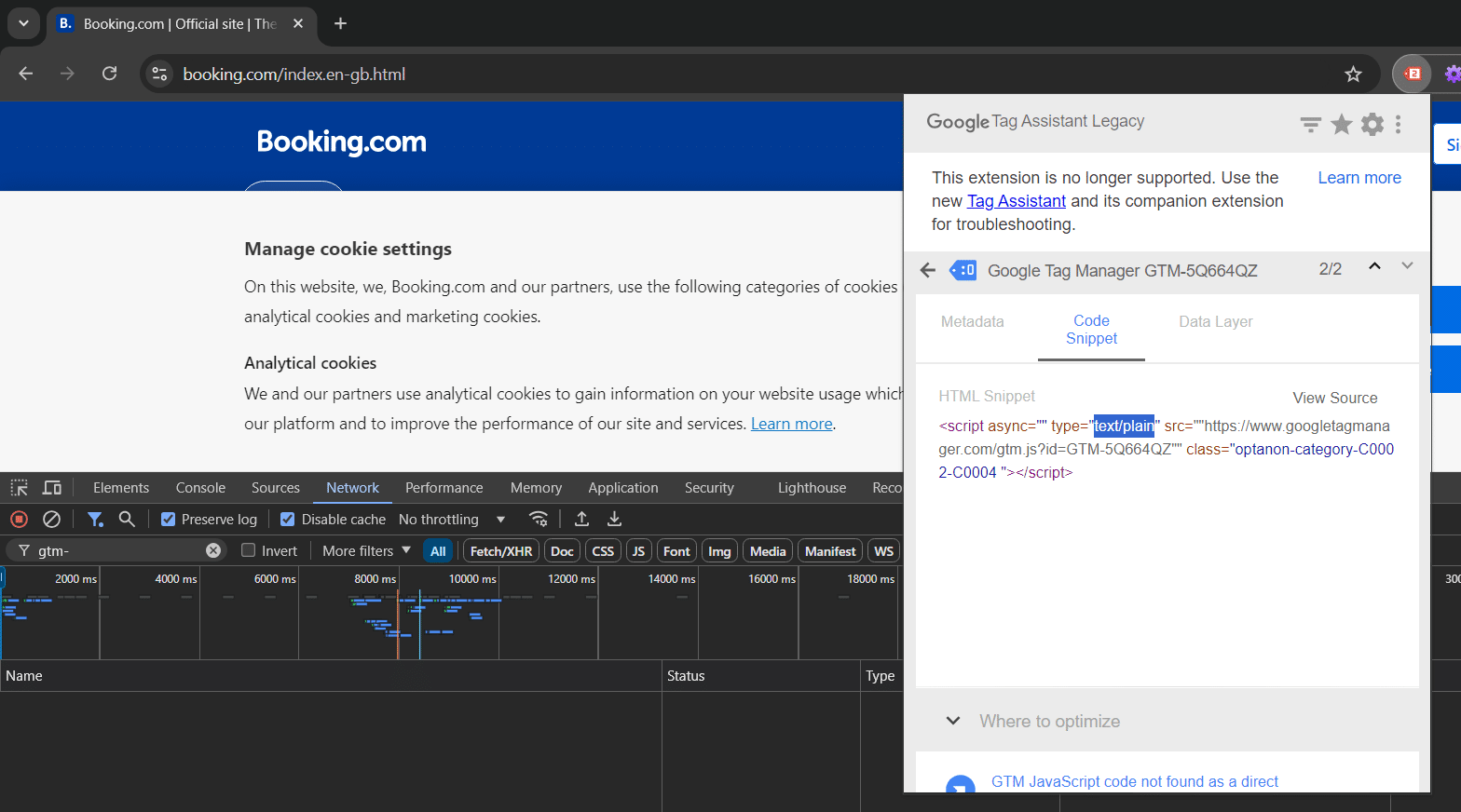
Some sites also loaded GTM with auto-block. In the example below, the site has loaded GTM in plain text mode. This has the same impact as loading GTM behind consent.
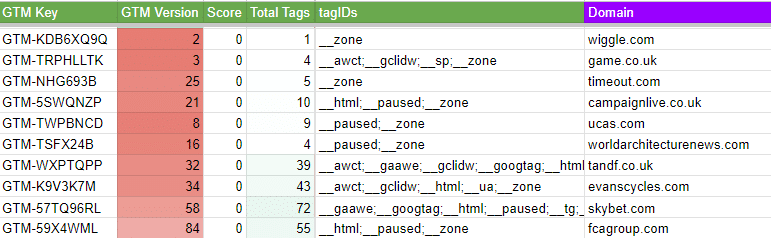
Some sites are paying for GA360 but aren’t using GTM
Some sites with GA360 have extremely low GTM version numbers and very few tags. This may be because these sites have reset their GTM accounts, or they may have secondary accounts running. If this is the case, they should merge their accounts.
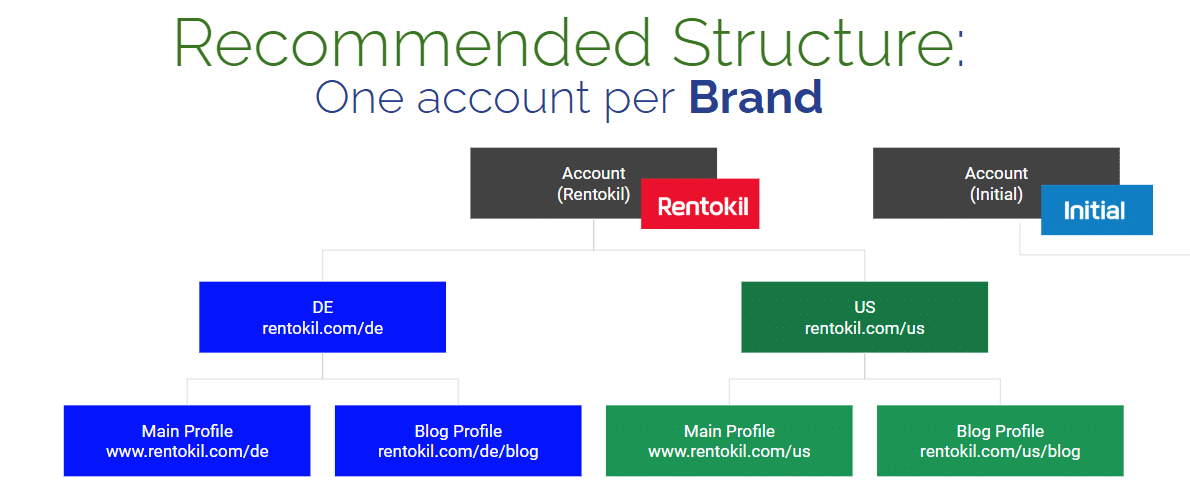
This image shows our recommended structure for GTM: one account per brand/domain. Secondary accounts are then loaded within the primary account.
The table below shows examples of sites that use GA360 effectively. You’ll notice these sites have high GTM version numbers and deploy a sensible number of tags.
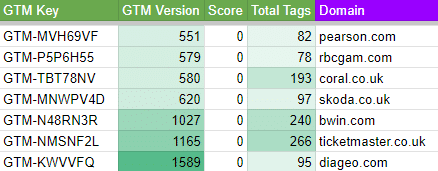
Paying for GA360 with broken consent mode categories…
Consent Mode Monitor detected several compliance issues on sites paying for GA360. The sites below should review their approach to compliance.

Default consent settings
Here is a scan of the default consent settings from our sample list of sites.
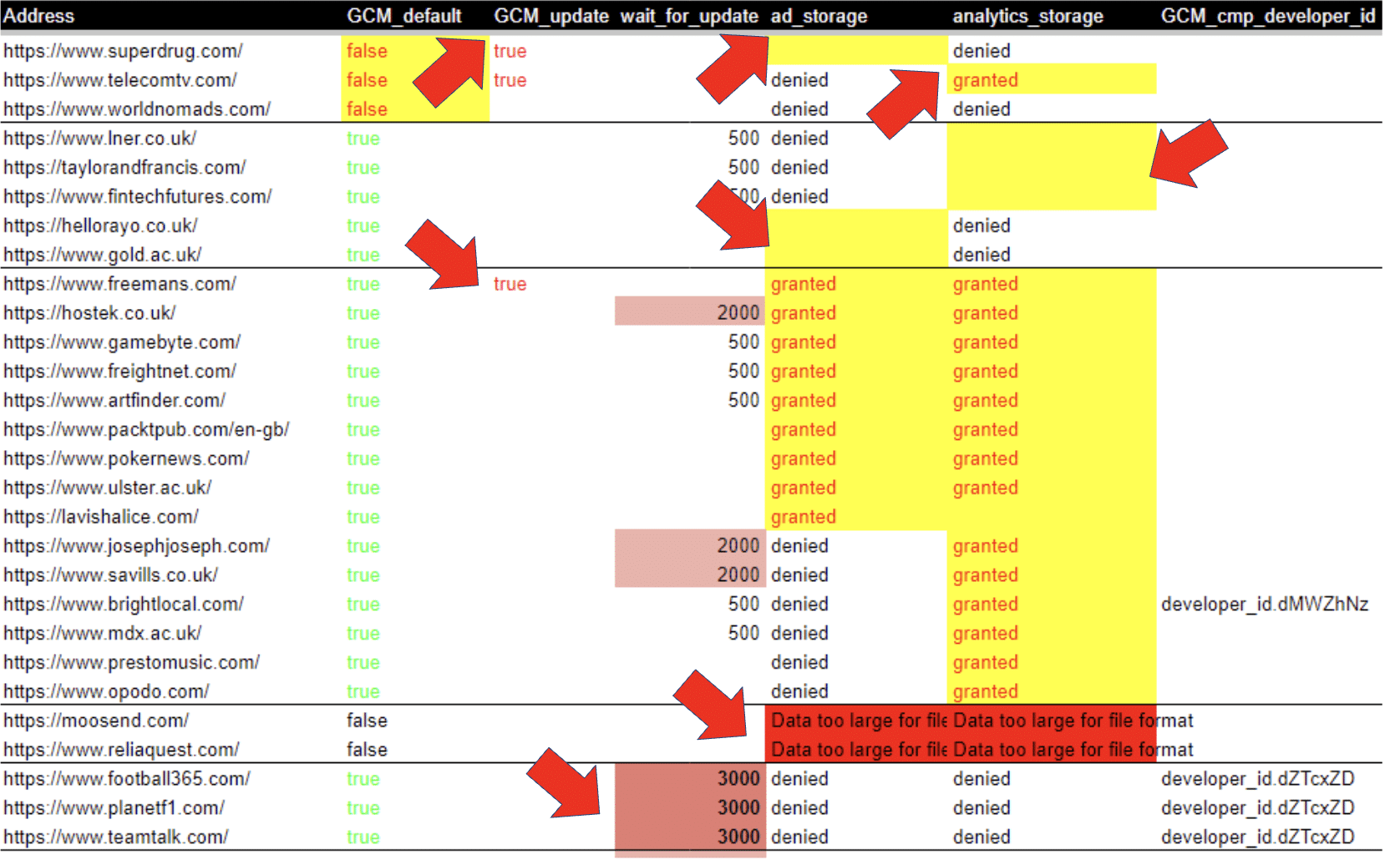
You’ll notice that default consent is missing on the first three listed sites, but a GTM update is detected. These sites have created an update command (accept or deny) that effectively does nothing.
Some sites are sending a single signal (eg, ad_storage but no analytics storage). Both are needed for consent. We can also see a positive opt-in, without any registered user interaction.

Further down the table, we can see a default tag setting of three milliseconds. It’s better to set the default wait setting to zero, unless you’re waiting for a cookie to be read (eg, an update command).

Lastly, you’ll see that two sites had a data layer value too large to be parsed by the browser. Consent Mode uses the data layer to carry out updates and set defaults. This error prevents Consent Mode from working correctly. These sites have an accidental compliance problem and could run into Consent Mode fines.

Trends per vertical
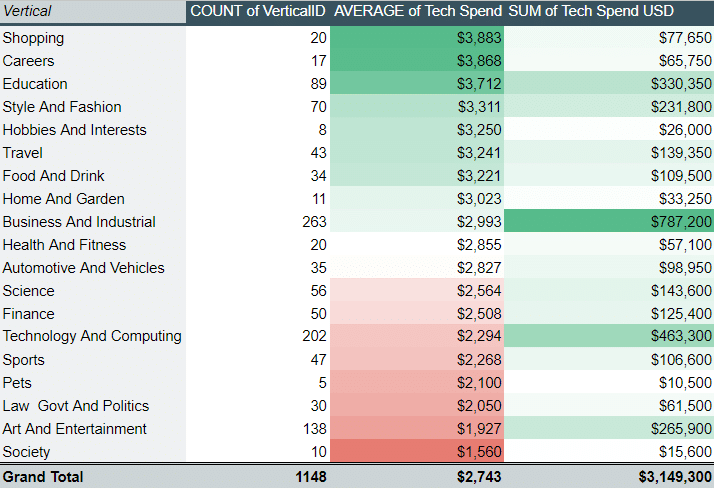
Here is a list of verticals of the different sites featured in our list. You’ll also find the average tech spend for each vertical alongside the sum.
- Unsurprisingly, e-commerce sites had the highest recorded tech spend.
- Sites with different models, such as Publishing sites, tended to have a lower tech spend.
- B2B sites had a medium average tech spend, but much higher in terms of distribution.
In summary…
Make sure you avoid the common errors on our list. Here are some best practices to ensure effective use of GTM and to avoid compliance issues.
- Remove old technology (GA2, GA3, Optimise, Google Surveys).
- Run a scan of ConsentMonitor.com & GTMgrader.AI to get your site scores
- Check that the default consent settings are correct.
- Check built with for “recommended tech”: builtwith.com/recommendations/thebodyshop.com
- If you’re using Zones, make the initial container the primary, not the zone.
- If you’re using basic mode, don’t block gtm.js as it stops pre-loading and changing to advanced mode later.
- Make sure you are not in the bottom 10%!