Google Tag Manager automatic changes to Google Ads & Floodlight Tags on 11th April – What you need to know…

If you’ve managed Google Ads or Floodlight tags using Google Tag Manager (GTM), you’ve probably encountered warnings like these:
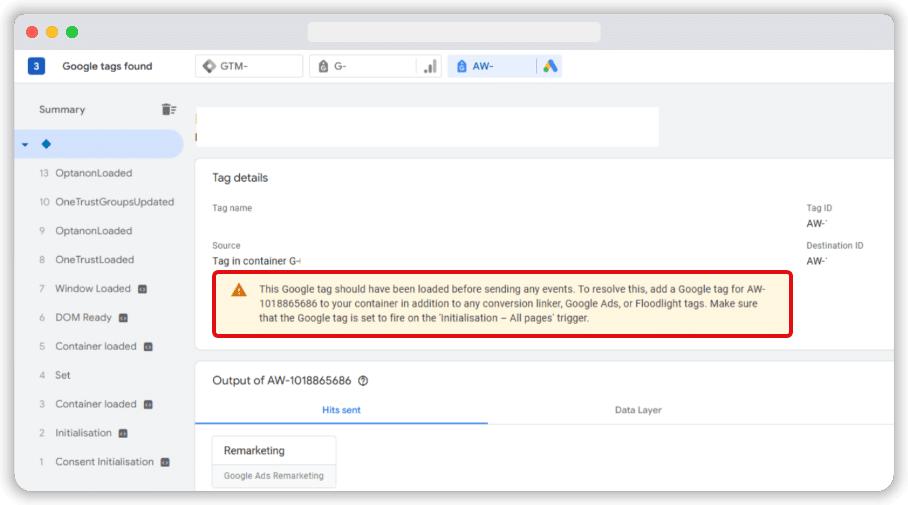
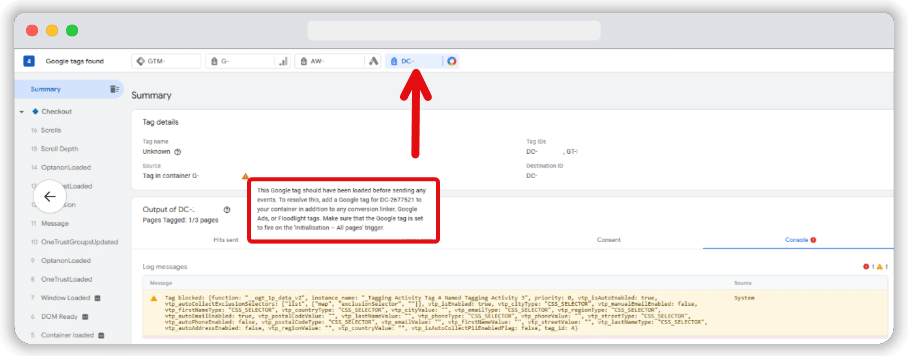
These alerts inform users that a Google Tag is not loaded before the Google Ads & Floodlight Tags event are fired, which can compromise tracking accuracy and data reliability.
Recognising this challenge, Google has introduced an important update to resolve these issues by ensuring prerequisite tags are automatically load, before the events are triggers.
Here’s what you need to know about this update and how it impacts your GTM setup.
What’s changing with this update?
Google recently sent a bulk email to Google Ads users, informing them about a significant update to their Google Tag Manager (GTM) containers.
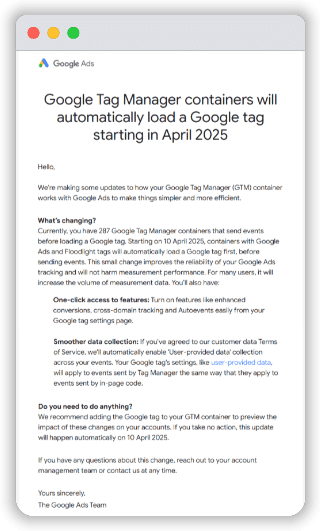
Starting April 10, 2025 Google Tag Manager (GTM) containers with Google Ads and Floodlight tags will automatically load Google tags (if missing) before any events are fired. Google claims this eliminates the need for manual implementation, reduces errors, and ensures seamless tracking.
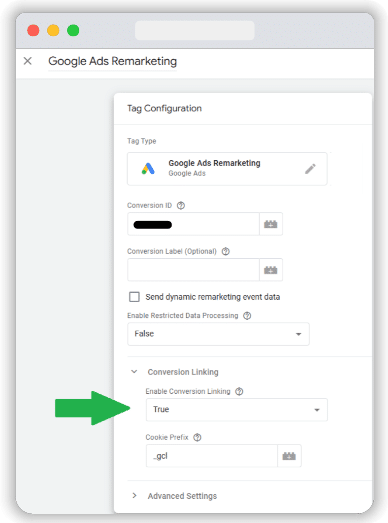
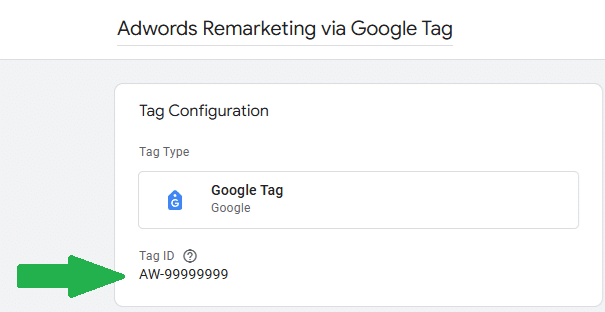
This process is identical to what Google Ads and Floodlight tags already do when they inject a hidden Conversion Linker tag as a prerequisite (aka set-up) tag. This pending change adds a new hidden Google Tag, that will also be injected.
Here`s an example of this method on a Google Ads Remarketing tag:
Here`s an example of this method on a Floodlight tag:
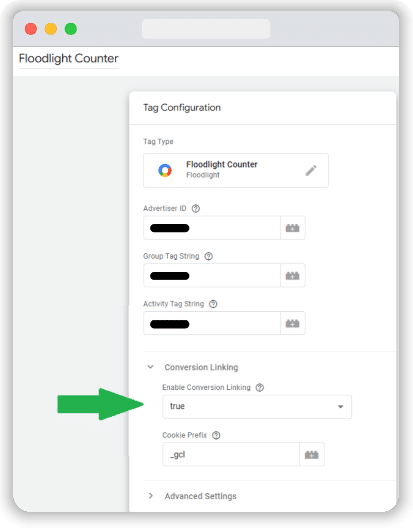
However, unlike the conversion linker which is benign and just sets a landing page cookie. This change is adding Google tag not in benign mode but in full mode, with all auto-events for outbound clicks, form submits, mailto clicks, PDF downloads, scroll, video tracking, and cross-domain tracking. It also bundles a JavaScript listener to collect user emails, which is known as user-provided data. This data matches a user to a click, rather than a cookie to a click for more accurate conversion tracking.
The 3 changes within this update are:
- Google Tag Manager containers with Google Ads and Floodlight tags will now preload a Google tag before firing events.
- Advertisers can enable Enhanced Conversions, Cross-Domain Tracking and Auto-Events directly from the Google Tag settings instead of setting them up separately.
- User-provided data (UPD) collection will be automatically enabled across all applicable events if the Customer Data Terms of Service are accepted.
The good news is that the JavaScript listener to collect user emails is not enabled by default unless you opt in within GA4 settings or as part of the account creation process.
How to view customer data terms of service & see your user-provided data settings
You can see the Customer Data Terms of Service setting by following these steps:
- Go to your Google Analytics Admin panel.
- Under Property Settings, navigate to Data Collection.
- Click Turn On to accept the terms Turn Off to opt-out.
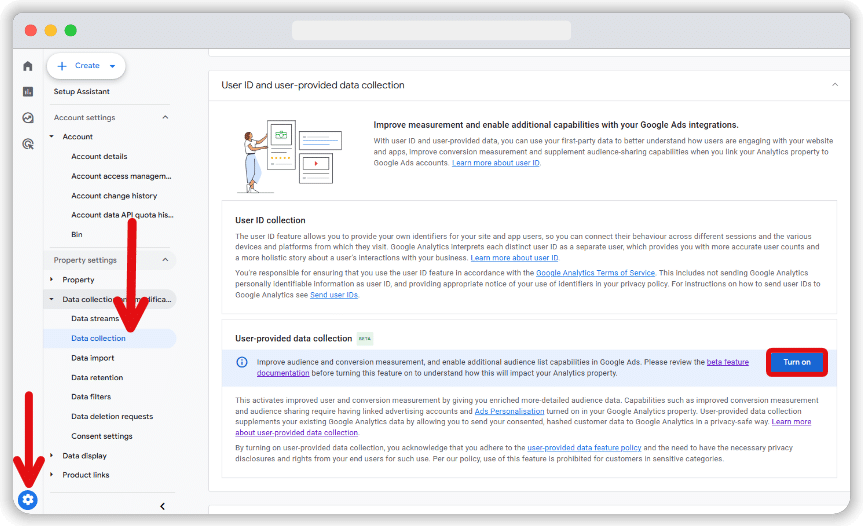
Next you need to enable or disable the User Provided Data (UPD) collection setting, which is in a different area.
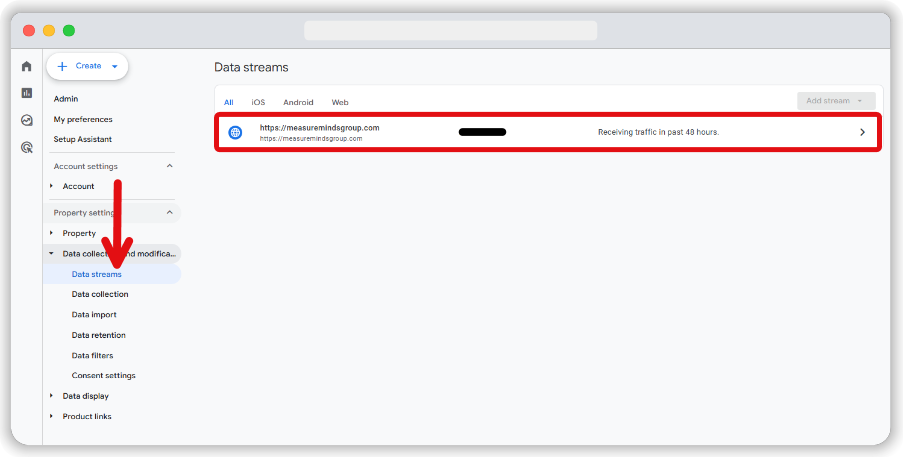
4. Navigate to Data Streams and select your desired Data Stream from the list.
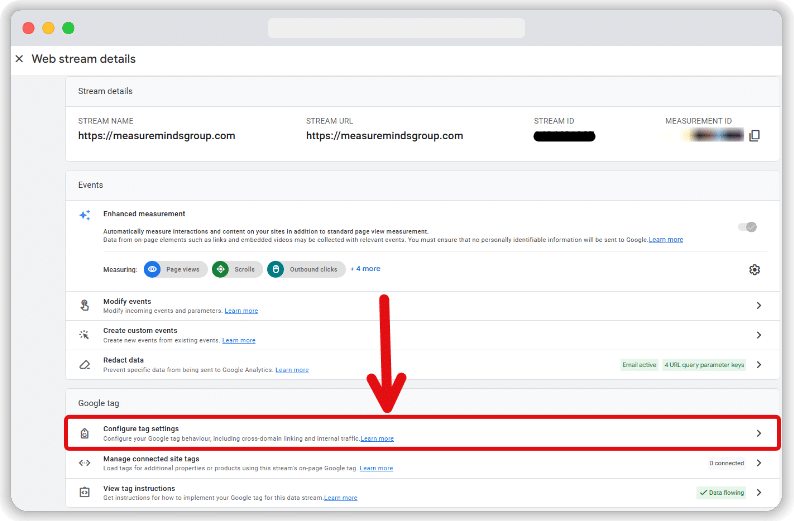
5. Go to the Google Tag section in the next window and click Configure Tag Settings.
6. Locate Allow User-Provided Data Capabilities under Settings.
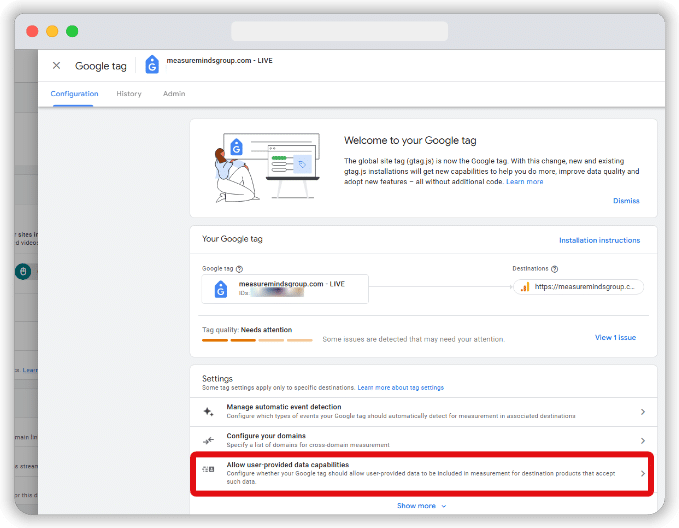
7. Toggle Allow User-Provided Data Capabilities (if not already enabled) and check Automatically Detect User-Provided Data in the next window. Then, click the ‘Save’ button.
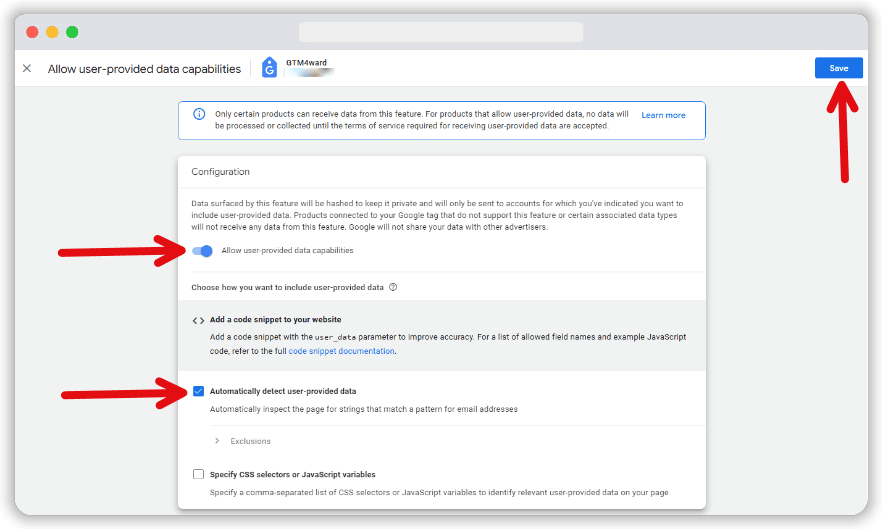
Generally, the GTAG setting for User-Provided Data Capabilities is on by default. However, the GA4 setting for Customer Data Terms of Service is off by default, causing a misalignment. Google is also trying to solve the synchronisation of these 2 settings with this automatic update.
Which GTM tag templates are affected by this update?
Below is a breakdown of the tags effected:
Tags affected by this update:
- Google Ads Remarketing
- Google Ads Conversion Tracking
- Google Ads User-Provided Data Event
- Floodlight Counter
- Floodlight Sales
Tags not Affected:
- Conversion Linker
- Google Ads Calls from Website Conversion
- Google Flights Price Accuracy
- Cloud Retail
- Recommendations AI
Advertisers should review their GTM tags using the aforementioned tag templates before the April 10, 2025 rollout to ensure seamless tracking performance.
Why is Google Making This Change?
Google is rolling out this update to improve tracking consistency, simplify data collection, and enhance measurement reliability. The key reasons for this change include:
- Improved data capture: Google aims to capture more emails for Enhanced Conversions, leading to more accurate conversion tracking.
- Standardised setup: This update fixes race conditions and resolves consent issues caused by delayed tag loading by automatically injecting the Google tag.
- Addressing landing page issues: This update aims to fix instances where landing pages appear as (not set) in GA4 reports, ensuring more accurate attribution of traffic sources
What actions should you take?
Given this update’s nature, advertisers can approach this change in multiple ways. Choose the one that fits your bills:
- Adjust Tag Firing Order: Using tag sequencing, change your Google ads and Floodlight tags to load after the GA4 configuration tag.
- Migrate Tags: Move native Google ads and Floodlight tags into the GT-XXXX loader within GTM for a more streamlined setup.
- Do nothing: Wait for Google’s Automatic change.
We recommend choosing Option 1 (Adjust Tag Firing Order) to avoid potential disruptions in tracking.
Also, you should change any Google Ads or Floodlight tags from Custom HTML to tag templates and move any inline Google Ads or Floodlight tags into GTM to be able to benefit from this change.
If you are using Adobe Launch to load Google Ads or Floodlight, now is a good time to switch to GTM!
Additional measures you can take
If you want to be extra careful, you can go through with the following:
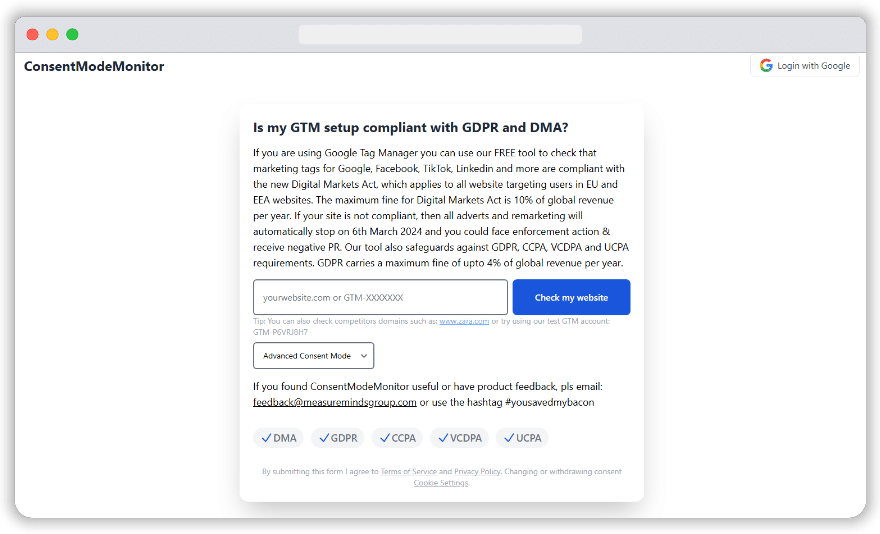
- Verify Consent Mode Signals: Check that the Google Tag has the correct consent signals. This ensures data is collected only after cookie acceptance, respecting user preferences. Tools like Consent Mode Monitor can help detect and resolve any issues.
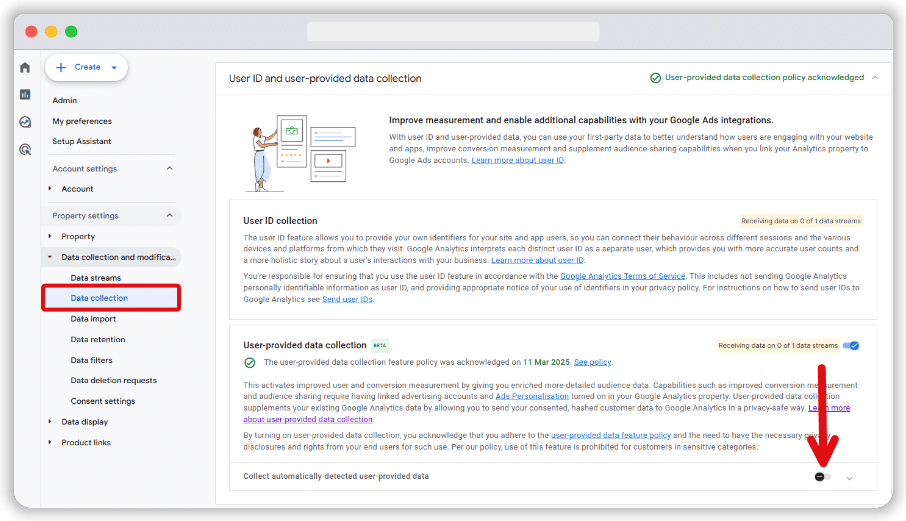
- Disable Automatic Mode in GA4: Opt-out of automatic mode so that only manual mode is used for enhanced conversions. Navigate to Admin → Data Collection in GA4 and turn off this feature.
These proactive measures will help ensure your GTM setup remains optimised, compliant, and accurate after the update.
Conclusion
This update will expand the number of pages that the Google tags load for Automatic User-provided data for Enhanced Conversions. Thus, if you operate in the EU and you are concerned about this change, you need to opt out of Enhanced Conversions in all four places within GTAG, GA4, Google Ads, and Floodlight before 10th April or change the setting to “manual method” for User-provided if you want more control.
This change aims to standardise the GTAG library, which is used for both listeners and default consent. Thus, it is important to load this script first to prevent race conditions, especially if you are declaring default consent within the GA4 setting rather than in the CMP or website header.
Also, conflicts between Google Ads and Foodlight effecting GA4 landing page (not set) and traffic channel “Unassigned” has been a long-standing issue and this change takes steps to correct this.
Additionally, we’ve compiled a working document compiling questions we’ve encountered, answers we’ve found, and unresolved queries. If you have any questions, comment on the document. We’d love to hear your thoughts if you know the answers to the unresolved questions as well!
- Green = Questions we found answers to.
- Red = Unanswered questions needing more clarity.
We encourage community collaboration to ensure everyone adapts smoothly to these changes. Let us know your thoughts!
For example a question we have in the working document for Google is… why did Google decide to migrate GA4 tags into a GTAG template in GTM on September 5, 2023, but for Google Ads and Floodlight these templates are not being migrated, only updated to include attach a hidden GTAG instead. Its strange that 2 different methodologies have been used. We can only guess that in the future, there will be a second automatic update to move AW-xxxxx and DC-xxxx tags into GTAG once the 11th April update is deployed.
Thanks for this. It’s great and I’ll work through it