How to Track Ads Despite iOS 26 Link Tracking Protection
With the imminent release of iOS 26, businesses must reconsider their approach to conversion tracking in Safari. Here’s how to track ads on iOS 26.
What is IOS 26?
iOS 26 is the latest update to Apple’s operating system and is set to arrive on the 9th of September. The successor to iOS 18 (the reason for the jump in version number is unclear), the update includes measures to improve user privacy.
The Apple link tracking update focuses on two major changes:
- Enhanced fingerprinting protection – Making it harder for non-cookieless trackers to detect users uniquely, by adding noise to browser APIs.
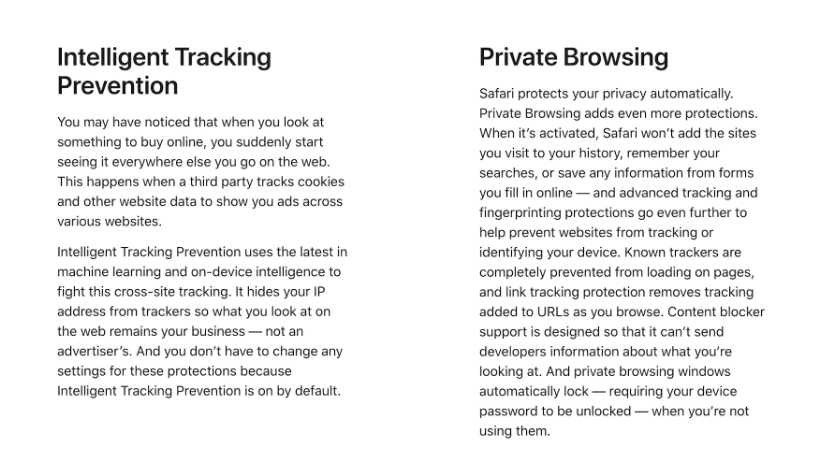
- Tracking parameter stripping – iOS 26 link tracking protection strips link tracking in private mode, messages, and mail.
What about GCLIDs?
GCLIDs will be removed in messages, mail & private browsing mode tracking, but it seems likely they’ll continue to function by default in Safari.
That doesn’t mean you shouldn’t prepare and improve your ad tracking resilience. In the future, it may be necessary to avoid standard URL parameters and use custom click ID parameters instead. Alongside GCLID, this will also apply to FBCLID, MSCLKID, and other similar identifiers.
Why is GCLID important?
GCLID powers conversion tracking within Google Ads. Without it, it’s impossible to link conversions with ad clicks. Businesses would struggle to gain accurate insights into their user bases, leading to inaccurate reports and poorly performing campaigns.
Alongside the issues mentioned above, you could encounter some of the following problems.
- A smaller Google Ads audience size – Without the ability to track conversions and other interactions, it becomes harder to grow audiences for remarketing.
- Harder to calculate ROI – With fewer conversion insights, it becomes harder to accurately track the performance of your campaigns.
What should you do next?
We recommend that you keep your GCLIDs. Instead, send a GCLID and an additional parameter, such as an AdClick ID.
Much like an affiliate ID, the click parameter is often used in the UTM ID field. We can’t use a UTM ID, however, because any UTM fields will be obvious to Apple’s Intelligent Tracking Protection.
The good news is that the ad networks support a value track for click identifiers. You can update your final destination URL to include the extra parameter. Add this to all your networks (Google Ads, Bing, Facebook, etc).
Once you’ve added the AdClick parameter, you’ll need to edit your GTM settings. The Google Ads remarketing pixel, the Google Ads, and the Google Ads linker contain the ability to rename cookies. Cookie names are easy for Apple to identify as trackers, so renaming is important to avoid detection.
iOS 26 link tracking with Google Tag Manager (GTM)
There are two ways to keep attribution working on iOS 26. One is a client-side setup in Web GTM. The other is a server-side setup in sGTM. This section explains the client-side method. You will add a backup click ID and store it in a first-party cookie. This helps tracking continue when Safari removes known parameters.
The next section covers the server-side method, where sGTM Conversion Linker handles the logic and offers more resilience over time.
Begin by adding a backup click ID to your ad URLs (don’t remove the native one). Before touching GTM, duplicate the Google click ID into a non‑standard query parameter so you have a fallback when Safari strips gclid in Mail, Messages, or Private Browsing.
How to add a backup click ID in Google Ads
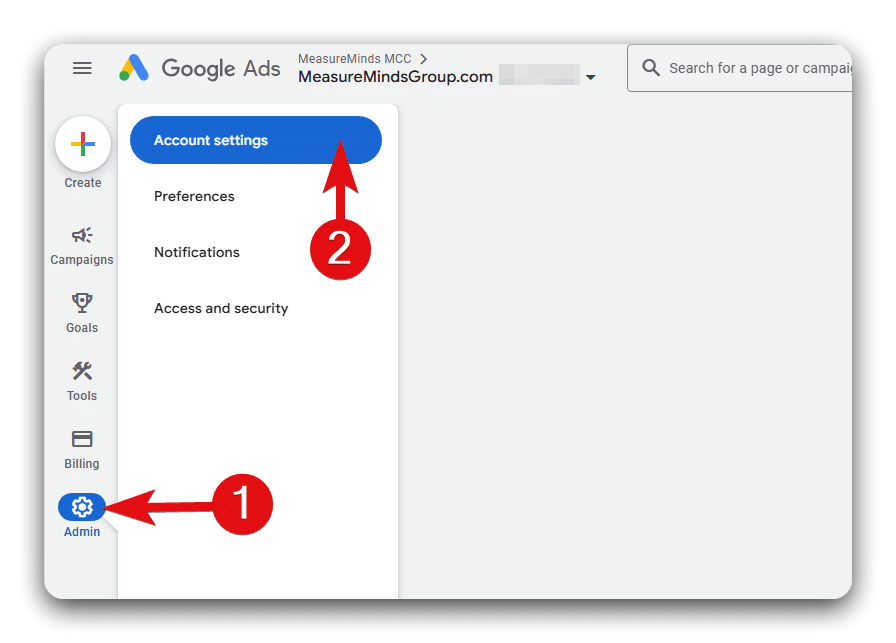
Go to Admin → Account settings in your Google Ads account.
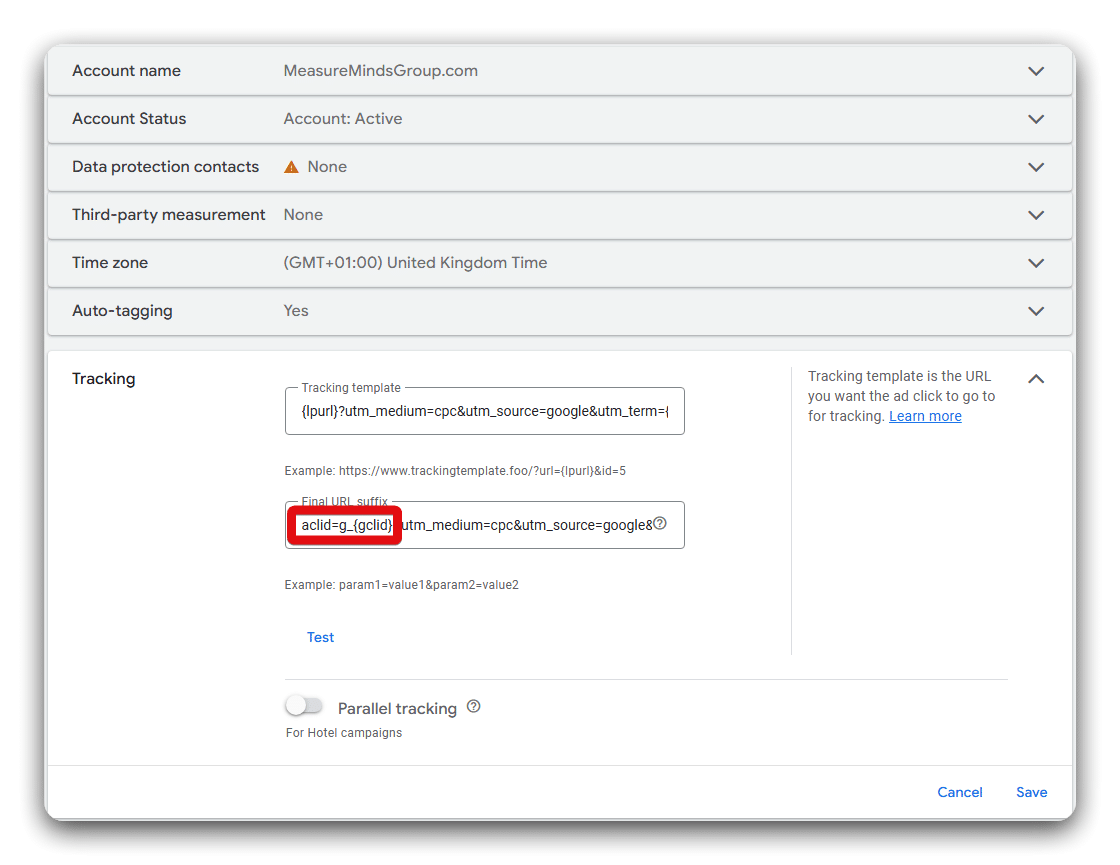
In the Final URL suffix, append a custom parameter that mirrors gclid, e.g., acid=g_{gclid} (you can use any neutral name, such as acid, aclid).
- You’ll now have two parameters on click: ?gclid=…&acid=g_…. If Safari removes gclid, your backup survives.
Optional: Repeat the same pattern for other networks. For Microsoft Ads, add a backup in the campaign/account Final URL suffix (e.g., mucid={msclkid}). For Meta, add a custom URL parameter at the Ad level (carry durable IDs and rely on CAPI for server-side attribution).
Note: This article focuses on the Google path because it powers the downstream cookie that the Conversion Linker sets.
Configure GTM to persist the backup when gclid is missing
Within your conversion linker custom setup, you’ll find an option to ‘Override cookie settings’. Here, you can change standard cookie names however you’d like.
For example, the standard names Google Ads uses are _gcl_aw (Google Ads/AdWords) and _gcl_dc (DV360/Display). We recommend renaming these to _aclid_aw and _aclid_dc, respectively, to reduce easy pattern‑matching against the defaults.To rename a cookie, simply enter your chosen name into the ‘Name prefix’ field. You can leave the remaining fields blank.
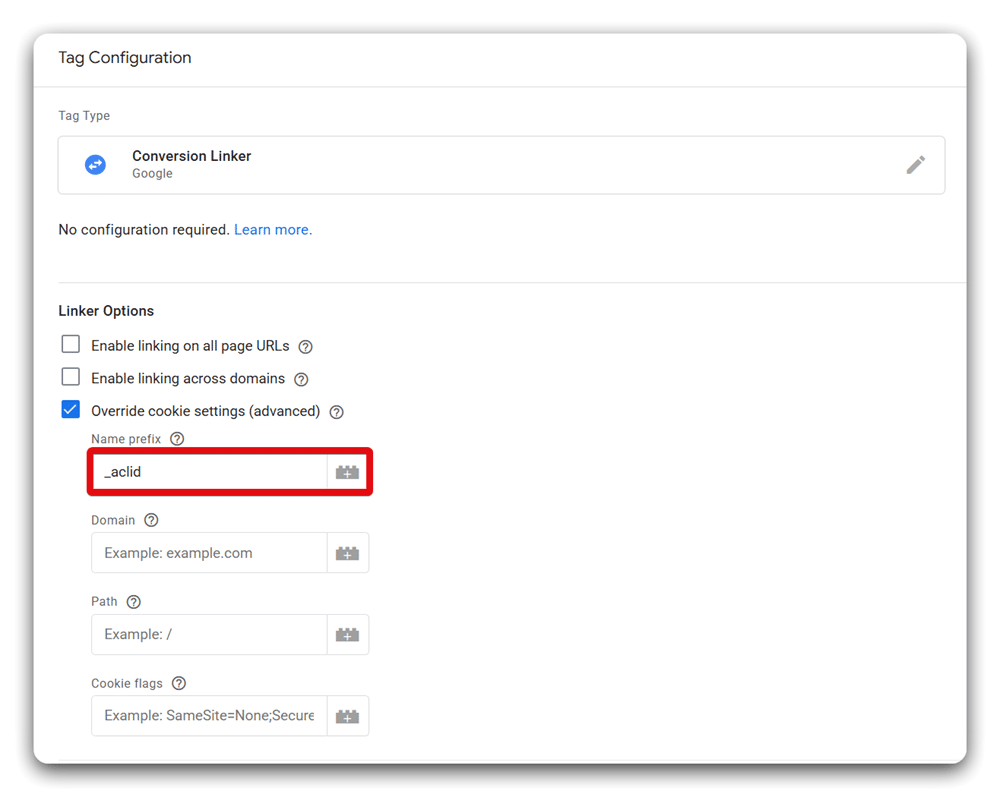
Alongside this, repeat the cookie‑prefix change within your Google Ads Conversion and Remarketing tags so everything stays aligned.In the example below, we’ve swapped the prepending ‘_gcl’ to ‘_aclid’. The same process also applies to floodlight sales or remarketing tags.
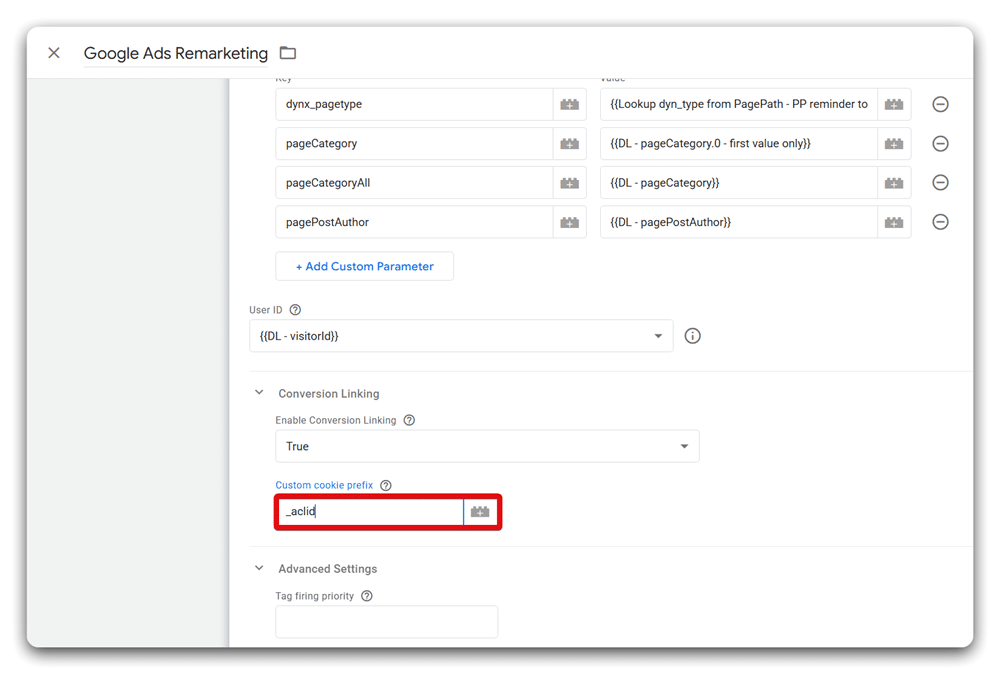
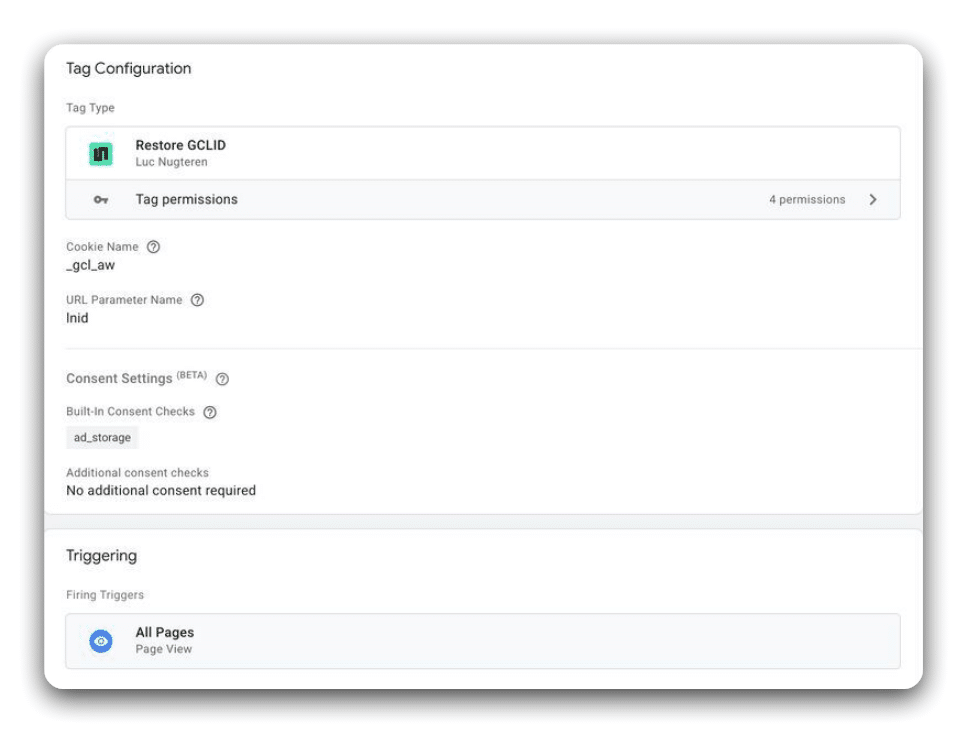
Unfortunately, there is no option to change the input field in the GTM tag templates in DoubleClick or Floodlight. Instead, you’d need a community template or custom script to replicate the Google Ads linker as a GCLID workaround.
The image below shows an example of a community tag developed by Luc Nugteren. This tag reads URL parameters and stores them as a cookie with the specified name.
Server-side GTM setup to restore gclid from backup
The server-side path follows the same first step as the client-side path. Keep auto tagging on and add a backup parameter in Google Ads. We use the name aclid. This provides gclid for typical cases and uses aclid as a fallback when Safari removes known parameters.
Set up a backup parameter in Google Ads
Open Admin and then Account Settings in Google Ads. Add aclid=g_{gclid} to the Final URL suffix. Your ad clicks now include two parameters. If gclid is stripped, aclid remains and carries the same value.
Add Query Replacer in sGTM
In your sGTM container, navigate to the Variables and create a new user-defined variable.
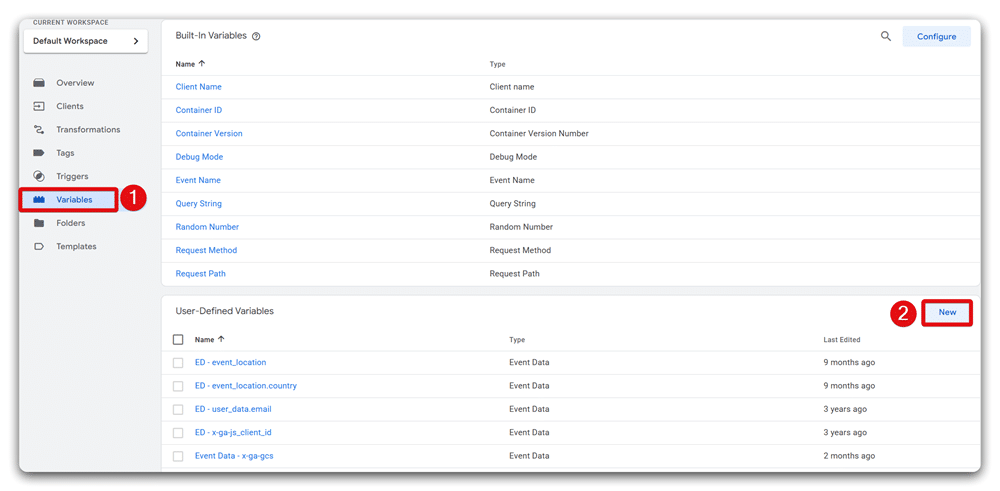
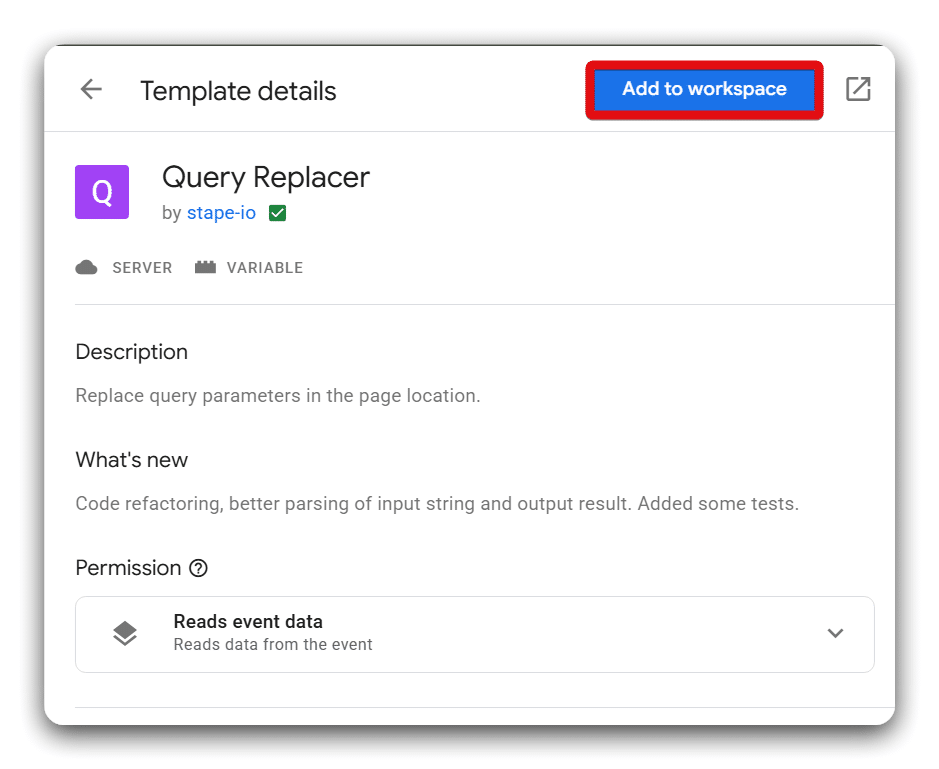
Search the Community Template Gallery for “Query Replacer” variable template & add it to your workspace.
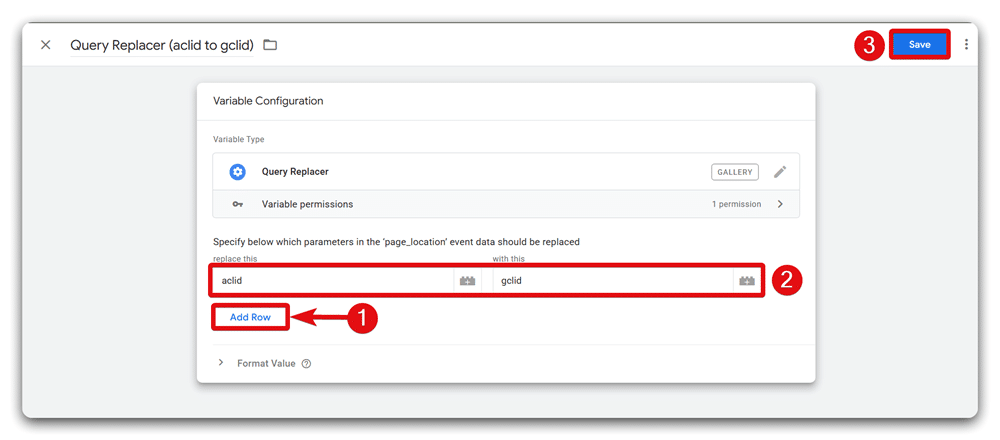
From the variable setup, add a row & replace “aclid” with “gclid” parameter. Save the variable. This prepares sGTM to swap your backup parameter into the native parameter name.
Rewrite page_location with a Transformation
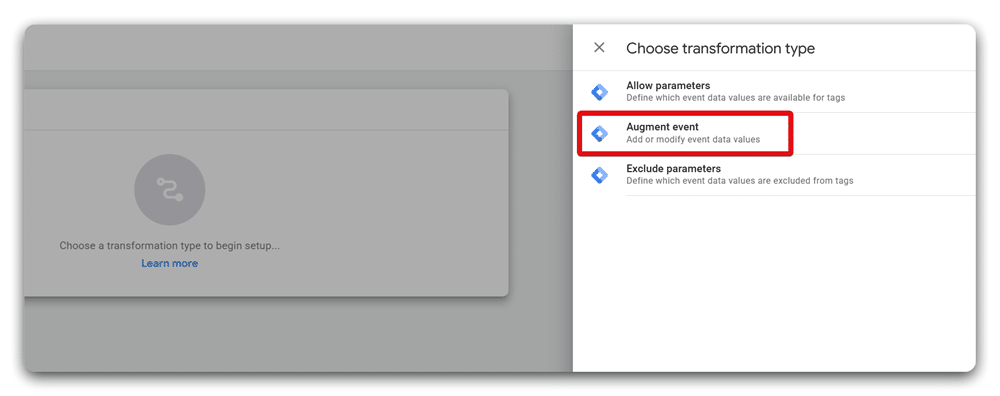
Open the Transformations tab from your sGTM account and create a new Augment event transformation.
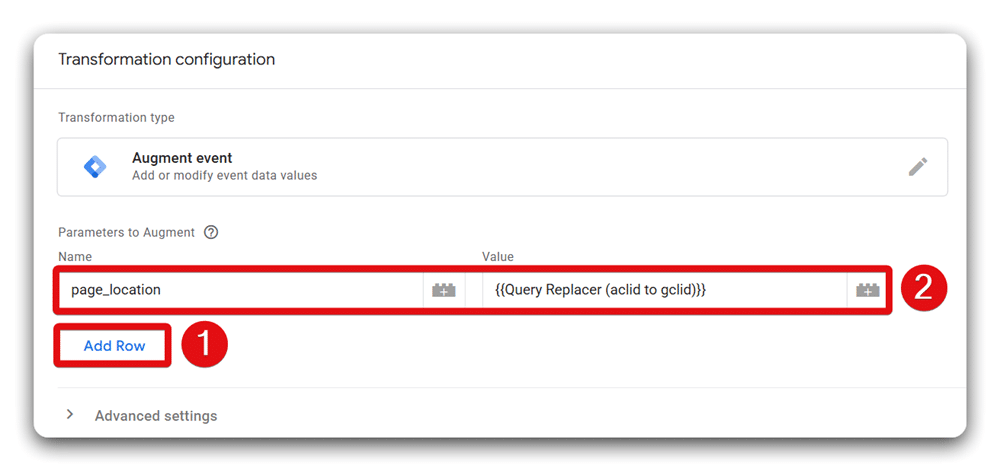
Now, add a row to set the parameter to overwrite; in this case, it’s page_location. Set the value to the Query Replacer variable you created.
Finally, apply the transformation to your Conversion Linker tag. To do that, navigate to the “Affected tags” section of the transformation & select “Some” instead of choosing all tags. Then, click on the “Include tags” button, which will open a sliding window. From this window, select the Google Ads conversion linker tag.
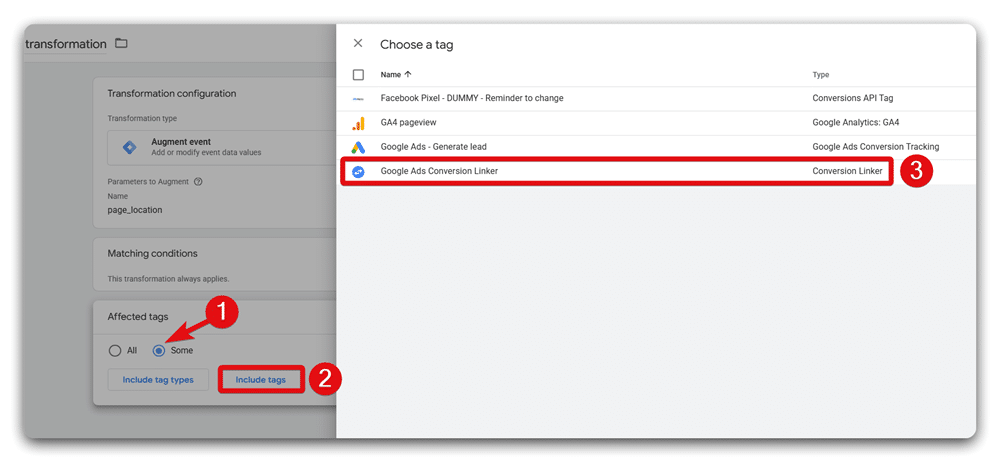
Make sure the Conversion Linker runs on page views and on consent updates. The linker will now see gclid because the transformation rewrites page_location. It can then set the expected cookie, such as FPGCLAW or your chosen prefix. Keep naming consistent with your client-side setup if you use a custom prefix.
Test and validate
Test four flows. Default Safari, Private Safari, a click from Mail, and a click from Messages. By default, Safari should set the cookie from gclid. In the other three flows, the linker should set the cookie from aclid via the rewrite. Check that Google Ads shows attributed conversions and that consent behaviour matches your policy.
Common GTM pitfalls for iOS 26 update
Even with a solid backup parameter and cookie strategy, minor missteps can silently break attribution. Use the following checks to keep your iOS 26 user tracking reliable.
Don’t use utm_* as your backup parameter
UTM parameters are obvious campaign markers and weren’t designed to carry opaque click IDs. Using them as a fallback makes your setup easier to detect and filter, and can also pollute analytics attribution semantics. Keep UTMs for campaign classification; use a neutral, custom param (e.g., acid) for the backup ID.
If the Conversion Linker uses _aclid_* but your Google Ads or Floodlight tags still expect _gcl_*, attribution can silently fail. Update the same prefix in Conversion Linker, Google Ads Conversion/Remarketing tags, and any Floodlight tags so they all read and write consistently.
Fire the helper early (and respect consent)
The helper that copies the backup param into your cookie must run before conversion tags need it, ideally on the first page view, post‑consent. If it loads late, the initial linker write is missed, and you lose attribution on the landing session.
Don’t remove native click IDs (gclid/msclkid/fbclid)
Auto‑tagging should remain on. The backup parameter is a safety net for stripped contexts, not a replacement. Keeping the native param ensures maximum coverage in non‑stripped environments and simplifies troubleshooting.
Preparing for the update
As mentioned, it seems that, for now, GCLID will continue to function by default in Safari. Despite this, it’s still better to be proactive and plan ahead. For private browsing mode tracking, make sure you take the following steps:
- Follow our steps to modify Google Ads and Floodlight tags. Use a custom GTM template or script to capture the new custom URL parameters and store them in the newly named cookie.
- Keep a close eye on your data as the Apple link tracking update rolls out.
If you haven’t already, now’s the time to set up server-side tagging. Here’s our guide for setting up GTM server-side.

- How to Run a Google Tag Manager (GTM) Audit - 26/11/2025
- How to Run a Web Analytics Audit: Examples & Tools - 30/10/2025
- How to Run a Cookie Audit: Examples and Tools - 23/10/2025