A Full Guide to GA4 UTM Parameters in Google Analytics 4

UTM parameters in Google Analytics (GA4), enable marketers to gather detailed insights into the performance of their online marketing campaigns. They consist of key-value pairs added to the end of URLs.
This allows businesses to track the specific sources, mediums, campaigns, terms, and content associated with each user’s journey to their website, helping marketers understand which marketing campaigns have been successful.
In this article, we’ll delve into the significance of UTM parameters, explore their role in Google Analytics 4 (GA4), break down their components, and discuss best practices for their implementation.
Why are UTM parameters important in GA4?
By tagging URLs with UTM parameters, businesses are able to attribute website traffic acquisition to specific campaigns. This attribution, coupled with insights into user behaviours and the understanding of the Return on Investment (ROI) for each marketing channel, empowers organisations to make informed decisions.
Better decisions, lead to better digital marketing strategies for maximum impact and efficiency.
Google Analytics 4 overview
Google Analytics 4 (GA4) addresses many of the limitations of its predecessor, Universal Analytics, by adopting a user-centric approach.
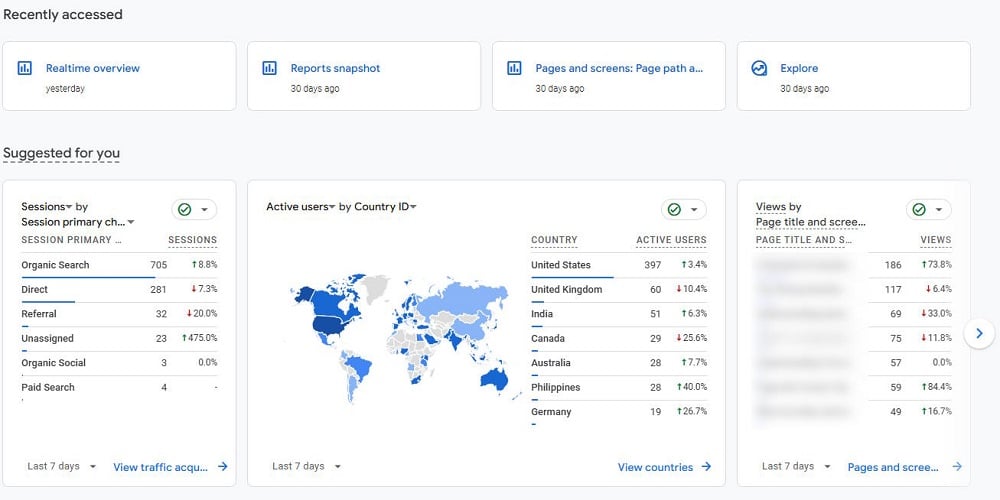
GA4 focuses on tracking individual user interactions across devices and platforms, providing a detailed view of the customer journey.
With advanced features, GA4 offers businesses a deeper understanding of their audience and their engagement across different channels.
Understanding GA4 UTM parameters
Components of a UTM parameter
To fully understand GA4 UTM parameters, it’s essential to break down its components:
- Source: The source represents the origin of the traffic. This could be a search engine like Google, a newsletter, a referral from another website, or social media traffic.
Identifying the source is crucial for understanding how users discover a website.
- Medium: The medium highlights the category of the source. For example, it indicates whether the type of traffic is organic (resulting from a search engine), referral-based (coming from another website), or part of a paid campaign.
Understanding the medium aids in categorising and analysing the overall effectiveness of marketing channels.
- Campaign: The campaign parameter displays the marketing campaign associated with the link. This could be a seasonal sale, a product launch, or any other targeted marketing initiative.
Tracking campaigns allows businesses to evaluate the success of specific promotions and adjust strategies accordingly.
- Term: Term is used to help differentiate ads within paid search campaigns. It refers to the specific keywords or phrases associated with paid advertising.
Analysing terms helps marketers understand which keywords are driving traffic and contributing to a campaign’s success.
- Content: The content UTM parameter helps identify differences between similar elements within a campaign. If an ad campaign involves multiple variations of an advertisement, the content parameter helps identify which variant is more effective.
This level of detail is essential for refining content strategies.
UTM parameter examples
Consider the following UTM-tagged URL:
https://www.example.com/?utm_source=google&utm_medium=cpc&utm_campaign=spring_sale&utm_term=flowers&utm_content=ad1
Breaking down this URL provides a real-world example of UTM parameters in action:
- Source (google): The traffic originates from the Google search engine.
- Medium (CPC): The medium is Cost Per Click (CPC), indicating that this is a paid advertising campaign.
- Campaign (spring_sale): The link is associated with the marketing campaign named “spring_sale.”
- Term (flowers): This specifies that the paid search term associated with this click is “flowers.”
- Content (ad1): The content parameter indicates that the user clicked on the first variant of the ad.
Breaking down the components of a UTM-tagged URL helps marketers with vital information about the user’s journey, which can then be used to optimise campaigns.
Changes To UTM parameters in GA4
New UTM parameter
Google Analytics 4 introduced a new UTM parameter, utm_campaign_id, designed to make tracking your campaign easier, while providing more actionable data.
Implementation:
To implement utm_campaign_id, append the following to your URLs:

This GA4 UTM parameter ensures that each campaign is assigned a distinct identifier, making it easier to analyse your campaign more accurately.
Differences in channel grouping
Google Analytics 4 (GA4), offers impressive changes in channel grouping compared to its predecessor.
Unlike the default channel groupings in Universal Analytics, GA4 emphasises a more flexible and customisable approach to organising user traffic.
The shift is evident in the way UTM parameters contribute to channel grouping, allowing marketers to tailor classifications based on their specific business needs.
This evolution in channel grouping helps identify user interactions, offering insights into the effectiveness of marketing efforts.
As you leverage GA4 UTM parameters, it becomes essential to understand these differences in channel grouping to harness the full potential of your analytics data.
Internal UTM parameters
The introduction of internal UTM parameters in GA4 offers an avenue for marketers to track specific campaigns or actions within their website or app.
It’s crucial to approach internal UTM parameters with caution. Google Analytics recommends against using GA4 UTM parameters for internal links due to potential data inconsistencies and complications in reporting.
Why internal UTM parameters should not be used for internal tracking
- Data pollution: Internal UTM parameters can mix with external campaign data, leading to inaccurate reporting. Data pollution hampers the reliability of your analytics, making it challenging to extract meaningful insights.
- Complexity in analysis: Utilising internal UTM parameters may result in a convoluted analytics landscape. Distinguishing between internal and external traffic becomes difficult, leading to inaccurate data.
Best practices: embracing custom data attributes
Rather than relying on internal UTM parameters, GA4 encourages the use of custom data attributes for internal tracking.
Employing a structured approach such as appending parameters like `data-cta` or `data-campaign` directly in HTML tags provides a cleaner and more effective solution.
For instance, using
Advantages of custom data attributes
- Cleaner data: Replacing internal UTM parameters with custom data attributes helps maintain cleaner data which is reliable and more accurate.
- Simplified reporting: Custom data attributes simplify the reporting process, making it easier to analyse internal campaigns without muddying the waters with external tracking parameters.
While internal UTM parameters may seem like a convenient option, their use can cause more issues than they’re worth, making it best to avoid them completely.
The use of custom data attributes in your HTML elements ensures accurate tracking, with clearer insights into your internal campaigns.
Best practices for creating UTM parameters
Best practices for creating UTM parameters involve adopting a strategic and consistent approach:
- Consistency in naming conventions: A consistent naming convention for UTM parameters is crucial. This ensures that data is organised and easily understandable.
For example, always using lowercase letters and avoiding spaces or special characters in UTM values contributes to a clean and standardised dataset.
- Specificity in values: Each UTM parameter should be as specific as possible. Avoid generic terms and use descriptive values that provide clear insights. For instance, rather than using “campaign1,” use a descriptive identifier like “summer_discount.”
- URL encoding: Proper encoding of special characters and spaces is essential to ensure accurate data transmission.
URL encoding replaces problematic characters with a percent sign followed by two hexadecimal digits. This practice ensures that UTM parameters function seamlessly across different platforms and tracking systems.
How to create UTM parameters
Manual UTM parameter generation
Creating GA4 UTM parameters manually involves understanding the purpose of each component and constructing the URL accordingly. This method requires a solid understanding of GA4 UTM parameter structuring.
Here is a step-by-step breakdown of the manual process:
- Identify the source: Determine where the traffic is coming from. This could be a search engine, a newsletter, a specific website, or any other source. It’s important to note that you will need to use the recommended values to ensure default channel grouping works as expected.
- Define the medium: Categorise the type of source. Is it organic, referral-based, or part of a paid campaign? If you’re not sure how to categorise your traffic, take a look at some of the standard values offered by GA4.
- Specify the campaign: Identify the overarching marketing campaign associated with the link. This could be a promotion, a product launch, or any other targeted initiative.
- Choose the term (if applicable): For paid search campaigns, specify the keywords associated with the paid advertising.
- Differentiate with content: If the campaign involves multiple variations, use the content parameter to distinguish between them.
- Construct the URL: Add the GA4 UTM parameters to the end of the URL, separating each parameter with an ampersand (&).
For example:
“`
https://www.example.com/?utm_source=google&utm_medium=cpc&utm_campaign=spring_sale&utm_term=flowers&utm_content=ad1
“`
While this method provides complete control, it’s also prone to human error, which is why it’s important to take care when creating GA4 UTM parameters manually.
UTM parameter builders
For those less comfortable with manual creation, various online tools simplify generating GA4 UTM parameters. Google’s Campaign URL Builder is a popular choice due to its user-friendly interface.
Here is a step-by-step guide using Google’s Campaign URL Builder:
- Navigate to the campaign URL builder: Access the tool by searching for “Google Campaign URL Builder” or by visiting the URL builder directly.
- Input the URL: Enter the URL of your website or landing page in the “Website URL” field.
- Complete the UTM parameter fields: Fill in the source, medium, campaign, term, and content fields with the relevant information.
- Generated URL: The tool automatically generates the URL with the UTM parameters provided.
- Copy and Use: Copy the generated URL and use it in your marketing campaign.
Using a GA4 UTM parameter builder simplifies the process, reduces the risk of errors, and ensures consistency in naming conventions.
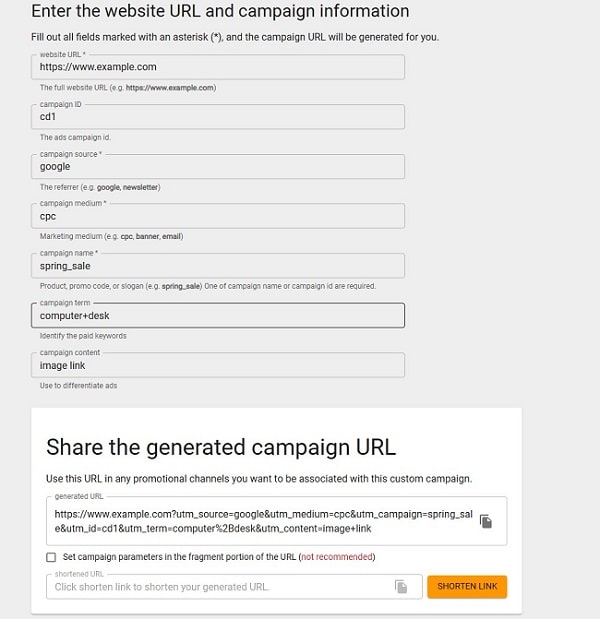
Recommendation: When using a GA4 UTM parameter builder, make sure only to use lowercase letters, with dashes or underscores (keep things consistent by just using one or the other). Make sure to avoid special characters to help simplify things further.
UTM parameters in advertising platforms
Most paid ad platforms, including Google Ads, Facebook Ads, and Bing, integrate UTM parameters directly into their campaign creation interfaces.
Using their built-in features can help streamline the process, as well as bridge the gap between the advertising platform and Google Analytics.
Google Ads
Here is a guide for adding GA4 UTM parameters in Google Ads:
- Create a new campaign: Within the Google Ads platform, navigate to the campaign creation section.
- Navigate to URL options: Look for the URL options section, usually found within the campaign settings.
- Add UTM parameters: Within the URL options, you’ll find fields for adding GA4 UTM parameters. Populate these fields with the relevant information.
- Review and launch: Review your campaign settings, including the GA4 UTM parameters, and launch your campaign.
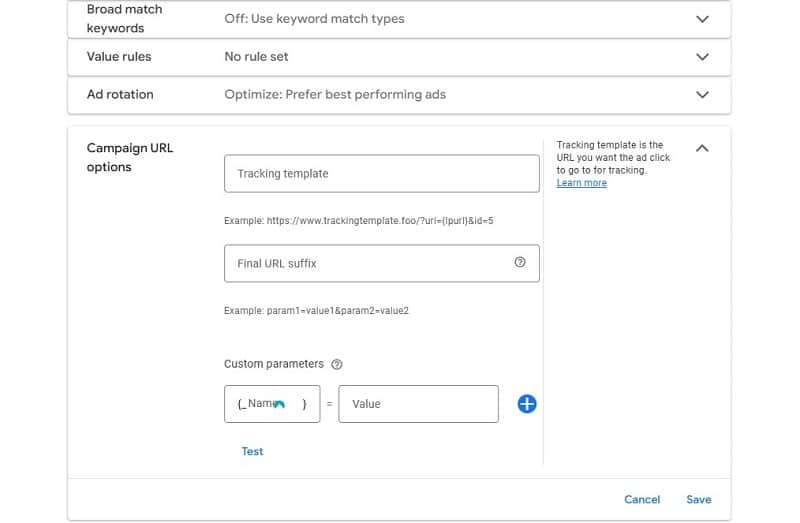
By utilising the UTM parameter features within advertising platforms, marketers can align their tracking seamlessly with Google Analytics.
The following are GA4 UTM parameters that you put on the end of a URL in order to attribute traffic that runs through them to their respective campaign or dataset in Google Analytics. Let’s take a look:
1. utm_campaign={campaignid}_{_campaign}
- Usage: This parameter is used to track the overall campaign. It’s helpful to include identifiers such as the campaign ID and a short campaign name.
- Best practice: Use a naming convention that helps you easily identify the campaign.
2. utm_source=google
- Usage: Identifies the source of your traffic. In this case, it indicates that the traffic is coming from Google.
- Best practice: Keep this consistent across all your Google Ads campaigns.
3. utm_medium=cpc
- Usage: Specifies the advertising medium, in this case, Cost Per Click (CPC).
- Best practice: Always use “cpc” for Google Ads, as it represents the payment model for these ads.
4. utm_content={creative}_{_creative}
- Usage: Identifies variations of your ad content. This could include details about the ad creative, such as the headline or image used.
- Best practice: Be descriptive and use a format that makes it easy to identify the specific creative element. Include identifiers like the creative ID.
5. utm_term={ifsearch:{keyword}}{ifcontent:site:{placement}}
- Usage: Captures the keywords or placements that triggered the ad.
- Best practice: Use the dynamic values provided. For search campaigns, it captures the keyword, and for display campaigns, it captures the placement.
6. utm_id={campaignid}_{adgroupid}_{creative}
- Usage: A unique identifier for tracking. Combines campaign, ad group, and creative information.
- Best practice: Use a combination of IDs that help identify the specific components of the campaign. This can be especially useful for troubleshooting.
7. utm_campaign_id={{campaign.id}}
- Usage: An alternative way to track the campaign ID.
- Best practice: Consistency is key. If you’re using this, ensure that it aligns with your overall tracking strategy.
8. &gclsrc=aw.ds
- Usage: This parameter is added by Google Ads automatically. It helps track clicks and conversions.
- Best practice: Keep it as is. It’s integral to Google’s tracking mechanisms.
9. &{_dsmrktparam}
- Usage: Placeholder for potential custom parameters specific to your tracking needs.
- Best practice: Replace this placeholder with any custom parameters you might need for additional tracking. Ensure that these are defined and processed correctly in your analytics system.
Here are the steps to implement GA4 UTM parameters on Facebook:
1. Create Your UTM-Tagged URL
- Use the URL Builder tool in Google Analytics or any other URL-building tool.
- Input the base URL and add GA4 UTM parameters according to your tracking needs.
2. Use UTM Parameters in Facebook Ads
- In the Facebook Ads Manager, during the ad creation process, there is a section for adding URLs. Insert your UTM-tagged URL in the appropriate field.
Now, let’s break down the specific GA4 UTM parameters for Facebook:
1. utm_source={{site_source_name}}
- Usage: Identifies the source of the traffic. In this case, it captures the site source name.
- Best practice: Ensure that the dynamic value is correctly populated and aligns with your tracking conventions.
2. utm_medium=social_paid
- Usage: Specifies the advertising medium. In this case, it indicates that the traffic is coming from paid social advertising.
- Best practice: Keep this consistent across all your Facebook paid campaigns.
3. utm_campaign={{campaign.name}}
- Usage: Tracks the overall campaign. The dynamic value captures the campaign name.
- Best practice: Use a clear and descriptive campaign name for easy identification in analytics.
4. utm_content={{ad.name}}
- Usage: Helps identify variations of ad content. Captures the name of the ad.
- Best practice: Ensure that the ad name provides meaningful information about the ad content.
5. utm_term=site:{{placement}}
- Usage: Captures information about the placement of the ad.
- Best practice: Use dynamic values provided. In this case, it captures the site placement.
6. utm_id={{campaign.id}}_{{adset.id}}_{{ad.id}}
- Usage: Provides a unique identifier for tracking, combining campaigns, ad sets, and ad IDs.
- Best practice: Use a combination of IDs that help identify the specific components of the campaign, ad set, and ad.
7. utm_campaign_id={{campaign.id}}
- Usage: An alternative way to track the campaign ID.
- Best practice: Consistency is key. If you’re using this, ensure that it aligns with your overall tracking strategy.
8. utm_source_platform={{site_source_name}}
- Usage: Another source identifier, capturing the platform dynamically.
- Best practice: Similar to utm_source, ensure that the dynamic value is correctly populated and aligns with your tracking conventions.
Bing
Here’s a guide on how to implement UTM parameters on Bing Ads:
- Log in to your Microsoft Advertising account.
- Navigate to All Campaigns: Once you’re logged in, navigate to the “All Campaigns” view. This is the main dashboard where you can see all your campaigns.
- Go to Account level options: Look for the “Settings” option. Within the settings, you should find an option like “Account level options” or something similar. Click on it to access account-wide settings.
- Add UTM Tags to Destination URLs: Within the account level options, there should be an option related to UTM parameters. It should be phrased as “Add UTM tags to my destination URLs” or something similar. Enable or configure this option.
- Configure UTM parameters: Once you’ve enabled the UTM parameter option, you can provide additional information such as the UTM source, medium, campaign, etc. These are the relevant UTM parameters that will be added to your destination URLs.
- Save changes: After configuring the UTM parameters, be sure to save your changes.
Implementing UTM parameters in Google Analytics 4
Before delving into UTM parameter tracking, it’s crucial to have Google Analytics 4 properly set up for your website.
Here is an overview of the setup process:
- Create a GA4 property: Log in to your Google Analytics account, navigate to the admin section, and create a new GA4 property for your website.
- Obtain the tracking code: Once the property is created, obtain the tracking code. This code is unique to your GA4 property and needs to be added to every page of your website.
- Implement the tracking code: Add the tracking code to the header or footer of your website. This step is crucial for Google Analytics to start collecting data.
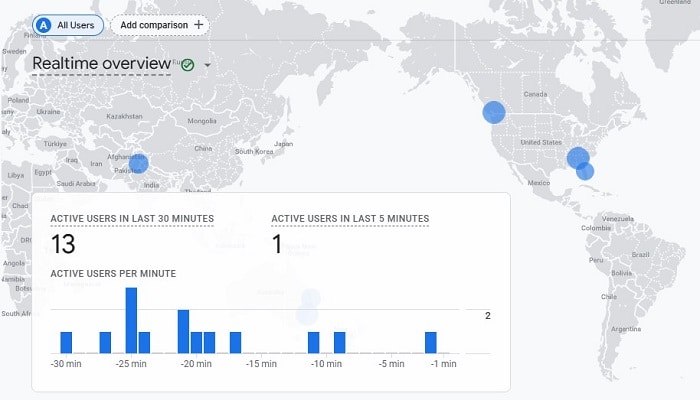
- Verify setup: After implementation, verify the setup by checking the real-time reporting in Google Analytics. This ensures that data is being collected correctly.
Configuring UTM parameter tracking in GA4
In Google Analytics 4, UTM parameters are generally tracked by default. However, it’s important to verify that you’ve enabled UTM parameter reporting.
Here are the steps to configure GA4 UTM parameter tracking:
- Access GA4 property settings: In your GA4 property, navigate to the “Admin” section.
- Select Data Streams: Under the “Data Streams” section, select the relevant data stream associated with your website.
- Enable UTM parameter reporting: Within the data stream settings, look for the option to enable UTM parameter reporting. This ensures that GA4 captures and reports UTM parameter data.
- Save changes: After enabling UTM parameter reporting, save the changes.
Without configuring UTM parameter tracking in GA4, marketers could be missing out on valuable data about the effectivness of their different marketing channels.
Analysing UTM parameter data in GA4
To access UTM parameter data, navigate to the “Traffic Sources” report, from here you can gain valuable insights into the performance of different campaigns, sources, and mediums.
This allows for a detailed understanding of user interactions driven by specific marketing efforts.
Here are key components of the Traffic Sources report:
- Campaigns: Explore the performance of individual campaigns. Identify which campaigns are driving the most traffic, engagement, and conversions.
- Sources/Mediums: Understand the sources and mediums contributing to your website traffic. Identify the most effective channels and optimise your strategies accordingly.
- Keywords (if applicable): For paid search campaigns, analyse the performance of different keywords. Identify high-performing keywords and refine your paid search strategies.
- Content: If utilising the content parameter, explore the impact of different ad variations or content elements on user engagement.
By regularly analysing the Traffic Sources report, marketers gain actionable insights into their marketing efforts.
Troubleshooting UTM parameter issues
Common UTM parameter mistakes
As useful as UTM parameters might be, simple mistakes can impact their effectiveness. It’s important to know how to identify and fix common UTM parameter mistakes.
Here are some common UTM parameter mistakes and how to fix them:
- Inconsistent naming conventions: Ensure consistency in naming conventions across all campaigns. Establish a standardised format for UTM values, including source, medium, campaign, term, and content. Inconsistencies can lead to inaccurate data.
- Missing values: Verify that all UTM parameters have values. Missing values can lead to incomplete or inaccurate tracking. Regularly check campaign setups to ensure all required fields are populated.
- Incorrect encoding: URL encoding is essential for proper data transmission. Ensure that special characters and spaces are correctly encoded.
- Lack of documentation: Maintain documentation for UTM parameters. Clearly outline the naming conventions and meanings of each parameter. This ensures that team members have a reference for creating consistent UTM values.
By resolving UTM parameter mistakes, businesses can utilise reliable and accurate data to help their digital marketing campaigns.
Debugging UTM parameter tracking
When encountering issues with UTM parameter tracking, GA4 provides debugging tools and browser extensions to troubleshoot and identify the root causes.
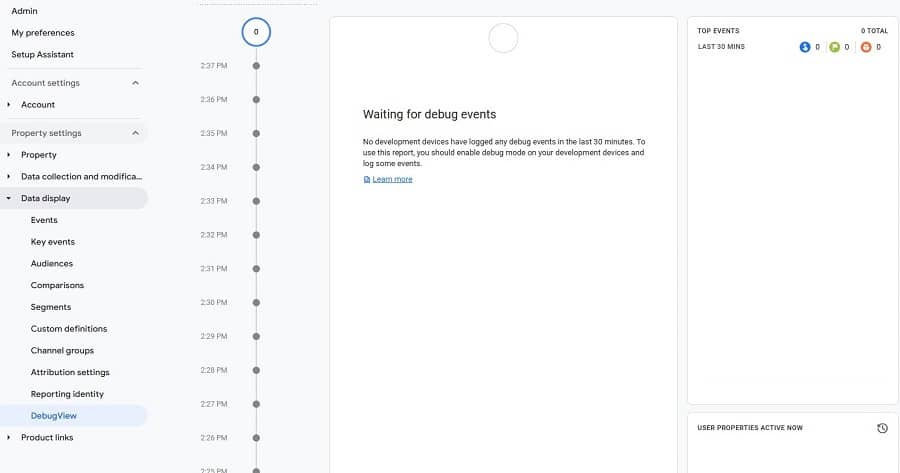
Here’s how you debug UTM parameter tracking:
- Use GA4 DebugView: GA4 offers a DebugView feature that provides real-time data on events and parameters. Access DebugView in the GA4 interface to monitor UTM parameter data as it is collected.
- Browser extensions: Utilise browser extensions designed for debugging and analysing Google Analytics data. These extensions can provide detailed insights into the data, helping identify any issues with UTM parameters.
- Check network requests: Use browser developer tools to inspect network requests. Ensure that UTM parameters are correctly appended to URLs and that data is being sent to GA4 without errors.
- Review GA4 configuration: Double-check GA4 property settings to ensure that UTM parameter reporting is enabled. Confirm that the correct data stream is associated with your website.
- Consult GA4 help resources: Google Analytics provides extensive documentation and help resources. If issues persist, consult these resources or contact the GA4 support community for assistance.
By proactively debugging UTM parameter tracking, businesses can identify and address issues before they impact data accuracy.
Conclusion
As digital landscapes continue to evolve, the role of UTM parameters remains pivotal in analysing and understanding online user engagement.
For those seeking expert guidance in navigating the intricacies of Google Analytics 4 and maximising the potential of UTM parameters, MeasureMinds stands as a reliable partner.
Our dedicated GA4 services are tailored to assist businesses in harnessing the full power of analytics. If you need assistance or wish to elevate your understanding of GA4, contact MeasureMinds.
We are here to ensure that your journey through the realm of analytics is insightful and results-driven. Your success in the digital age is our priority – contact us for a collaborative approach to unlocking the true potential of your online endeavours.