How to Implement Consent Mode V2 for Apps

Data privacy is a top priority for modern customers. App developers must gather consent before collecting user data to keep followers happy and remain compliant. The Consent Mode app is a handy tool for obtaining the data you need while staying in compliance with legislation.
Here, we’ll explore how to implement Consent Mode effectively in your app.
What does Consent Mode mean for an app?
Consent Mode app is a tool that modifies SDK behavior to match a user’s consent preferences. When set up correctly, it ensures that no user data is collected unless a user has given explicit permission.
Consent Mode can be set up by following a few simple steps within Google Analytics for Firebase. We’ll give a rundown of this process later.
How is V2 different?
Consent Mode V2 is the latest iteration of the tool. In reality, this version is similar to its predecessor. It was created in response to changes to the Digital Markets Act (DMA) and introduces two new fields. These are:
- Ad_personalization = allows downstream remarketing and online advertising usage.
- Ad_user_data = allows email or mobile numbers in downstream usage.
How does Consent Mode work within Firebase?
There are no default values set within Firebase. This means that, without any action from a property owner, Firebase will continue to collect data as usual. You’ll be at risk of non-compliance if you have users from a region with data privacy laws, such as the EU.
To avoid this situation, you’ll need to set the default consent state for each category in Consent Mode. When this is set up, Firebase will only collect data when consent is received.
Of course, user consent isn’t static. To make sure that Firebase responds to any changes in consent, you’ll need to use the SetConsent method. This will ensure that a user’s preferences persist the next time they visit your app – they won’t need to input their choices again.
How to implement Consent Mode V2
We’ll give a rundown of how you can get started with Consent Mode Apps. The process will differ depending on whether you’re running an iOS or Android app. We’ll break down the different approaches with the setup.
For IOS apps
Setting default consent values in iOS apps
To begin, you’ll need to set a ‘default’ state so that no user data is collected without Consent. To do so, you’ll need to head to your application’s info.plist.
You’ll need to set the consent value to ‘false’ on all key-value pairs. When complete, this should resemble the example below:
- GOOGLE_ANALYTICS_DEFAULT_ALLOW_ANALYTICS_STORAGE
- GOOGLE_ANALYTICS_DEFAULT_ALLOW_AD_STORAGE
- GOOGLE_ANALYTICS_DEFAULT_ALLOW_AD_USER_DATA
- GOOGLE_ANALYTICS_DEFAULT_ALLOW_AD_PERSONALIZATION_SIGNALS
Updating user consent values in iOS apps
To update a user’s consent status in the Firebase SDK, we’ll need to use the ‘SetConsent’ method. This is displayed below.
extention UserConsent {
var consentStatus: ConsentStatus {
return isSelected ? ConsentStatus.GRANTED : ConsentStatus.DENIED
}
}

mobileConsentsSDK.showPrivacyPopUp() { settings in
settings.forEach { consent in
switch consent.purpose {
case .statistical:
Analytics.setConsent(.analyticsStorage: consent.consentStatus
case .functional: break
case .marketing: break
Analytics.setConsent([
.adStorage: consent.consentStatus,
.adUserData: consent.consentStatus,
.adPersonalization: consent.consentStatus,
])

case .necessary: break

@unknown default:
break
}
print("Consent given for:\(consent.purpose): \(consent.isSelected)")
}

Analytics.setConsent([
.analyticsStorage: ,
.adStorage: ,
.adUserData: ,
.adPersonalization: ,
])

}
Verifying Google Consent Mode setup in iOS apps
Now that Consent Mode is set up, all that’s left is to make sure the tool is working correctly. You’ll need to verify verbose logging on your device to make sure that consent preferences are being logged correctly. To do so, follow the steps below:
- Go to Xcode and choose product > scheme > Edit Scheme.
- Select ‘Run’ from the menu on the left of your screen.
- Choose the ‘Arguments’ tab > Arguments Passed On Launch.
- Enter the command ‘-FIRAnalyticsVerboseLoggingEnabled’.
Now, within the Xcode, you should see parameters corresponding with your user consent state. For example:
- ‘ad_storage is denied.
- analytics_storage is denied.
- ad_user_data is denied.
- ad_personalization is denied.
For Android apps
Setting default values for Android apps
Creators of Android apps must follow a similar process. To begin, open your AndroidManifest.xml to add default consent settings. Copy and paste the following settings into your XML:
<meta-data android:name="google_analytics_default_allow_ad_user_data" android:value="false" />
<meta-data android:name="google_analytics_default_allow_ad_storage" android:value="false" />
<meta-data android:name="google_analytics_default_allow_ad_personalization_signals" android:value="false" />
<meta-data android:name="google_analytics_default_allow_analytics_storage"
android:value="false" />
Setting consent updates for Android apps
Now, we just need to add settings to allow users to update their consent. Once again, we’ll do so by adding the ‘SetConset’ command.
Firebase.analytics.setConsent {
analyticsStorage()
adStorage()
adUserData()
adPersonalization()
}
When using the CookieInformation Android SDK, you can find a user’s most recent consent preferences using the getSavedItemsAsFlow() method. To work within FireBase, these Boolean values must be assigned to ConsentStatus.GRANTED and ConsentStatus.DENIED.
If you’re using Android version 3 or above, use the following code:
lifecycleScope.launch{ConsentsUISDK.getSavedItemsAsFlow().collect { it.fold( onSuccess = { consentItems ->//this is on return from the popup, we get //the list of items and set your //data collectors accordingly} }, onFailure = { throwable -> Log.d(TAG, throwable.message ?: "no message") } )}If you’re using up to version 3, use:
lifecycleScope.launch {
 (applicationContext as App).sdk.getSavedConsentsWithType(object : CallListener<Map<UUID, ConsentWithType>> {
   override fun onSuccess(result: Map<UUID, ConsentWithType>) {
     val mapped = result.values.associate { it.type to it.consented }
     Firebase.analytics.setConsent {
       analyticsStorage(if(mapped[ConsentItem.Type.TypeStatistical] == true) ConsentStatus.GRANTED else ConsentStatus.DENIED )
       adStorage(if(mapped[ConsentItem.Type.TypeMarketing] == true) ConsentStatus.GRANTED else ConsentStatus.DENIED )
       adUserData(if(mapped[ConsentItem.Type.TypeMarketing] == true) ConsentStatus.GRANTED else ConsentStatus.DENIED )
       adPersonalization(if(mapped[ConsentItem.Type.TypeFunctional] == true) ConsentStatus.GRANTED else ConsentStatus.DENIED )
     }
   }

   override fun onFailure(error: IOException) {}
 })
}
Reviewing Consent Mode v2 setup for Android apps
To ensure your app respects user consent choices, it’s essential to verify that your Consent Mode setup is functioning correctly. Start by enabling verbose logging on your Android device for Firebase Analytics. Use the following commands in your terminal:
adb shell setprop log.tag.FA VERBOSE
adb shell setprop log.tag.FA-SVC VERBOSE
adb logcat -v time -s FA FA-SVC
Next, open Logcat in Android Studio and monitor the output. You should see log messages confirming how consent settings are applied. This message begins with “Setting consent” followed by the current consent states.
For example, if the user grants permission for ad-related tracking, you might see:
Setting storage consent(FE): source=API, ad_storage=granted, analytics_storage=granted
These steps confirms that the app has registered the user’s choices properly. If these messages do not appear or the values seem incorrect, you should revisit your implementation to ensure consent signals are being passed as expected.
The benefits of using Consent Mode
We’ve explored how you can set up Google Consent Mode on your app. But why should you utilize this tool? Here are some of the top advantages of Consent Mode.
Staying in line with the law
The most obvious reason for using Consent Mode is that it helps ensure compliance on your application. Many jurisdictions across the world have set up data privacy regulations. These govern how organizations collect, manage, and maintain data.
Perhaps the most notorious example is the EU’s GDPR. Under this legislation, businesses are required to obtain a user’s consent before they can collect personal information. GDPR outlines stringent fines for companies that fail to comply: a maximum penalty of up to £17.5 million or 4% of annual global turnover (whichever is greater).
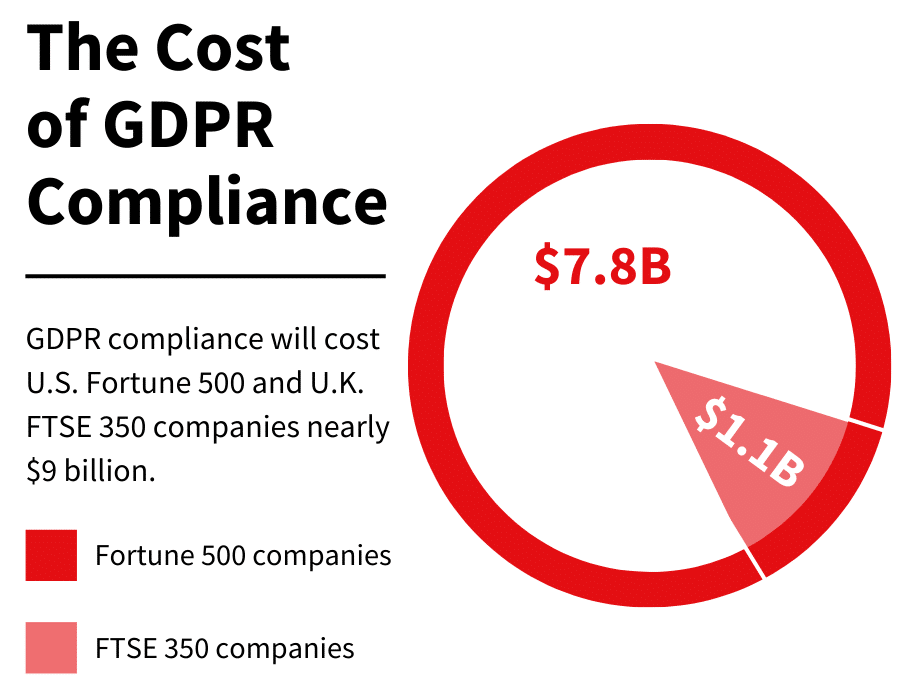
With new data privacy laws modelled on GDPR set to arrive, compliance is more important than ever. Consent Mode enables businesses to fulfil a user’s consent requirements and continue to collect data. So, you can stay on the right side of the law and avoid costly fines.
Keep customers happy
User privacy is becoming a growing concern for many customers – 38.4% of online users in the UK care about how companies use their personal data. When businesses lack openness and transparency about how they use data, customers are likely to go elsewhere.
Consent Mode contributes towards a privacy-centric data policy. You can honor customers’ consent preferences and, alongside other elements such as a cookie policy, provide full clarity over your data collection practices.
When data privacy is a priority, customers feel more trusting towards your business. They’re more likely to invest in your future products or services. They’re also more likely to become an advocate and share your brand with others.
Greater control over data collection
Ensuring compliance with data privacy laws becomes more difficult If you’re brand operates in multiple jurisdictions. Different counties and regions have different data policies. The United States, for instance, has different data laws for different states.
Consent Mode makes this process easier. Using advanced Consent Mode, you can set different default consents depending on a user’s location. For example, if you receive visitors from a country with no data privacy law, such as Pakistan, you can set the default state to ‘GRANTED’. For users from EU states, you can set the default to ‘DENIED”.
This flexibility makes it easier for your business to get the sorts of Consent Mode data it needs.
Ensuring compliance for your app
It’s important to remember that Consent Mode isn’t enough to guarantee a compliant app. It’s an important tool that should complement a series of other factors.
Here’s a compliance checklist to consider.
- A consent management platform – Consent Mode gathers consent preferences from your consent banner. You’ll need a consent management platform or a custom banner in place to register consent.*
- A cookie policy – Part of GDPR compliance is ensuring that users have full knowledge of how cookies operate on your site. Your cookie policy should include a full rundown of all cookies on your app, what they do, and how long you store them.
- Legal knowledge – This is easily the most challenging aspect of compliance. Legal requirements change over time as new legislation is introduced. You may need to hire additional help to stay up-to-date.
If you haven’t yet set up a CMP, you can use our exclusive Cookiebot discount. Click the link, and you can get set up in three simple steps.
Put data privacy at the heart of app development
The topic of data privacy is here to stay. So, why not give customers the freedom they want? Consent Mode gives you the ability to respect users’ consent choices. What’s more, it provides a means for collecting legally compliant data – it’s a win-win!
Remember, Consent Mode can suit a variety of use cases. Check out our recent blog on activating Consent Mode on Shopify.
FAQs
Is Consent Mode working correctly?
If you’re unsure about Consent on your app, you can use our Consent Mode Monitor. This scans your Google Tag Manager container and provides a list of Google tags with missing or incorrect consent. What’s more, you can fix any issues identified at the click of a button.
I don’t operate in the EU. Does GDPR still apply to me?
GDPR covers UK and EU citizens. If you receive any traffic from these regions, you must ensure compliance.