Google Ads Conversion Windows: A Complete Guide

Explore what a Google Ads conversion window is, how it works, why it matters, and how you can set it up effectively to improve your specific campaign performance, with examples and explanations.
Why do Conversion Windows in Google Ads matter?
By setting an appropriate window that aligns with your customer behavior, you can ensure more accurate attribution, greater conversion tracking, better bidding decisions, and stronger campaign performance.
What is a Conversion Window in Google Ads?
A conversion window is the time period after an ad interaction (such as a click or view), during which a conversion is counted in Google Ads. If a user interacts with your ad and converts within the set conversion window, that conversion is attributed to the original ad interaction.
For Example:
Let’s say your conversion window is set to 30 days. A user clicks your ad on the 14th, but completes a purchase 10 days later on the 24th. The conversion would be attributed to the ad click on the 14th.
There are three main types of conversion windows to be aware of:
1. Click-Through
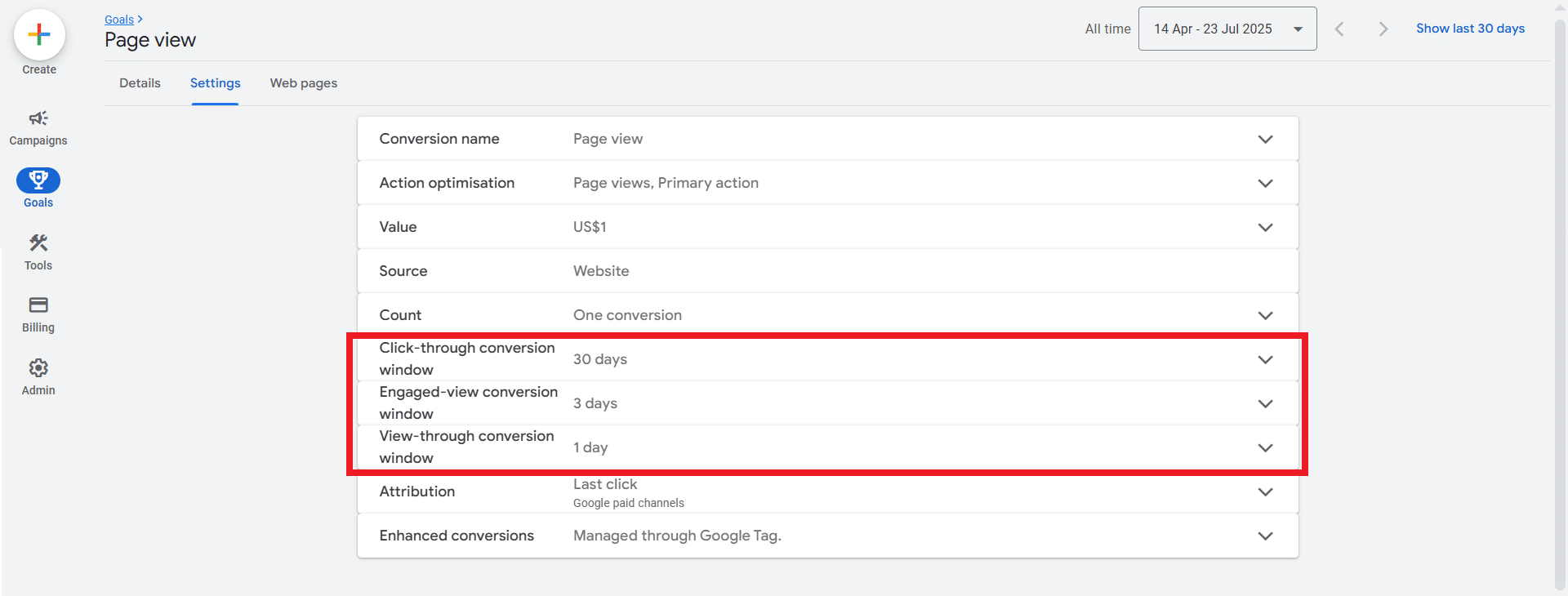
This is the most common type. It tracks conversions that happen after someone clicks your ad (default 30 days).
2. Engaged View
These apply mostly to video and display campaigns.They track conversions after someone watches at least 10 seconds of a skippable video ad and converts later (default: 3 days)
3. View-Through
Tracks conversions after a user views (but doesn’t click) a display or video ad and converts (default: 1 day)
How to Set or Change the Conversion Window in Google Ads
Here’s how to update your conversion window:
- Sign in to your Google Ads account
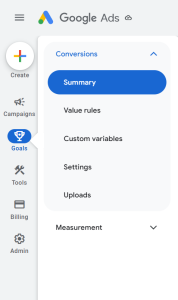
- In the left-hand navigation menu, click “Goals”
- Select “Conversions” under the Goals section
- You’ll now see a list of your conversion actions
- Click on the name of the conversion action you want to modify
- In the details view, click “Edit settings” or “Settings”
- Scroll to the “Conversion window” setting
- Adjust the number of days (from 1 to 90 days, depending on the type)
- Click Save

Important Notes:
- You can only change the conversion window if the conversion is tracked via:
- Google Ads tag (gtag.js)
- Google Tag Manager
- Or offline conversions uploaded manually
- If you’re using GA4 (Google Analytics 4) conversions, the window must be set in GA4, not in Google Ads
If You Don’t See “Edit Settings”:
- Make sure the conversion is not imported from GA4
- You can confirm this in the conversion type column. It will say something similar to: “Website (Google Ads Tag)” if it is editable. Or “Imported from Google Analytics (GA4)” if it is not editable in Google Ads.
It’s also important to note that changing the window doesn’t affect conversions already recorded, it will only apply to future conversions.
How to Choose the Right Google Ads Conversion Window
Choosing an appropriate conversion window depends on your business and customer behavior. Ask:
- How long is your typical sales cycle?
- How quickly do users tend to convert after clicking your ad?
- Are you optimising for quick decisions (e.g. eCommerce) or long-term commitments (e.g. B2B services)?
It’s all about user behavior over a period of time.
Why would I want a shorter conversion window?
You’d want a short conversion window in Google Ads when conversions tend to happen quickly after the ad interaction, whether that’s instantly or over the course of a few days. Measuring long windows for these types of conversions risks inaccurate attribution. In other words, losing track of the cause of the conversion. Shorter windows will give you a clearer view of what’s actually working.
Here’s some examples for when a shorter conversion window makes sense:
1. Impulse Purchases
Products that are low-cost, low-risk, or emotionally driven, such as accessories, trendy gadgets, or gifts.
Why?
Users often click and buy on the spot, so extending the window doesn’t add much value.
Recommended: 1–7 days
2. Limited-Time Promotions
If you’re running flash sales, one-day discounts, or seasonal offers, you want to measure conversions that happen during or right after the campaign.
Why?
Attributing conversions that happen weeks later to a short-term promo can skew your data.
Recommended: 1–7 days
3. Mobile App Installs
If your goal is simply to track installs (not in-app purchases), users usually download the app immediately after clicking.
Why?
Install behavior happens almost instantly, so a longer window isn’t necessary.
Recommended: 1–3 days
4. Simple, One-Click Actions
If your conversion is something like a newsletter signup, free download, or contact form, and users typically complete it on the first visit.
Why?
A shorter timeframe gives you a cleaner view of what’s actually working.
Recommended: 1–7 days
5. Testing Fast-Moving Campaigns
When A/B testing ad performance, landing pages, or bidding strategies in high-volume, fast-moving campaigns, a shorter window helps you analyse results faster and more clearly.
Why?
You want to minimize conversion lag so you can iterate quickly.
Recommended: 1–7 days
When should I have a longer conversion window?
You’d want a long conversion window when your customer journey is longer or more complex, meaning users often take a number of days or even weeks to convert after clicking or viewing your ad.
Here are some examples for when you should use a longer conversion window:
1. Long Sales Cycles
If your product or service requires research, consultation, budgeting, or approval before purchase. Things like B2B software or financial services, where users are unlikely to convert immediately.
Why?
People often click your ad early in their decision-making process and return later to convert.
Recommended: 30–90 days
2. High-Consideration Purchases
For expensive or complex purchases like electronics, appliances, luxury goods, or health services, buyers tend to shop around before making an informed decision.
Why?
Customers compare options, read reviews, and talk to others before coming back to your site.
Recommended: 14–60 days
3. Lead Nurturing Campaigns
If you’re collecting leads through a form (e.g. for coaching or SaaS), and then nurturing them via email or sales outreach, you need a longer window.
Why?
The actual conversion (like booking a call or closing a sale) might happen days or weeks after the first ad interaction.
Recommended: 30–90 days
4. App Installs with In-App Conversions
If you’re running app install campaigns but measuring in-app purchases or subscriptions as conversions, you may want a longer window.
Why?
Users might download the app and explore it for a while before spending money.
Recommended: 14–30 days
5. Remarketing or Multi-Touch Funnels
If your campaign is part of a broader strategy with multiple touchpoints such as retargeting, email marketing, or social media ads, users will often convert after multiple sessions.
Why?
The initial ad click is just the first of many steps.
Recommended: 30–90 days
How do I check how long my conversions take?
If you’re not sure how long your conversions take, simply go to:
Goals→ Attribution → Path Metrics
It will show you how many days (and clicks) it typically takes a user to convert.
Tips and Best Practices for Conversion Windows
- Test different windows to see which gives the clearest picture
- Align it with your Google Ads attribution model – especially if you’re using Data-Driven Attribution
- Don’t set it and forget it – revisit this setting every quarter or when your sales process changes
- Consider Assisted Conversions – Use Google Analytics or Attribution reports to see if conversions occur outside your current window
- Review Time Lag Reports – Use the “Time lag” report in Google Ads to see how many days it typically takes users to convert after clicking an ad
Conclusion
The Google Ads conversion window is a crucial yet often overlooked component of digital marketing campaign optimisation. Whether you’re running short-term promotions or nurturing long sales cycles, understanding and optimising your conversion window is key to understanding your conversion rates and making the most of your Google Ads investment.
- Enterprise SaaS SEO – Expert Strategies, Tools, & Playbooks - 31/03/2026
- How to Set Up and Implement Cookiebot by Usercentrics - 18/03/2026
- Top 5 OneTrust Alternatives for 2026 - 12/03/2026