Microsoft Ads Consent Mode: Everything You Need to Know

The topic of data privacy is a hot topic. With new international privacy regulations cropping up, businesses need to be aware of user consent. Microsoft’s Universal Event Tracking Consent Mode is the latest tool to help businesses fulfil this need.
If you’re using Microsoft’s Advertising Platform in the European Economic Area (EEA), Switzerland, or the UK, you must now use Microsoft Ads Consent Mode to comply with data privacy laws and regulations.
At our Privacy4Marketers event, Richard van der Velde, Technical Communications Specialist at Usercentrics, presented a detailed talk on Microsoft Ads Consent Mode. Watch his session below for practical tips on this update:
What is Microsoft Ads Consent Mode?
Microsoft Ads Consent Mode offers Microsoft Advertising Platform (MAP) users a way of collecting data while maintaining data privacy compliance.
It was created in response to the Digital Marketing Act (DMA), which put protections over the collection and processing of data.
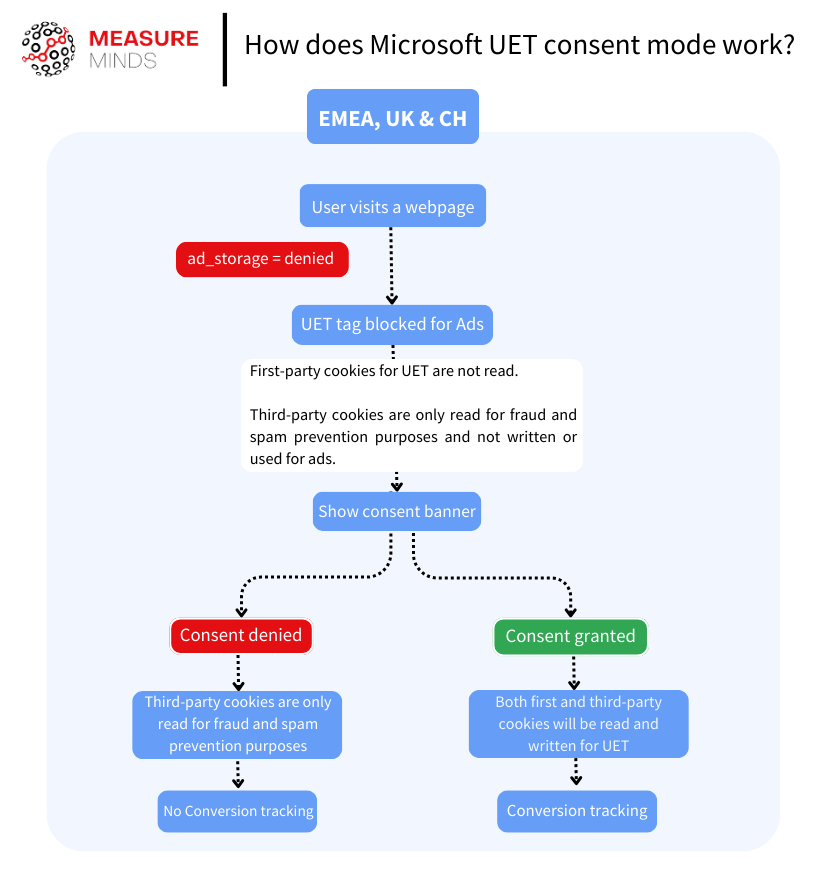
The tool operates similarly to Google Consent Mode V2, which also launched in 2023. When a user arrives on a webpage, the default setting for Consent Mode must be set to Denied to prevent processing information without consent. This means that no first-party cookies are read, while third-party cookies are only read to prevent fraud and spam.
Microsoft Ads Consent Mode will alter cookie behaviour based on user consent choices. If they withhold consent, cookie restrictions continue to apply. If they consent, both first and third-party cookies can be used for UET.
How does it work?
Using Microsoft Ads Consent Mode, website owners should ensure that they can easily switch first and third-party cookies off and on.
In UET, all consent functionality is controlled via the ad_storage property. This must be present on every page load on your site, it must also be applied every time a user provides consent.
The ad_storage property can be set to two statuses. These are
- Default consent – The default consent state informs how cookies behave before a user has provided consent. In the UK, EU, and Switzerland, this should be set to ‘denied’.
- Consent update – Once a user has input provided or denied consent, consent mode should respond accordingly. This either means enabling cookies or remaining at the default consent state.
Implementation choices: basic vs. advanced Microsoft consent mode
Microsoft Ads Consent Mode gives you two ways to set it up: basic and advanced, much like what you’d find with Google’s consent mode.
In the basic setup, user data isn’t sent to Microsoft until consent is explicitly given. Once consent is provided, data collection proceeds, including new tracking parameters tailored for compliance.
The advanced implementation sends limited, anonymous data to Microsoft even before consent is granted. In this case, the Click ID (which usually tracks user actions via URL) isn’t stored or shared initially. If the user later agrees to data tracking, the Click ID is then stored and sent along with their updated consent status. This approach helps advertisers gather insights without compromising user privacy.
Which implementation should you choose?
Selecting between basic and advanced Microsoft consent modes mostly depends on your website visitors’ interactions with the consent banner. The basic setup will suffice if most visitors interact quickly with it.
The advanced option may provide limited benefits if users regularly delay interacting with your consent banner. However, due to limited documentation and the complexities involved, it’s only practical if you’re ready to handle additional technical requirements.
How legislation has impacted consent
As mentioned, Consent Mode was built in response to the DMA and other privacy regulations. The DMA identified companies that were dubbed ‘digital gatekeepers’. Companies listed included Alphabet (Google), Apple, Amazon, and Microsoft.
To avoid costly fines, many of these companies scrambled to address the user consent issue. Google updated its Consent Mode tool with the new, Consent Mode V2. The company introduced two new consent parameters to line up with the requirements of the DMA: ad_user_data and ad_personalization.
Microsoft Ads Consent Mode also emerged at this time. It sends signals from UET tags to Microsoft, enabling them to view user consent statuses.
But what does all this mean for advertisers? Ultimately, whether you’re using Microsoft Ads, Google Ads, or some other platform, you need a consent management solution. Microsoft Ads Consent Mode is a simple answer for those on the MAP.
How to set up Microsoft consent mode
Let’s explore how you can set up Microsoft Ads consent mode. The exact process depends on how your website handles user consent. You can configure consent mode in two common ways:
- Manually hardcode it into your website.
- Using Google Tag Manager (GTM).
Both methods are straightforward, and you can choose whichever best suits your site’s current setup and your technical comfort level.
To manually hardcode the consent mode, you must edit your site’s code directly. If you’re already using GTM, it provides a user-friendly interface for setting it up without touching the code.
Setting up Microsoft consent mode using JavaScript
Using Google Tag Manager (GTM) sometimes doesn’t work as expected when setting up Microsoft Consent Mode, and you’ll need to use JavaScript instead. It might happen for several reasons, like unique site setups or technical limits. But here’s the key: don’t mix GTM and JavaScript for this.
If you’ve already got it running through GTM, adding the code by hand isn’t needed and might mess things up. Talk to a developer to make sure it’s done right.
Setting the default consent state
You need to set the starting point for consent for Microsoft Ads. You need to place a JS code snippet right after your Universal Event Tracking (UET) tag in the <head> part of your page. Once the page loads, this code snippet is configured to lock in the default consent settings. Here’s the code to use:
// Your UET tag goes here first
// Define the default consent settings immediately after
<script>
window.uetq = window.uetq || [];
window.uetq.push('consent', 'default', {
  'ad_storage': 'denied',
  'Wait_for_update': 2000
});
</script>
Make sure to put this script on every page of your site. Adjust the Wait_for_update timing if needed.
Updating consent status after user gives consent
When a user grants consent, update their consent status by including this snippet:
// Update consent status after user agreement
<script>
window.uetq = window.uetq || [];
window.uetq.push('consent', 'update', {
  'ad_storage': 'granted'
});
</script>
When precisely this should run depends on your consent management tool. Ask your developers to trigger it upon receiving consent, specifically for ad tracking.
Blocking UET Events with a Cookie (Optional)
Even with the default state set, if the UET tag loads before consent, events might still slip through to Microsoft. If you want to stop that but keep the tag loaded, then add a cookie called _uetmsdns with a value of 1. It blocks those events from firing. Here’s how to set it:
// Block UET from firing events before the consent
 document.cookie = "_uetmsdns=1; path=/; Secure; SameSite=Strict";
This cookie lasts for the user’s session and stops events from being sent until consent is given. Ensure to remove the cookie once users grant their consent.
Configuring Microsoft consent mode using Google Tag Manager
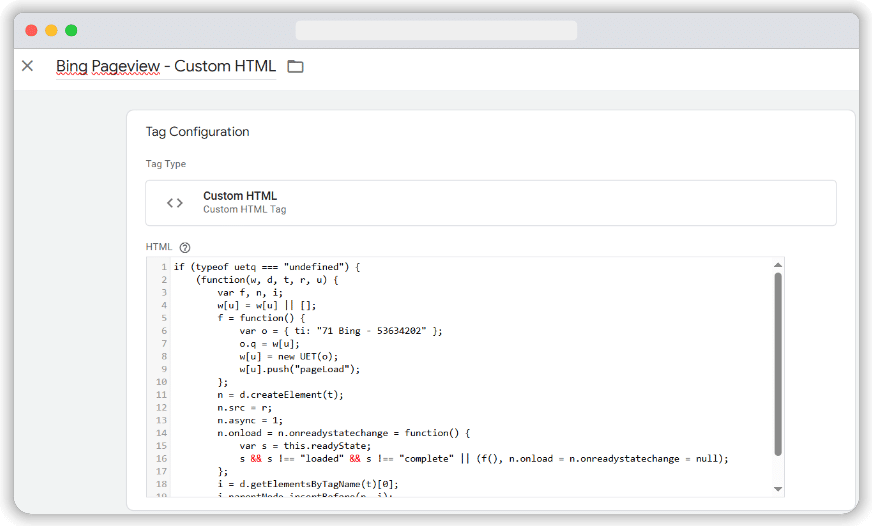
The first thing to check is that you’re not relying on a Bing custom HTML tag for this setup. It isn’t compatible with Microsoft’s consent mode setup.
Setting up the Tag
You must switch to the official “Microsoft Advertising Universal Event Tracking” template. To do this, navigate to your Google Tag Manager account, select Tags, and then click New.
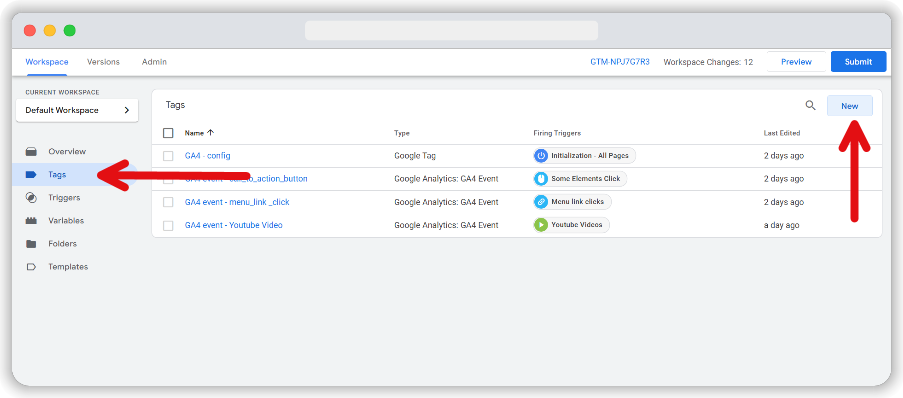
It can be tricky to find the template manually, so I suggest using the search feature to locate the template quickly. Once located, select it.
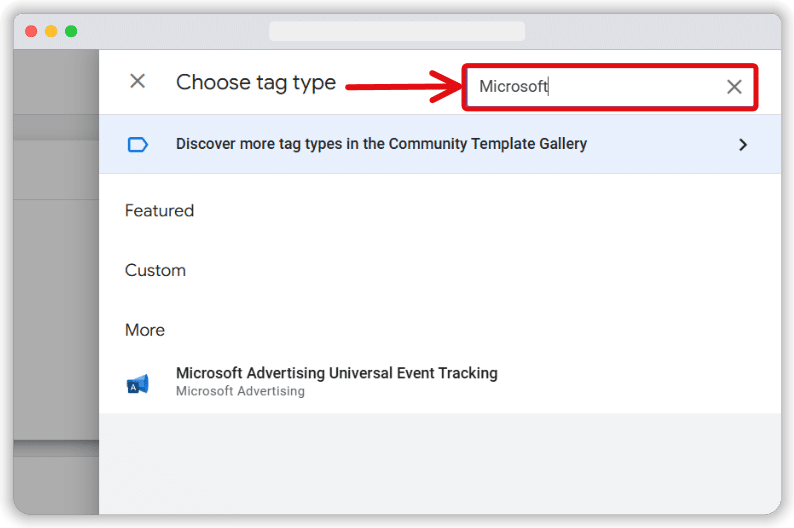
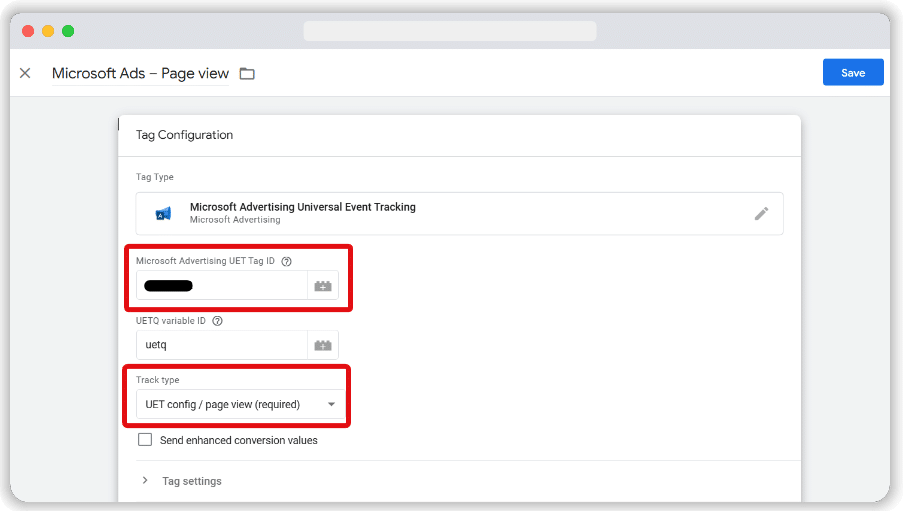
Grab the UET Tag ID from your Microsoft Ads account and paste it into the relevant field. Keep the track type set to “Page view”, then name your tag clearly (for example, Microsoft Ads – Page view).
Configuring consent settings
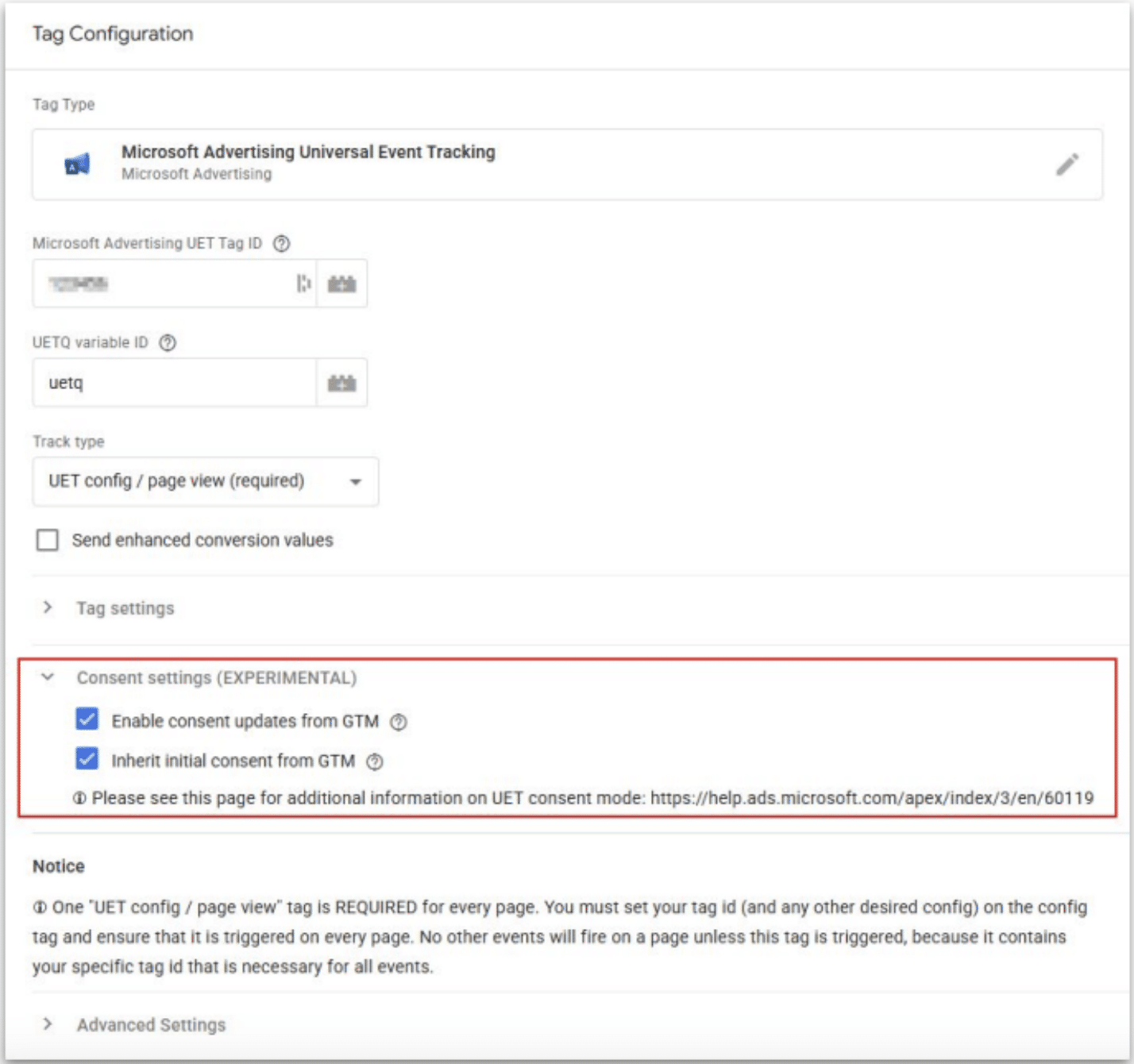
Next, navigate to the experimental Consent settings section. You’ll see two methods for capturing user consent there:
- Inherit initial consent (off by default)
- Enable consent updates (on by default)
Enabling both options is recommended for most setups. However, do not check “Inherit initial consent” if you do not use GTM consent mode at all, as consent will be granted if no default is configured.
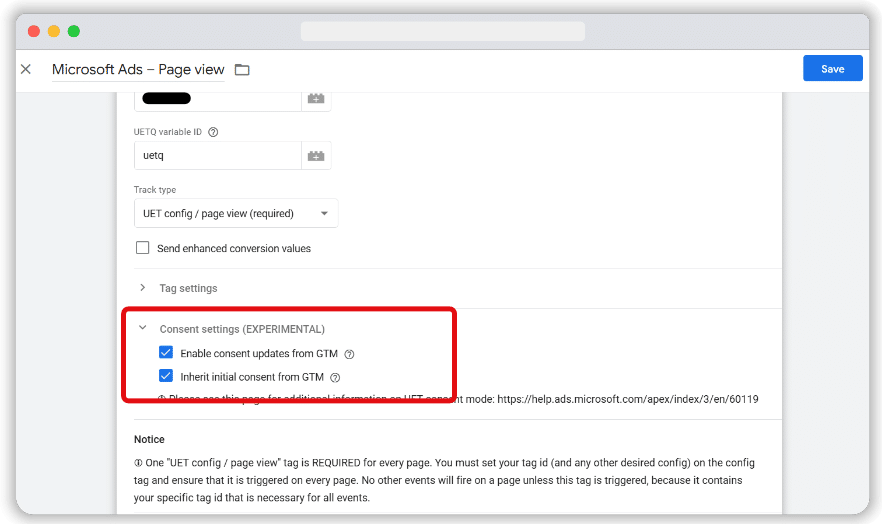
The default option (Enable consent updates) captures consent after users interact with your consent banner. Sometimes, the UET tag might fire after users have consented, which can cause missed consent updates. In these cases, activating the “Inherit initial consent” option helps capture earlier consent.
Based on our experience, the Inherit Initial User Consent is off by default to avoid incorrect default consent assumptions. Only activate this when needed.
Setting up triggers
Finally, create a custom event trigger based on your CMP’s consent signal to control when the tag fires. For example, if you’re using Cookiebot, configure the trigger with ‘cookie_consent_update’. Users of OneTrust or similar platforms should adjust this accordingly. Once done, click the “Save” button.
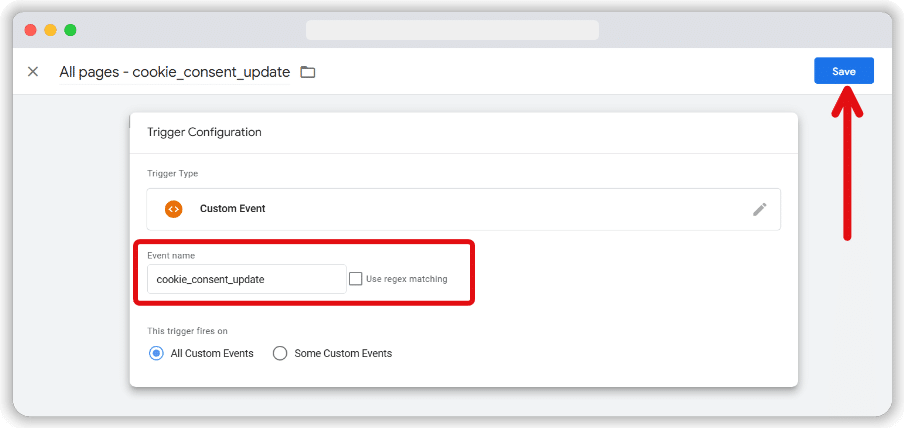
Note: If you’re using a blocking rule for targeting, remove it from this tag. The Microsoft Ads tag includes built-in consent controls for ad storage, making additional blocking unnecessary.
Once you’ve completed all the steps mentioned above, click the “Save” button.
Inheriting data from GTM
If you implement Microsoft Consent mode through GTM, you can choose to inherit consent mode settings. Simply open the ‘Consent settings’ section of your tag and choose ‘Enable consent updates from GTM’ and ‘Inherit initial consent from GTM’. This ensures that CMP updates, which are normally sent to GTM, are directed to Microsoft Consent Mode.
Does your business need Microsoft consent mode?
Earlier, we mentioned that if your business is based in the European Economic Area (EEA), Switzerland, or the UK, you must use consent mode.
But what if you operate in an area that isn’t listed? If your business serves ads to users in the above regions, you’ll still need consent mode. You’re still under the jurisdiction of data protection laws such as GDPR and can be fined for non-compliance.
It’s important to note that not all cookies require user consent. The DMA covers ‘nonessential cookies’. These are separate from the cookies that your website needs to function. The use of cookies for nonessential purposes requires consent from your users.
It’s important to note that not all non-essential cookies relate directly to advertising. The two examples below are both non-essential cookies and require consent:
- Analytics cookies – If you track user behavior on your site with a tool like Google Analytics or Microsoft Clarity, you’ll first need consent.
- Third-party widgets – Some third-party applications and widgets collect data and forward it to external parties. Even though your business isn’t collecting this data, you’ll still need user consent.
Key considerations when implementing Consent Mode
While it is important to activate Consent Mode sooner rather than later, it’s equally important not to rush your implementation. Here are some key points to remember to get the most out of consent mode.
Map out your consent management strategies
Every business has unique consent requirements, depending on its industry, location, and strategies. That’s why the first stage of implementation should be to reflect on your current data collection methods.
List all the cookies, tracking tools, and third parties currently utilised on your site, alongside how each example is used. Consider how they may impact compliance with legislation such as GDPR. Then, think about how you can use consent mode effectively.
During this process, review your privacy and cookie policies. Do they address all the relevant areas outlined within legislation? Remember, each time you introduce any new forms of tracking, you’ll need to update your policies.
Alongside first-party cookies, third-party cookies are the second cookie you might have on your website. Rather than providing you with data, these collect data for external companies. They may be generated on your website if it houses third-party adverts or images.
It’s useful to audit your existing setup to see how third-party cookies play a role. Make sure that users can opt-out of these cookies when visiting your site.
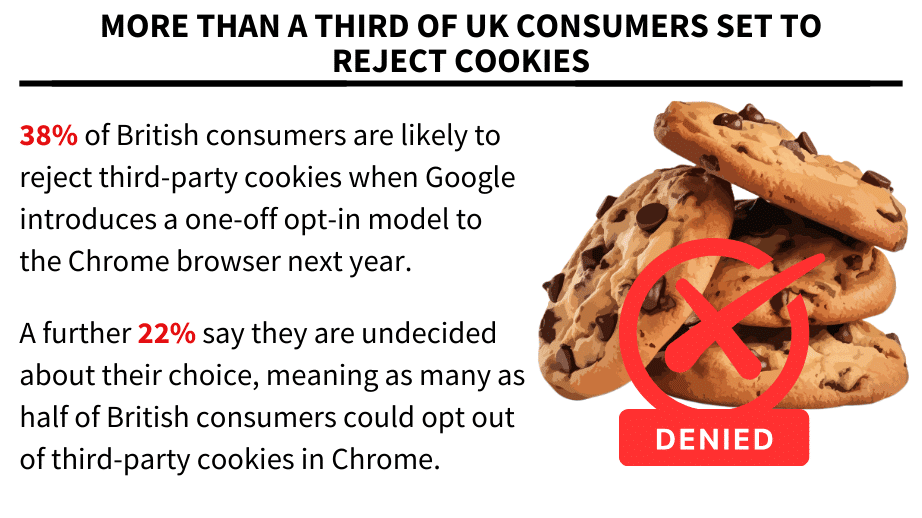
Note: Google is currently in the process of phasing out third-party cookies for Google Chrome. They are still currently present on other browsers, however, such as Microsoft Edge.
Use a consent management platform (CMP)
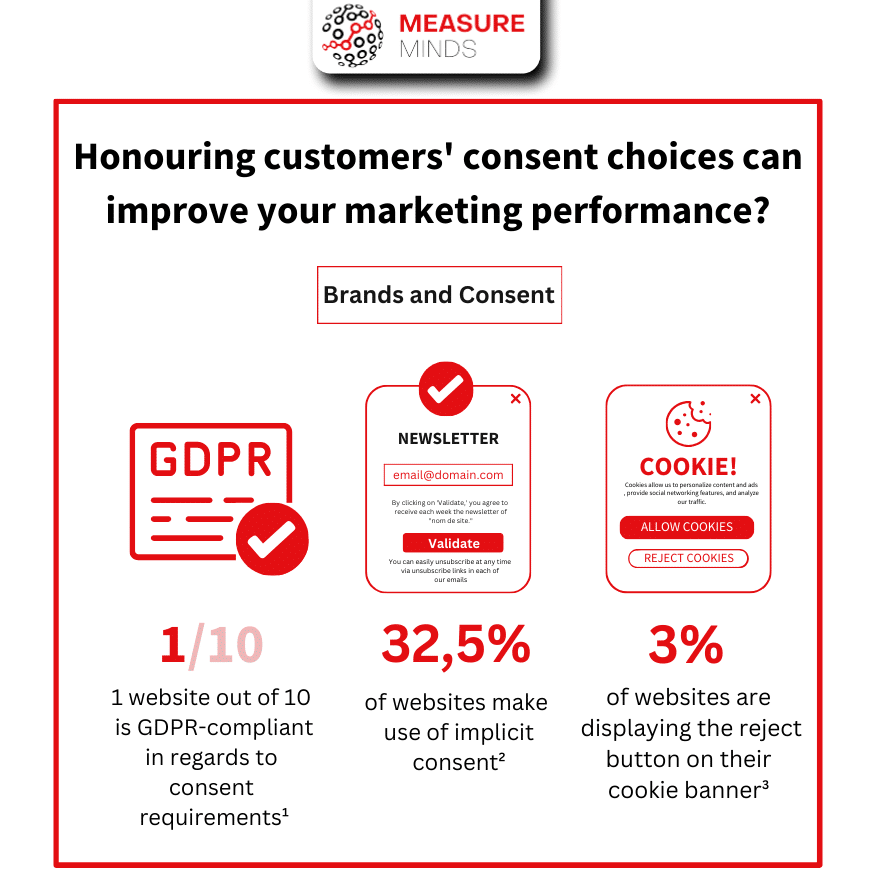
It’s important to remember that Microsoft Ads Consent Mode isn’t enough for compliance. You also require a cookie banner (consent banner) to register a user’s consent. This can be activated using a third-party application or creating a custom consent banner.
To ensure compliance, though, the simplest option is usually a consent management platform (CMP). A CMP ensures that when a user arrives on your site, they have a full list of its tracking capabilities. They can choose to accept or reject cookies individually or as a whole. The CMP then gathers consent signals and creates a log as proof of a user’s selection.
The process of implementing UET consent mode also becomes much easier with a CMP. The right solution will guide you through the process of creating consent preferences. It will also ensure that the tool can be integrated smoothly with your consent banner.
However, the process of choosing a CMP should involve some research. Bear the following points in mind to find a solution that meets your needs:
- Reviews and testimonials – Opt for a solution that has an active user base and a proven track record of delivering compliance. Positive reviews and testimonials are always a good sign.
- User experience – A consent banner that is slow or crashes frequently can prevent a user from making an informed consent decision. Make sure you opt for a solution that prioritises user experience.
- Frequent updates – The compliance landscape is constantly changing. Make sure you choose a compliant CMP that is regularly updated in line with legislation.
- Legislative – Some CMPs provide configuration options tailored to existing legislation, whereas others can just be made to sort of work. Ideally, there are simple presets and geo-location-based banner assignment.
Other important considerations
Implementing Microsoft Ads Consent Mode isn’t the only factor in ensuring compliance. Make sure to consider the following factors during your implementation.
- The size, shape, and colour of consent buttons – Remember, for consent to be classed as valid, it must be freely given. You can’t have a reject button that is smaller than the accept button, nor should the accept button be more colourful. To ensure compliance, make sure that your consent buttons match and are easily accessible.
- Your consent setup should be regularly audited – Consent is an ongoing process. You need to make sure that your consent mode setup remains compliant as time moves on. Look for a Consent Mode Monitor tool that flags areas of potential non-compliance on your website.
- Train your team – Software is useful, but your team also needs to be aware when certain actions might risk non-compliance. Be sure to provide appropriate training so that employees are fully aware of the risks. Keep your teams updated as legislation changes and new requirements emerge.
- Update your customers – As we’ve established, the subject of data privacy is high on the public consciousness. Why not turn this issue into one of your strengths? Demonstrate the steps you take to respect your customers’ data privacy.
The Challenges of Consent Mode
While implementing Microsoft Ads Consent Mode is important, it does introduce its own unique challenges. To avoid consent mode mistakes, make sure not to overlook any of the areas listed below when using the tool.
Shadow tracking
There have been reports of Consent mode placing tracking tags on devices of users who don’t consent. Whilst this won’t result in the collection of any personally identifiable information, it’s still information that is being collected without consent. This means you could be at risk of non-compliance under legislation such as GDPR.
Managing consent records
Consent Mode creates records of all the users that have granted consent. This is useful documentation for demonstrating your compliance. Storing this data, however, will require extra precautions. Sensitive data must be stored safely and securely to avoid any data breaches. You’ll also need to carefully control access to avoid data protection issues.
Ensuring transparency
A key part of data laws such as GDPR is explaining what data is being collected, how it is being stored, and the duration of storage. Unfortunately, due to Microsoft’s lack of clarity, many businesses are unsure how the company manages data collected from UET tags. This makes it difficult to provide the information users require to make an informed consent decision.
Utilising additional consent APIs
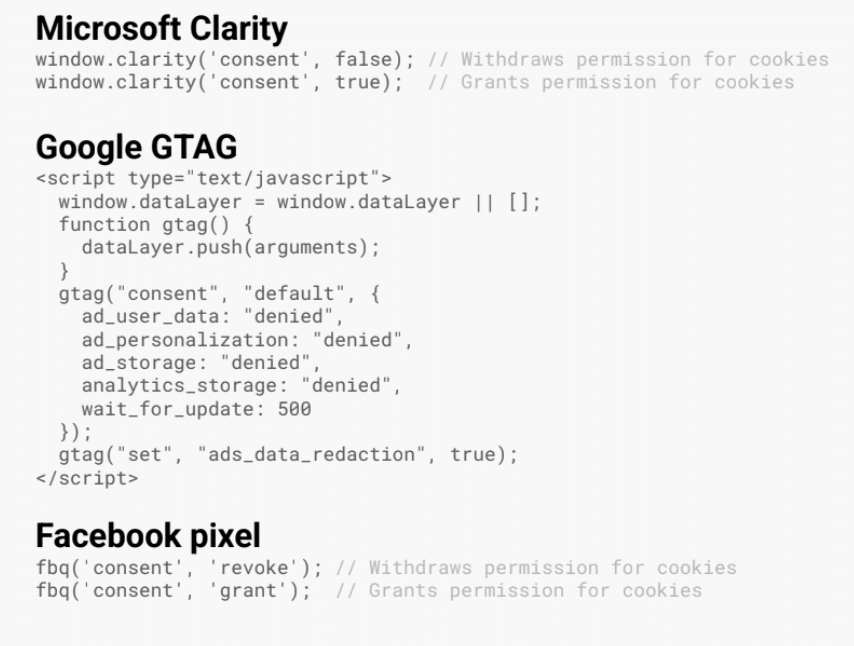
More and more consent APIs are cropping up. Microsoft Clarity, Google GTAG, and Facebook Pixel are some of the biggest examples.
As you’ll notice in the image below, the syntax between each is very similar. Hopefully, there will be a unified consent signal in the future that would allow users to encode consent settings for different services. Providers would then know which capabilities they are authorised to use.
Don’t delay your implementation
The topic of data privacy is here to stay. As time goes on it will only become a bigger priority for customers. What’s more, we’re likely to see many more data laws arriving on the scene. Implementing consent mode now can help you to avoid fines and maintain customer trust.
Here, we’ve explored some of the ways Microsoft Ads Consent Mode can improve compliance. Most significantly, it enables you to continue reaping the rewards of universal event tracking. So, why not begin your implementation now? The sooner you begin, the quicker you can wave goodbye to compliance-related concerns.
About the speaker
Richard van der Velde is the Technical Communications Specialist at Usercentrics. He has more than 20 years of experience in Application Development and an additional 5 years of experience in Technical Support.
Richard’s core competency is finding solutions to complicated issues and relaying them in an understandable manner to partners or customers directly, or by writing guides and/or technical documentation.

Hello,
Why do we need the specific event trigger? The UET Tag should be shown at every page and it seems should fetch any consent updates automatically I guess. Thanks
It’s a common misunderstanding that once the UET tag is on every page, it will automatically pick up consent changes. By default, UET fires only on page-load and never listens for your CMP’s later state updates, so if the visitor grants consent after the page has already loaded, Microsoft never sees that change. That’s exactly why we used Cookiebot’s cookie_consent_update event as our trigger. Cookiebot pushes that event the moment someone interacts with the banner, so by tying our UET update tag (or a refire of the UET tag) to cookie_consent_update, we guarantee you get: 1. A page-load hit with… Read more »