Using GTM Container Templates to Speed up Implementations

GTM containers are essential, but the process of manually creating tags, triggers, and variables can be time-consuming. Luckily, GTM container templates are a handy solution, helping you save time and money. But what are GTM container templates and, more importantly, how can they be used to your advantage? We’ll explore that and more, in this guide.
This is a webinar write-up of Manisha Mistry’s talk at GTM4ward V2. Find her slides here and a YouTube recording of her session below:
What are GTM container templates?
A container template is a JSON file that includes all the tags, triggers, and variables we need for a specific setup. We can easily import a template in just a few clicks, speeding up the GTM implementation. Tags or triggers can then be tweaked after import to fit our specific needs.
To put this into context, let’s look at a real-world example. A GTM container is a lot like a pre-packaged meal kit. This comes with everything we need, including all the ingredients, herbs, and spices Alongside these, we receive detailed instructions outlining the steps to create a meal. Of course, we can tweak the recipe by adding additional spices or seasonings.
At the end of the process we’ve cooked and prepared a meal, but everything we needed arrived at our door. This is a lot like a GTM container.
Why use container templates?
There are several benefits of using container templates, including
- Reducing repetitive tasks, such as setting up scroll or click tracking in GTM.
- Avoiding human error mistakes like naming an event wrong.
- Having a consistent implementation across multiple accounts.
- Speeding up the process of implementing Google Tag Manager by having the templates ready to go.
Let’s return to the idea that container templates are similar to pre-packaged meal kits. Often, when planning a meal, we’ll head online to look for recipes. Once we’ve found a recipe we’d like, we get on a bus or drive to go shopping. We’ll potentially need to visit multiple stores to find everything we need.
A pre-packaged meal kit makes this much simpler. We get everything we need, so we can get straight to cooking, and receive our meal much more quickly. We save time and money and still get an enjoyable result. Again, these benefits are shared by the GTM container.
Importing a GTM container template
Let’s explore how we can use a GTM container to implement e-commerce tracking for WooCommerce.
To begin, we’ll preview a container set up on our demo site. The site is currently missing e-commerce reporting. From our demo site, we’ll add a product to the cart.
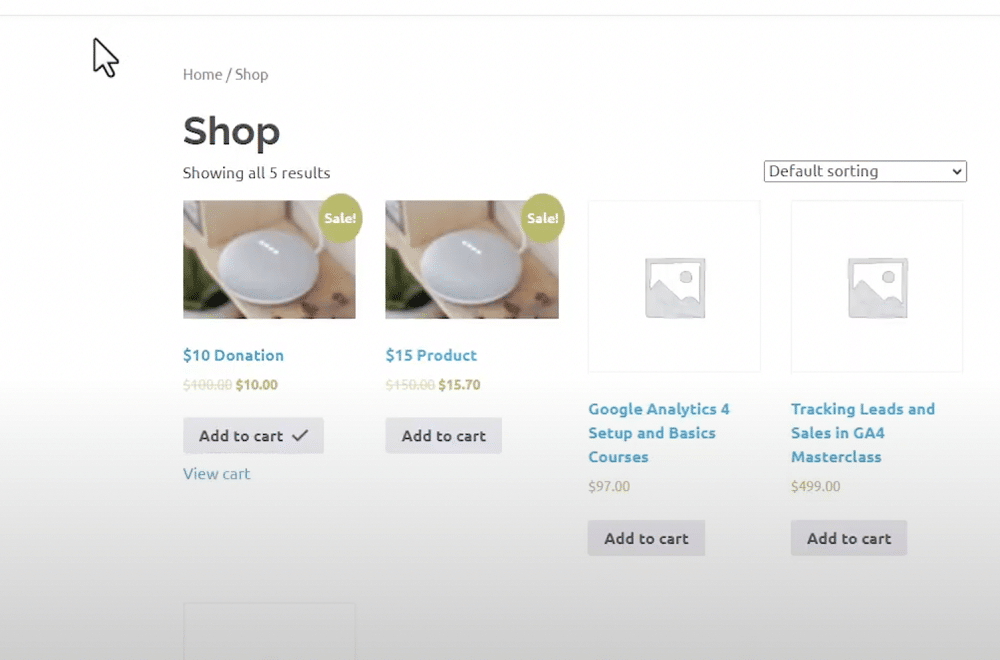
This interaction now appears within preview mode but no tags have been fired. To receive this information, we need to set up e-commerce tracking.
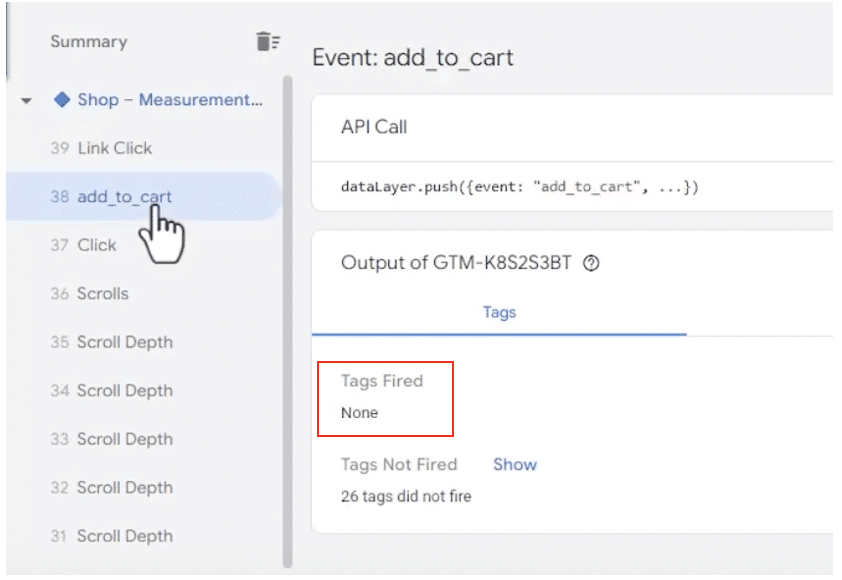
To do so, we could set up all the tags and triggers manually. This process, however, can take some time. Instead, we can try a faster method – head to gtm4wp.com.
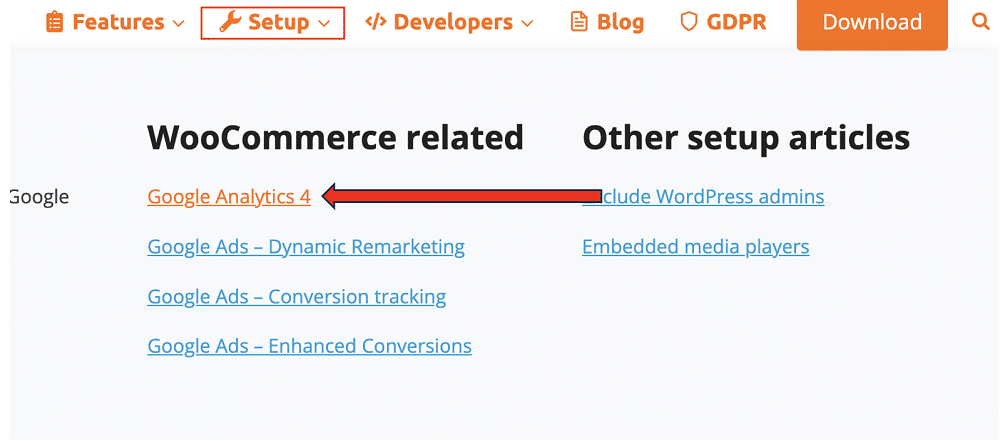
From here, let’s choose ‘Setup’ and ‘Google Analytics 4’. From here, we can download the GTM container template.

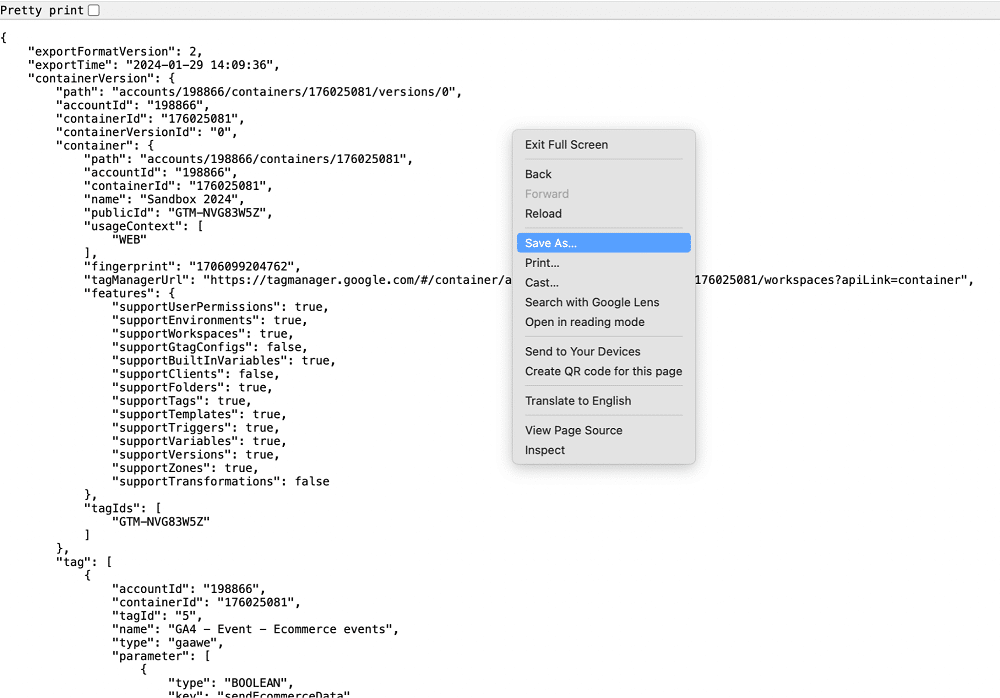
You’ll now see a long list of code – don’t panic. Simply right-click and choose ‘Save as’. Save the code to your downloads folder, you may also choose to rename the file.
To make use of this code, we need to go to ‘Admin’ from within GTM, and choose ‘Import Container’.
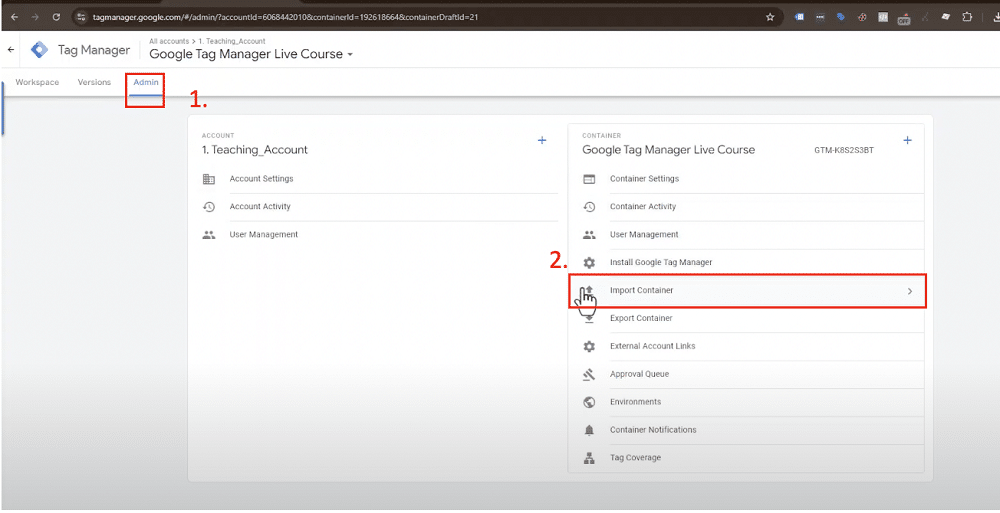
From here, we can choose the container template, and select the file we downloaded earlier.
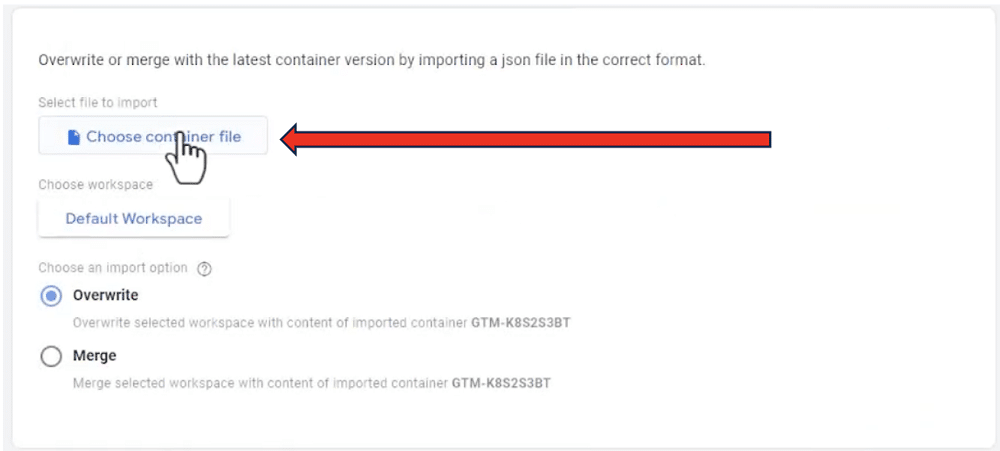
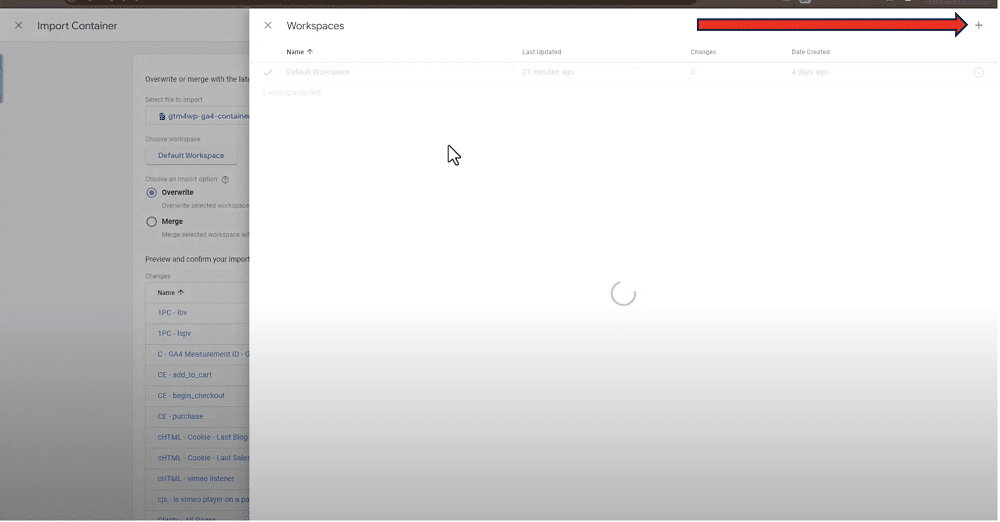
We can see the file is currently being imported to the default workspace.
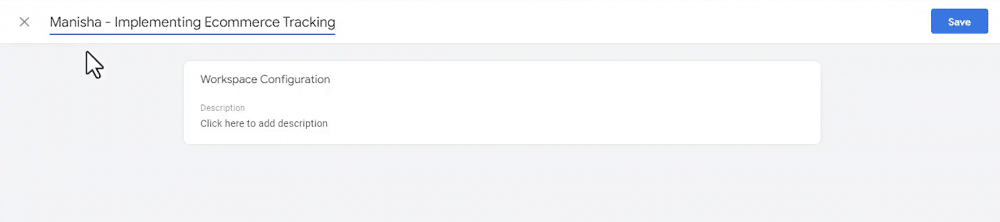
Let’s select ‘Default workspace’, choose the plus icon, and rename our workspace.
If you work in a team with multiple people, it’s important to establish a clear naming system to avoid confusion. One option is to use your name alongside additional context to describe the workspaces that you work on.
We’re choosing to overwrite the workspace with content from our container. From the list below, we can see that this will delete every tag, trigger, and variable within our workspace.

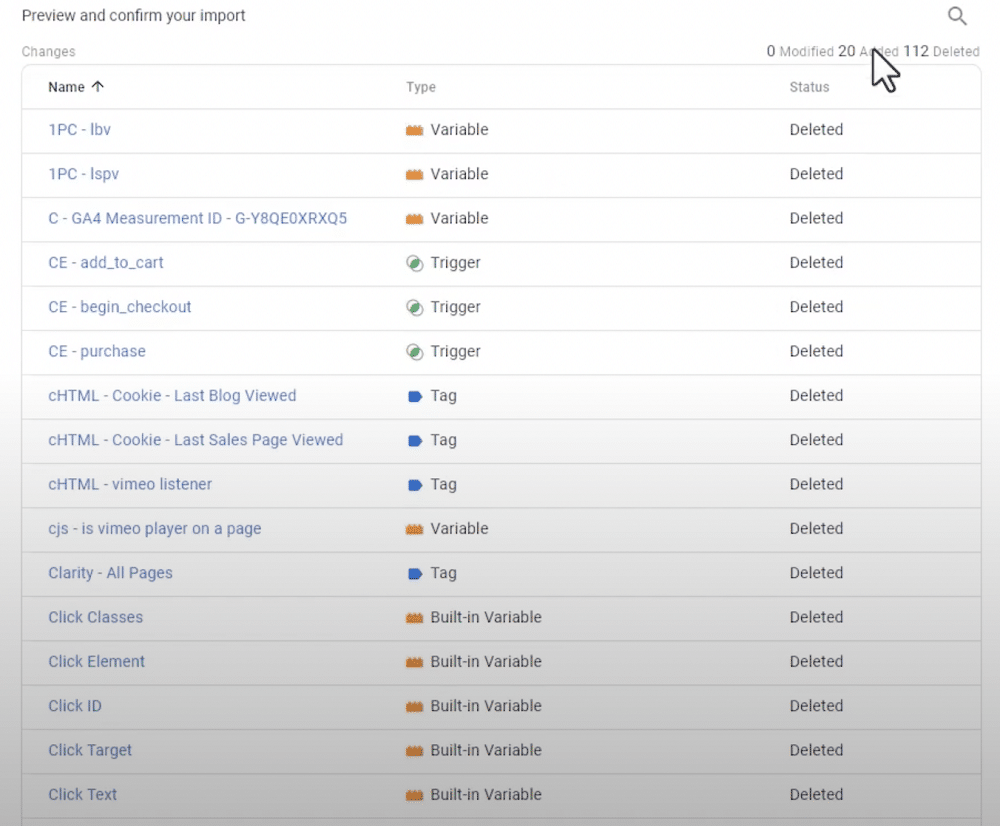
To avoid this problem, we should instead choose the ‘Merge’ option. This will combine the content from our imported container with the content of our existing container.
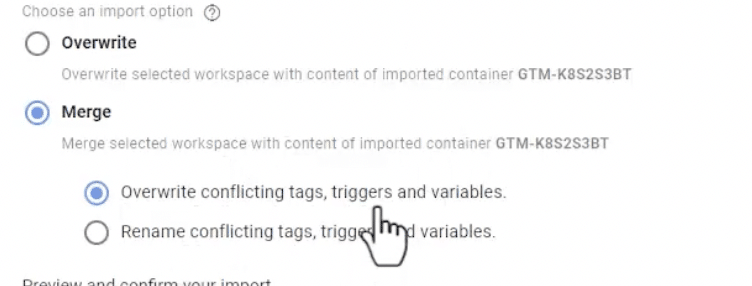
From here, we’ll receive two options. We can ‘Overwrite conflicting tags, triggers, and variables’ or ‘rename conflicting tags, triggers, and variables’. It’s always recommended to rename tags.
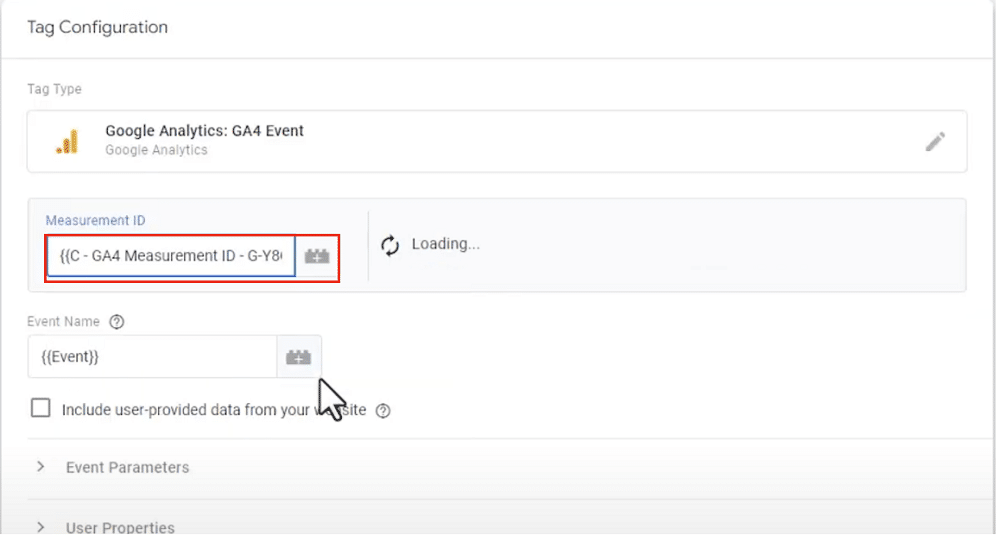
And just like that, we have implemented e-commerce tracking. Now, the only step is to connect Google Tag Manager and Analytics. We can do so by adding the GA4 measurement ID to the created e-commerce event tag. This can be found by going to GA4 Admin>Data Streams and selecting the relevant GA4 property.
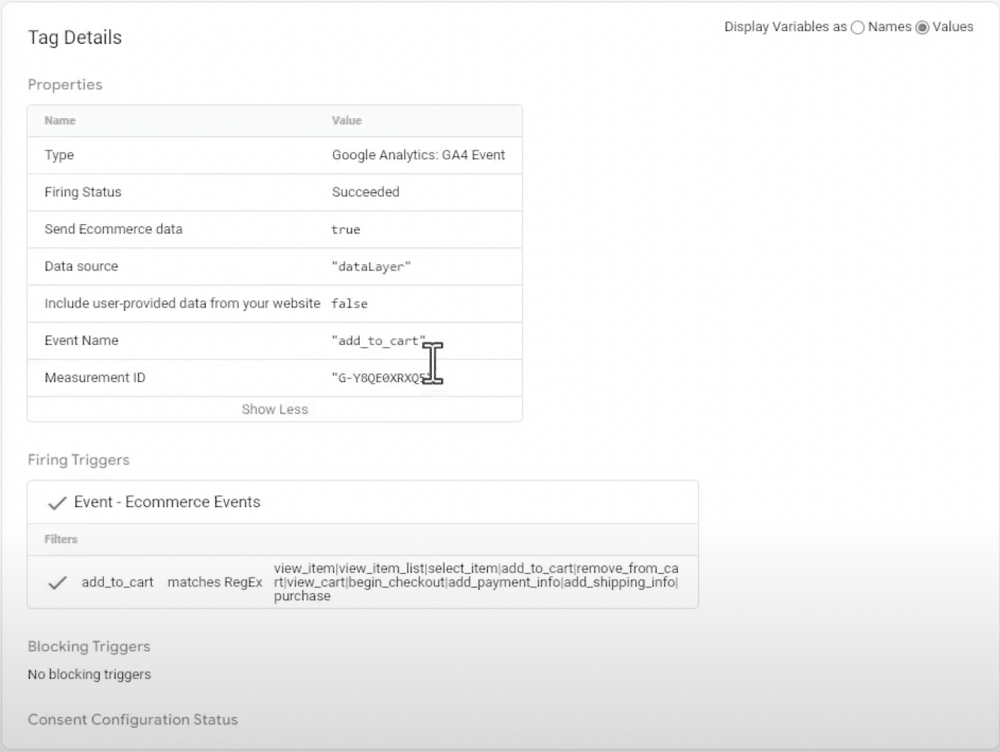
Now, if we head back to a preview of our demo site, and add a product to the cart, we can see the event firing being sent to GA4.
Creating your own container templates
You now know how to import a pre-created template, but what if you wish to create your own? Here’s how you can build templates to enable faster implementations.
Creating templates for setting up GTM
The screenshot below shows the main Tag Manager screen. From here, we can see a list of all MeasureUs’ GTM accounts. From the Tomitrader account, we can see a list of prebuilt templates used by our team whenever we obtain a new client. These can be downloaded easily and used within client setups.
Let’s start by looking at the ‘Basic GA4 + YouTube’ template for GTM video tracking.
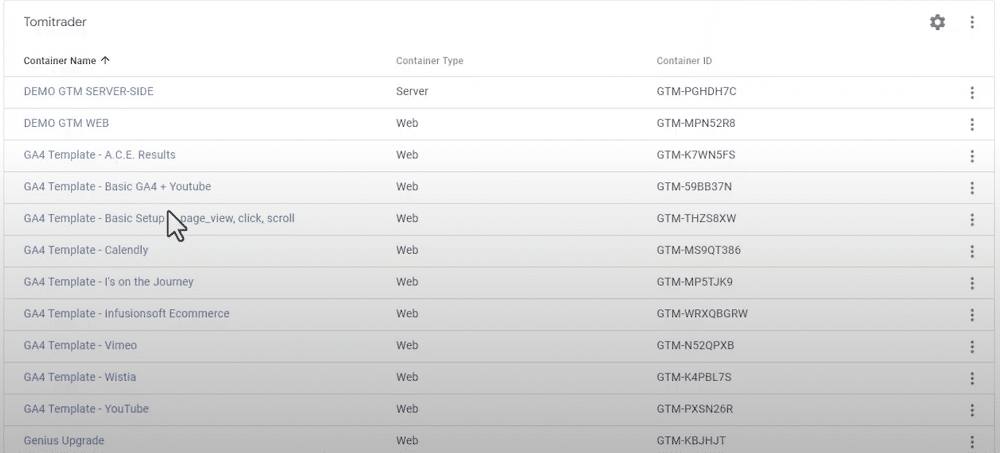
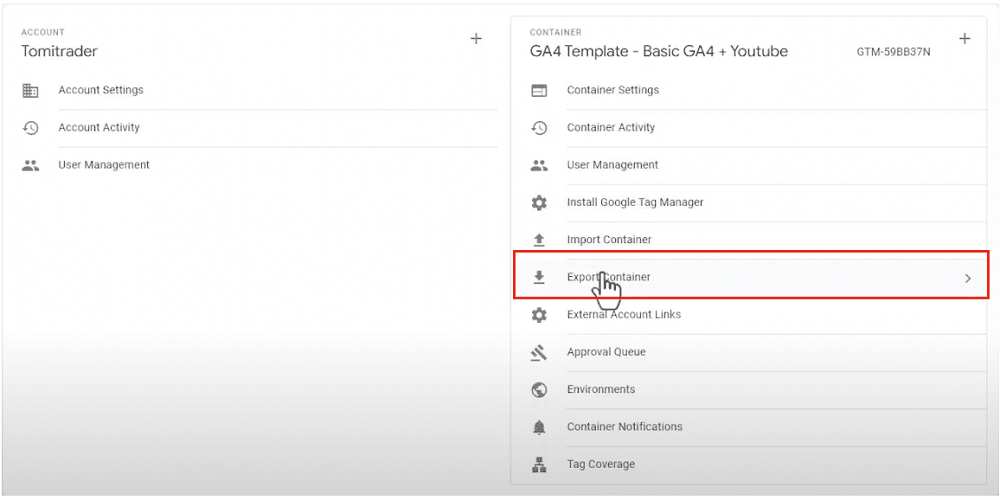
The container holds a list of tags, triggers, and variables, but how can this be transformed into a container template? Firstly, we should go to ‘Admin’ and choose ‘Export container’.
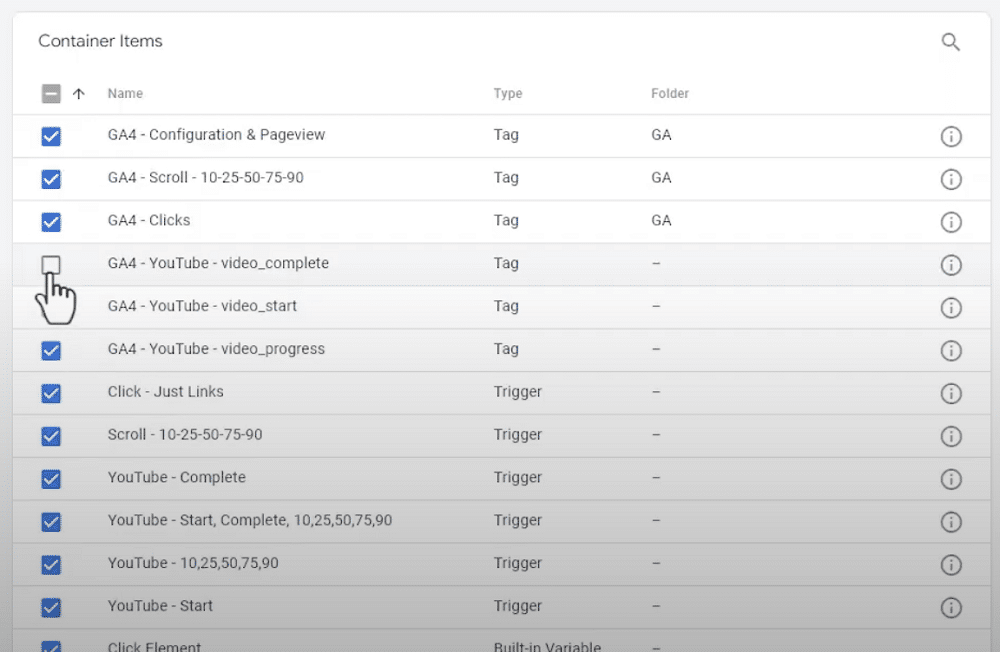
From here, we choose a workspace and select the tags, triggers, and variables we’d like to include in our container. When we’re ready, we’ll choose ‘Export’.
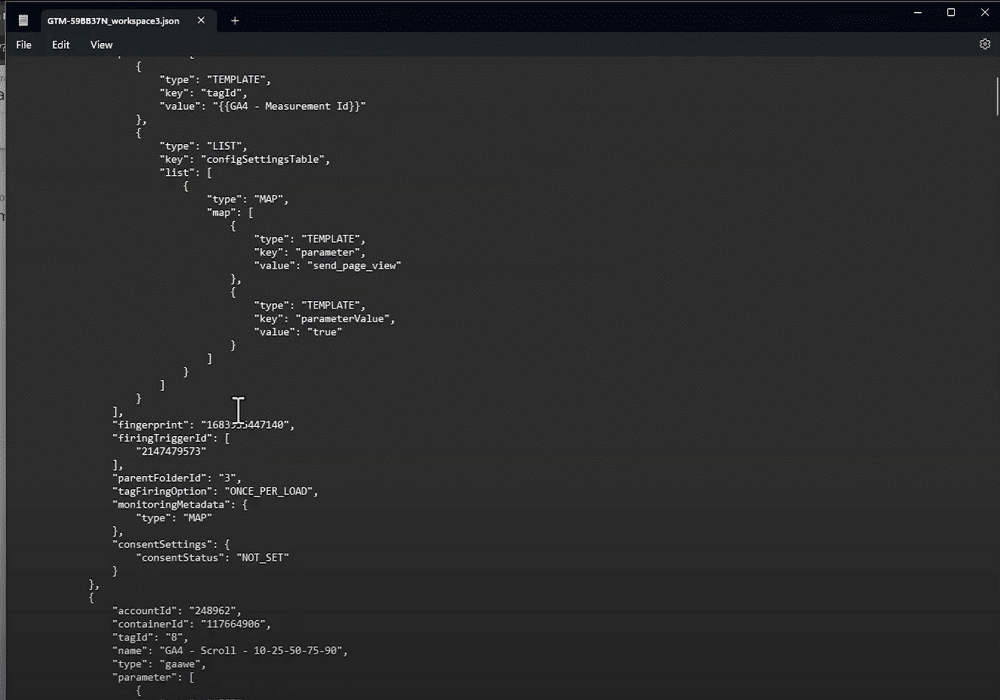
Our new container can now be downloaded as a JSON file, similar to the template we imported earlier.
We can follow this process to create as many container templates as we need.
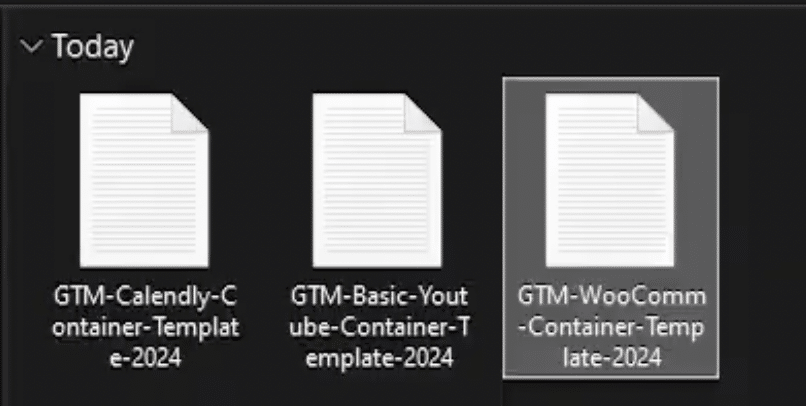
Once downloaded, it’s important to assign relevent names for our templates so they can be identified easily.
Setting up a brand-new GTM with container templates
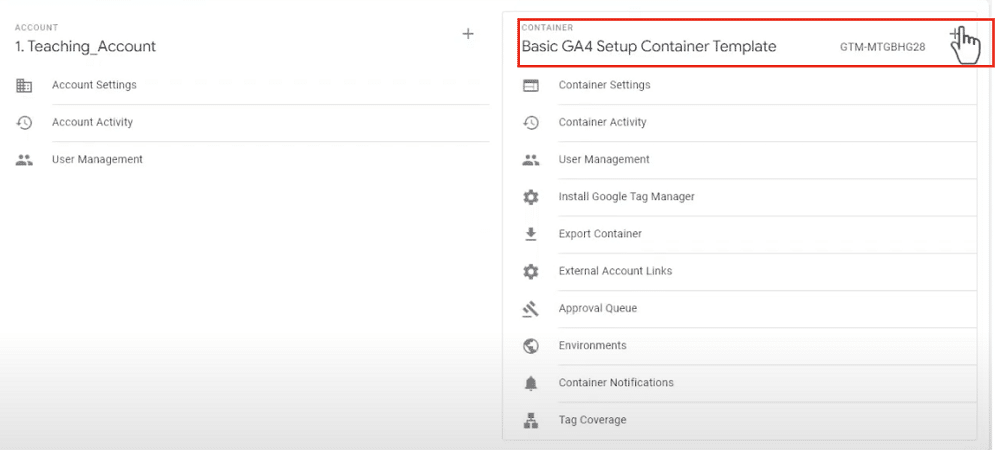
To create a container, we first need to choose the plus icon from the container admin screen.
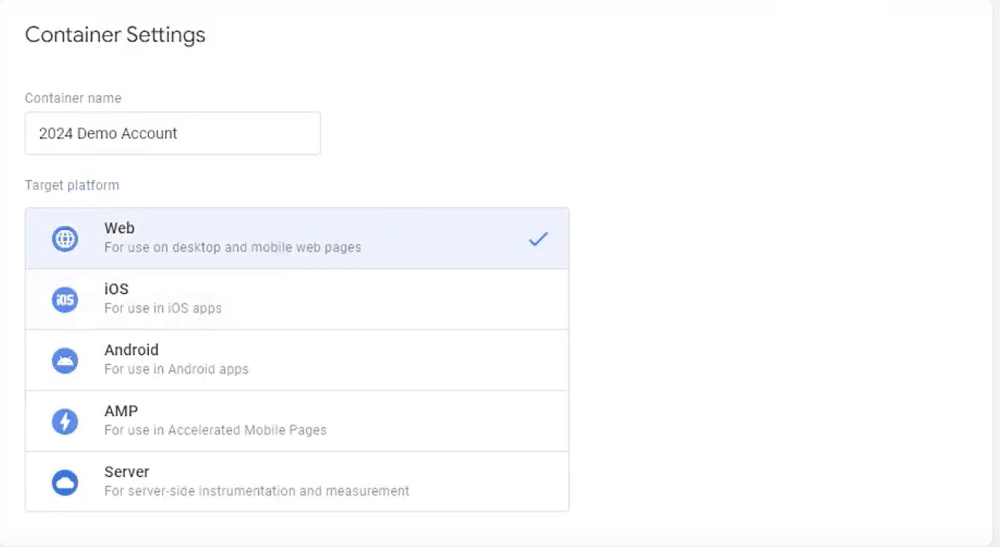
Next, we should name our container and choose a target platform.
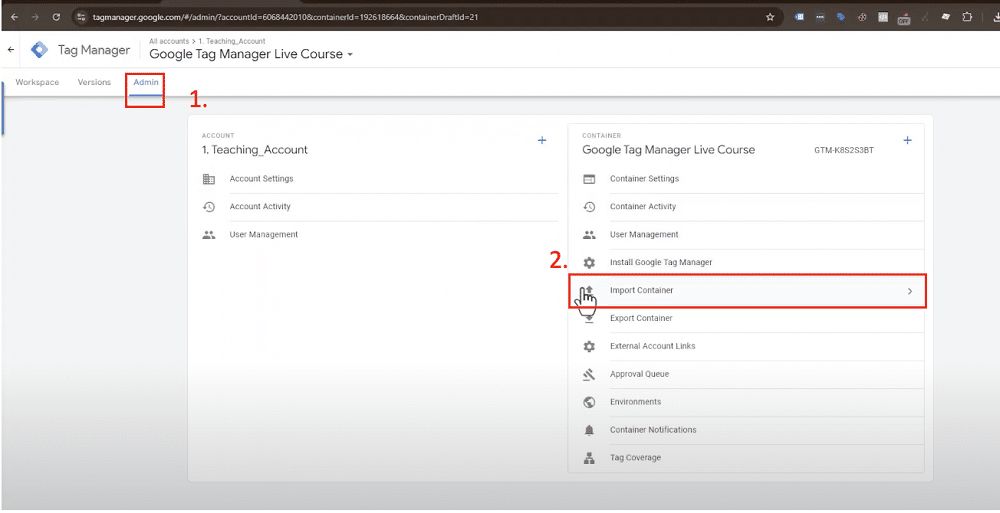
Currently, our new container houses zero tags, triggers, or variables. Populating this container manually would take a lot of time. Luckily, we can speed this process up by heading to ‘Admin’ and ‘Import Container’.
We’ll select ‘Choose container file’ head to our downloads, and choose one of the containers we downloaded earlier. For this example, we’ll choose the Basic YouTube container.
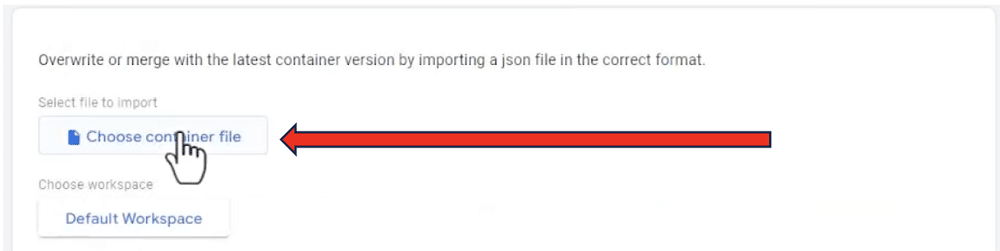
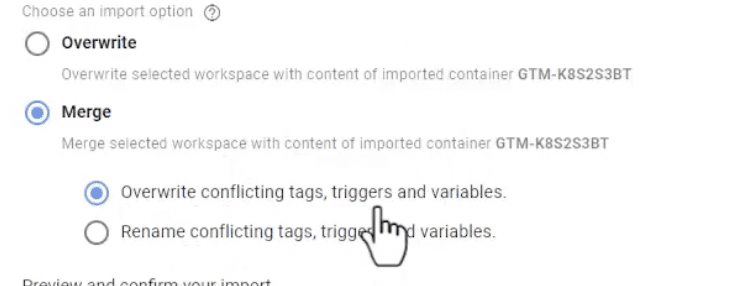
As before, we’ll need to pick a workspace and choose ‘Merge’ to keep any existing tags. We’ll also choose to ‘rename conflicting tags’ to avoid deleting anything important.
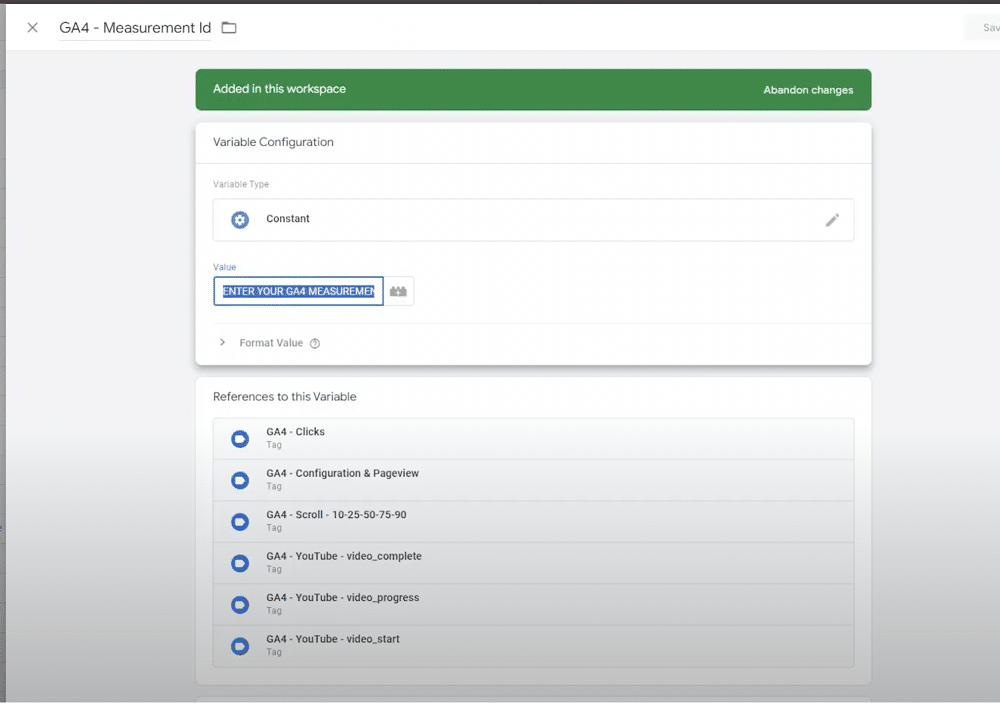
Lastly, we should add a GA4 measurement ID to send data to GA4.
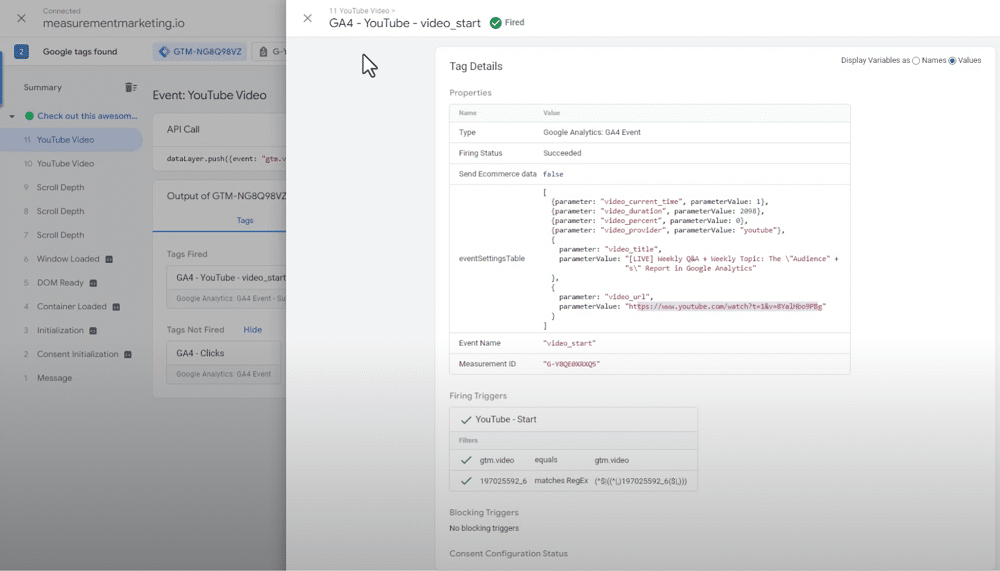
Now, if we head into preview mode, we’ll see that YouTube video tracking has been set up successfully.
We can now repeat this process and add any other additional containers we wish to track.
Try the free GTM cookbook!
Earlier, we reflected on how GTM containers are similar to pre-packaged meal kits. We explored how, like meal kits, they save us a lot of time and money. We’ve shown how you can implement GTM container templates from GTM for WordPress, as well as how to create your own templates. Lastly, we set up a GTM container from scratch.
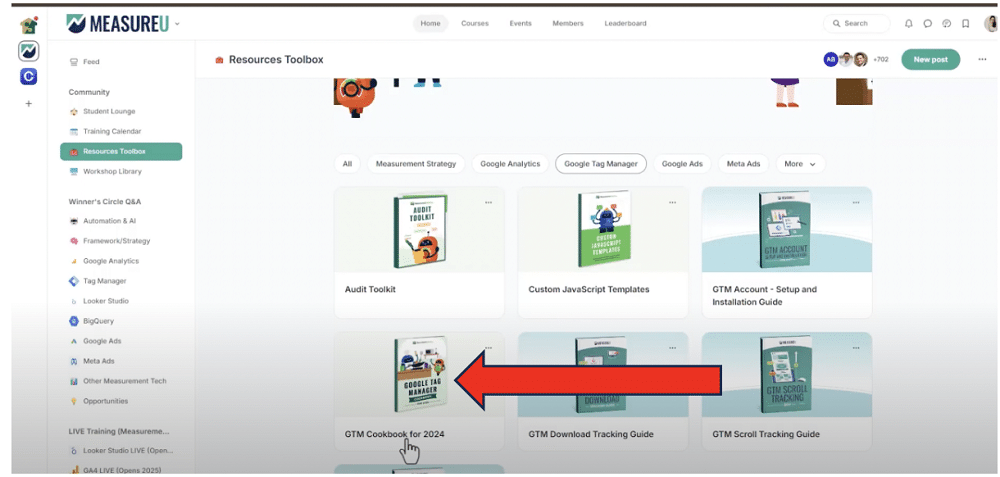
Want more tips like this? Try the free GTM cookbook. By signing up to the MeasureU community, you can gain access to a variety of handy resources, including the student lounge, training calendar, resource toolbox, and workshop library.
You’ll find the cookbook under the resource toolbox, alongside many other useful guides.
So, why not give it a try? Sign up for free now.
About Manisha Mistry
Manisha is MeasureU’s Technical Marketer and Instructor, passionate about tackling technical challenges and complex data issues. She helps both members and non-members solve measurement problems using tools like GA, GTMSS, BigQuery, Analytics Canvas, and Automation. She has worked at Shopify and other top companies with extensive experience in project management, security and compliance, process development, e-commerce, and data analytics.